I’m having a big problem with my new Behringer UFO202 audio interface on Windows 11. I’d like to continue digitising my LPs, which I was able to do just fine with my old laptop running Windows 10 and the Creative Soundblaster THX True Studio Pro.
My new laptop now has Windows 11 and the old Creative Soundblaster is definitely no longer recognised. I bought the above-mentioned audio interface, which according to Amazon should also work with Windows 11. I can play back audio signals with it, but it is not recognised as a recording device in Audacity. In Device Manager, I noticed that under Audio Inputs and Outputs, the entries Speaker (USB Audio CODEC) and Microphone (USB Audio CODEC) have the following entry in their properties under Events: (Device settings were not migrated). This is despite the fact that this entry does not appear under Audio, Video, Game Controllers for USB Audio CODEC.
Can anyone help me here? I don’t know what else I can do.
Most often, step 13 is the problem for new users of Windows 11. But you should also consider all others. “Sound enhancements” (step 3) is also a great nuisance.
Thanks for the link to the video. When I have time, I’ll try out the tips mentioned there. Probably tomorrow. I’ll definitely let you know how it goes.
Thank you for the link. I will follow the steps and am curious to see if it works. I should have time for it tomorrow. I will definitely let you know how it goes.
Trebor, I did everything described in the video. It still doesn’t work. Audacity recognises everything, but I still can’t record anything. I can only play existing music from my laptop.
In Device Manager, right-click Microphone (USB Audio CODEC) which should be the Behringer assuming you don’t have a USB mic, and then click uninstall. Un-plug the Behringer and plug-it back in again. The driver should re-install and MAYBE it will start working.
FYI - Those little Behringer interfaces are Class Compliant so they should be plug-and-play with the Microsoft-supplied drivers.
I tried all the tips and steps. But nothing helped. Audacity does not record a single sound, and Device Manager still shows the interface as not migrated. I cannot install any other driver either. It always tells me that the best driver is already installed. The driver offered by the device manufacturer cannot be installed either. The driver details show me that no driver is required.
What do you mean when you say migrated? Migrated from what exactly?
How sure are you that the UFO 202 isn’t broken? Maybe try it on another machine and see what happens.
Mark B
I mean, in Device Manager, the Events tab is displayed under Properties. When I select it, the following message appears: 28/11/2025 14:05:20 Device settings were not migrated. That’s all I can say about it. Apparently, Windows 11 recognises the UFO202, but it is not integrated into the operating system.
I’m not 100% sure that the UFO202 is working properly. Although I bought it new and it arrived in undamaged packaging.
Unfortunately, I can’t try it out on another computer because I only have my laptop.
I know this video. Unfortunately, Garry uses Windows 10 in the video and not Windows 11.
I can only ask my eldest son if he has a Windows 11 laptop. All my other friends and acquaintances still use computers with Windows 10 or only tablets.
That’s a pity about the video. You are obviously doing your research to sort it out.
I suspect I’m not alone in thinking it’s Windows rather than Audacity that is the issue. Just in case I am wrong, you could try using another free program called Ocenaudio to see if that works.
Where are you based btw? Just curious.
I suspect it’s just your copy of Windows 11 but I have no idea what’s wrong with it.
The driver offered by the device manufacturer cannot be installed either.
I assume that’s ASIO4ALL. That won’t work because Audacity doesn’t support ASIO.
The driver details show me that no driver is required.
Like I said it’s supposed to work with the standard Microsoft-supplied drivers.
If you have a computer microphone you could try a cheapo USB soundcard. (1) Since it should use the same driver it probably won’t work either but it would be another indication that the problem is with the computer.
Or if it works it might be worth “upgrading” to something else that might also work. (I have an ART USB Phono Plus which has switchable phono-line inputs like the Behringer but it has a recording volume knob… and it’s about $100 USD.)
(1) Those little soundcards are like laptops with only mic-in and headphone-out so it’s not a solution, only a test.
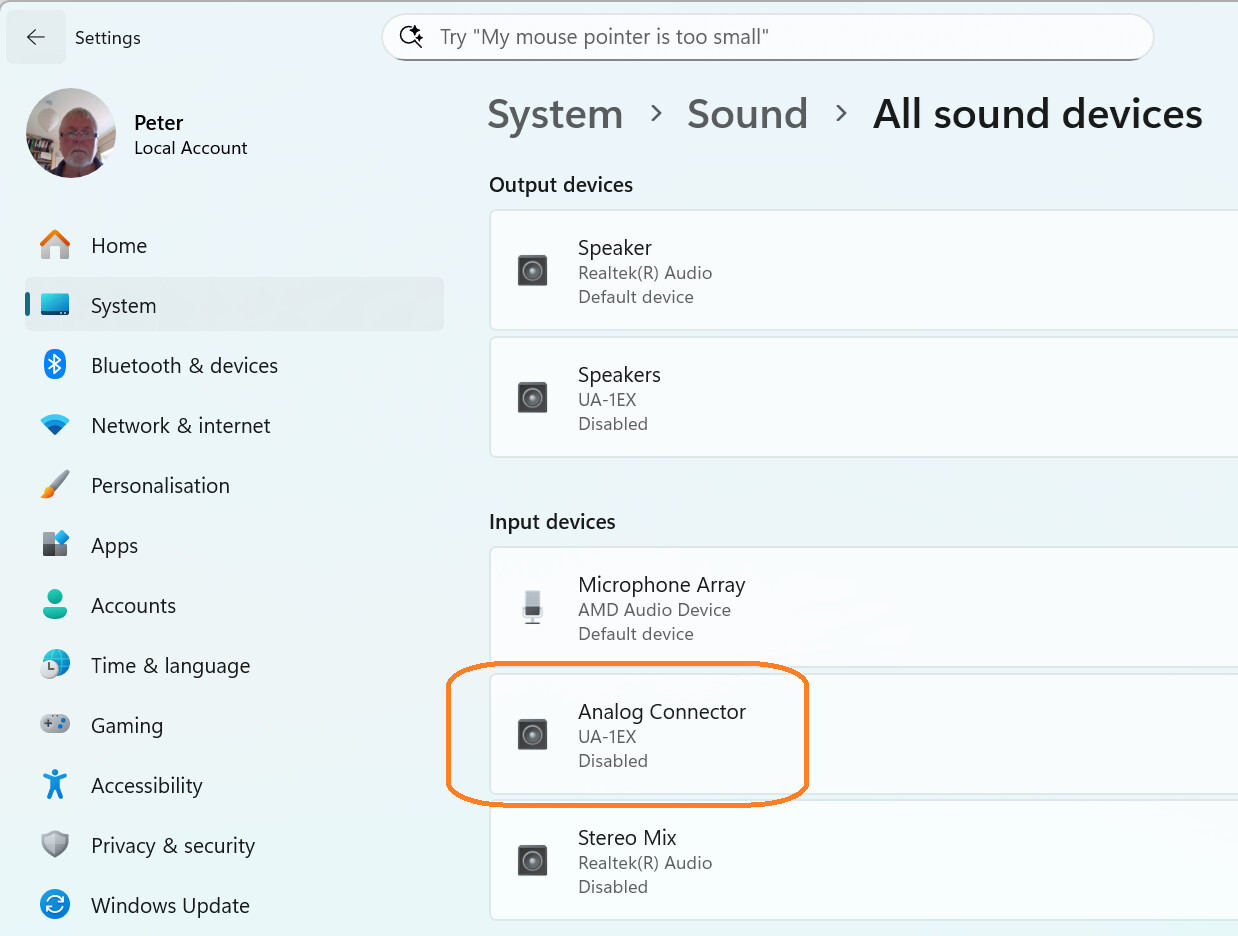
My USB soundcard, different to yours, an Edirol UA-1EX works fine for both playback and recording.
BUT, I have to remember that after I have plugged it in to go to the Windows sound settings to enable it, as for some reason Windows has it disabled by default (I’m thinking this may well be your problem)
BUT, I have to remember that after I have plugged it in to go to the Windows sound settings to enable it, as for some reason Windows has it disabled by default (I’m thinking this may well be your problem)
I have it checked, but unfortunately that is not the problem for me.
I see you also have Windows 11 as your operating system. Is that correct? If so, I will probably get the same sound card you are using. It seems to work.