Unable to paste/generate into clips/gaps that are sandwiched between other clips

I began using 3.7.7 a couple days ago and I am constantly encountering paste or generate jobs that I am unable to perform because I am told “There is not enough room available to paste the selection”.

My project and source rates are the same. Snap is enabled and set to “samples”. The selection tool is set to “samples”. “Always paste audio as new clips” is enabled. “Selected audio only” is enabled. I have also tried every other combination of mentioned settings. Yet, something keeps getting in my way and preventing me from performing simple pastes.

Either Clip Smart Data is getting in the way still, or there are “Ghost Slivers” of sample remnants that are not visible even when zoomed all the way in. Selecting the gap and deleting, or deleting the clip before pasting into it’s space does not work. The only workaround is to reduce the duration of the clip I wish to paste in order for it to fit into the target area,…. or I must select the entire project and all of the tracks, and copy it all, and paste it all back,…. or I must mix and render,…. just to make a single copy and paste. Many of the clips that I copy, and the target region that I wish to paste into, were created at the same exact time, so they are certainly the exact same duration.

This is ridiculous. I have tried every combination of settings. Also, I am constantly seeing slivers of clips at the end of clips that seem to be a pixel math rounding issues, or they actually do indicate a problem with my clips. How would I know? Also, my split lines are either dark or light,… I assume the light indicate an overlapping issue. There seems to be no pattern or cause for a split line to be dark or light. What on Earth is going on?

This is insane. Why am I unable to move a clip when I am doomed way in? Such precision is literally required, yet, it is prevented. It is as if Audacity is being intentionally destroyed by coders. Thank you for your time.

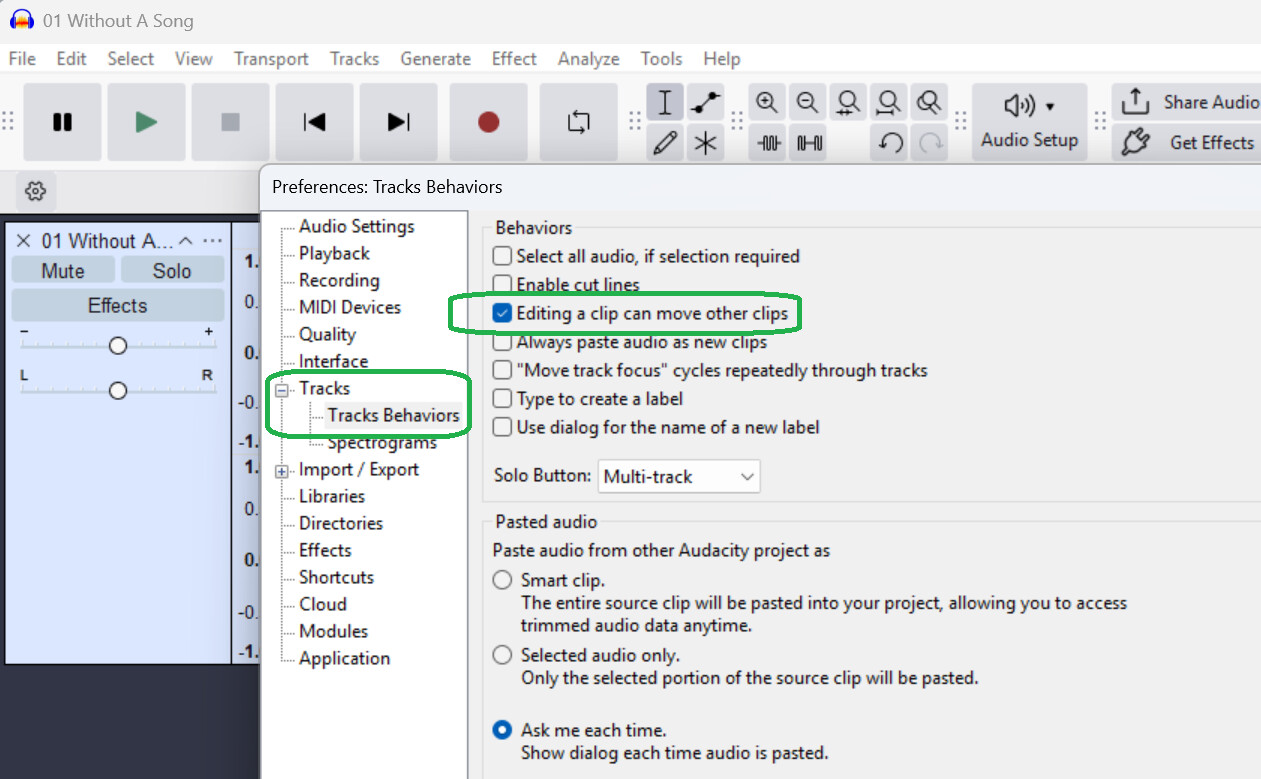
Go to Edit > Preferences > Tracks > Tracks Behaviors and turn “on” Editing a clip can move other clips

1 Like

Hi, if I understood correctly PRO810’s issue, the same bug also annoys me in Audacity 3.7.7, as I work with these “sandwich” copy/cut-pastes. Very often clips cut with CTRL+I at the exact correct size won’t fit and give a “not enough room” error.

I didn’t understand how it happened or not: sometimes I can grab and move a clip in the gap or not, sometimes I can copy and paste the clip in the gap or not.

Turning on “Editing a clip can move others” indeed moves the succeeding clips, which is an issue.

Sorry if I misunderstood and that’s a different problem for a new post.

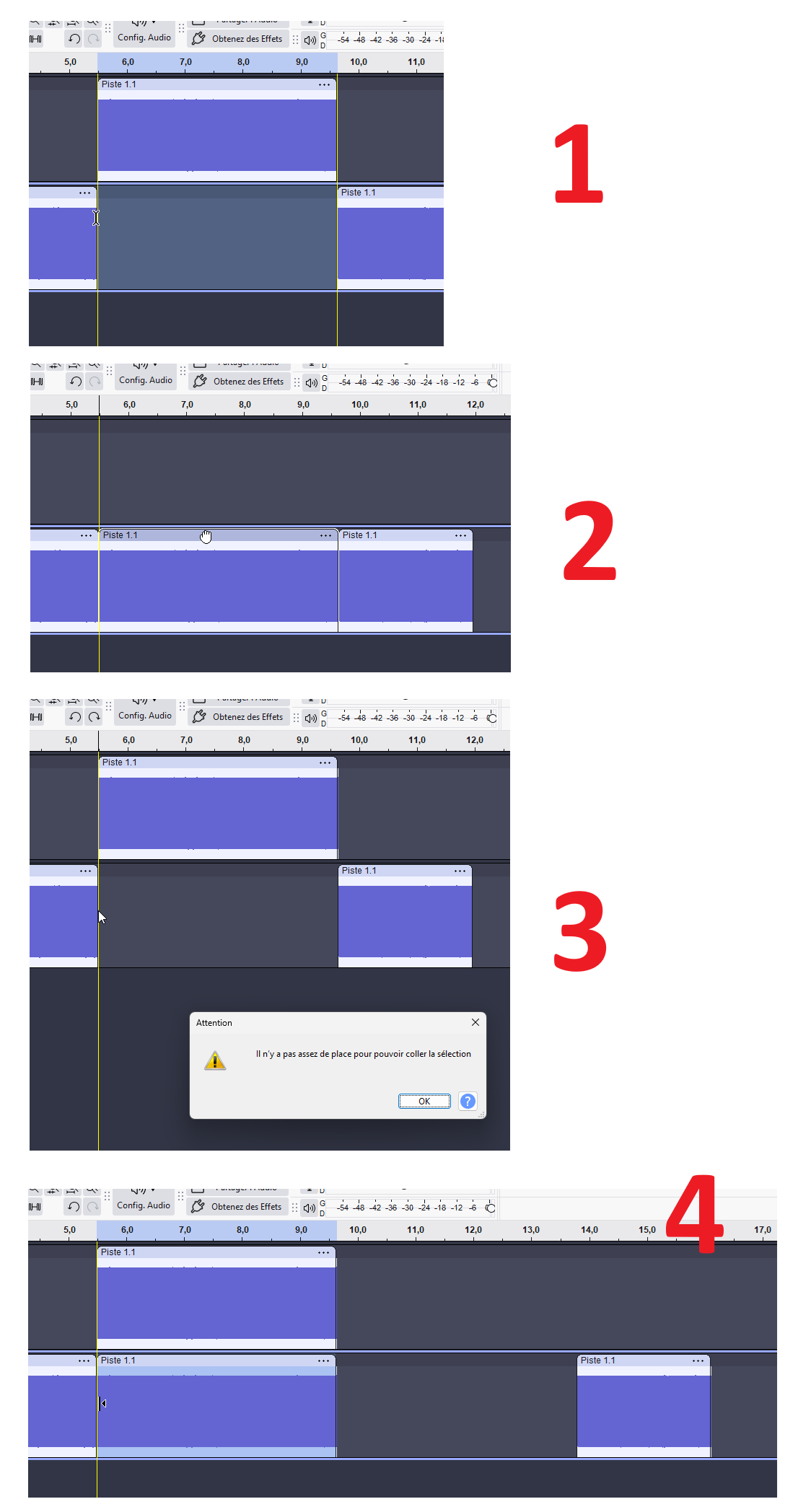
I screenshot here the case when grabbing works and not copying, but sometimes none works…

1 - my clip on track 1 fits the gap in track 2

2 - I can grab and move it in the gap

3 - If I try to copy-paste → “not enough room” (the same for cut-paste)

4 - if I turn on “editing a clip can move others” copy-paste moves the succeeding clip (but grab and move won’t)

I have the aup3 project for this that reproduces the bug 100%.

Thank you aymz! It feels great having someone experience the same problem. Misery loves company. I encounter what is within your image, hundreds of times a day, it is brutally annoying. All too often, I am unable to copy a clip and paste said clip into a gap/clip that is between two other clips, even if the copy and the destination are the same duration, and were split at the same exact time. Instead of fitting like a glove, they do not fit period. I never had this exact issue with previous versions of Audacity because previous versions were moving everything to the right, a very tiny amount, that was so small, that there was no way to know until the tracks became unaligned! Previous versions were simply moving everything to the right to accommodate such a paste, yet Audacity would not notify the user that everything to the right moved by less than a sample, which is insane. That is the reason my tracks ended up unaligned on a regular basis with other versions. I was forced to place split lines every one, five, or ten minutes, as registry keys, on each track, depending on the size of a project, to keep everything aligned. My work would constantly be ruined by Audacity’s “move to accommodate” behavior, without the use of registry keys. The misalignments were so very subtle, way less than a single sample. NOTHING SHOULD MOVE, OR BE DENIED, WHEN A CLIP IS COPIED AND PASTED INTO A GAP/CLIP OF THE SAME SIZE! Apparently, the Audacity team finally took action to prevent everything after such a paste from being moved to the right, by locking the tracks, unless “editing a clip can move other clips” is selected. So, the coders gave tracks the ability to be solid and unwavering, instead of solving why everything to the right would be moved from a simple paste in the first place! Clearly there is a sample rounding issue, or “ghost slivers” are being left behind at the end of clips, preventing them clips from being pasted into gaps/clips properly. The root cause of this issue is that Audacity is more detailed than other audio editors. An Audacity user can select BETWEEN samples! And even with “Snap” on and set to “Samples”, many functions still begin or end BETWEEN samples, such as recording vocals, or recording from Youtube, or VLC. When such recordings are stopped, they do not end on the nearest sample, they more than likely land BETWEEN samples. This absurd and ridiculous BETWEEN behavior has been causing serious problems for years and I have a feeling that the coders have no idea what to do. Strangely, regarding such copy and paste denial situations, “generating silence” also does not work! If there is a sample rounding issue or a “ghost sliver”, then why would those two possible issues also prevent “generating silence” from happening? I suspect that the cause of these issues are thanks to multiple different rounding errors, which may be why nearly all clips show a “mirage sliver” of clip at the end of the clips at the right edge, depending on zoom factor, because the Audacity coders can’t even get the simple pixel math rounding perfected. So, there is a visual pixel rounding error that is annoying, and a sample rounding error that is destroying peoples work by moving everything at the right of a paste, to the right, or a users workflow is disrupted by preventing a paste period in the newer version. Instead of solving the problem, the coders made Audacity nearly impossible to use. Now, instead of simply copying and pasting like a normal person, I must copy, then grab the left edge of the clip that is at the right of the area I want to paste into, and drag it’s left edge to the right, just a little, then paste, then drag that same left edge back to where it was,… JUST TO PERFORM A SIMPLE COPY AND PASTE! Interesting that attempting to explain this issue is nearly impossible. My above text is full of the words “right” and “clip”, which are used in multiple different ways, which causes a reader confusion. Honestly, if I was a coder, and I was trying to destroy a program, this is what I would do to a program to destroy it. Another contributor to this problem is that Audacity, for some ridiculous reason, was designed to have gaps/empty spaces between each clip. And with that way of thinking, a finished project would look like a wall with random bricks missing. The ends of each clip would need to be repaired to prevent any pop/snap artifacts, and there would be no way to visually confirm that a clip was handled properly. The way I personally confirm that all of my audio has been handled properly is by not having clips. My final project is one solid clip on each track, so it looks nice and clean and solid. Solid means handled/done. Swiss cheese means there is work to do. The coders are designing Audacity based on the swiss cheese model. Thank you for your time!
Thank you for your response. There appears to be two options. Option A, lock the tracks so they can’t move, which prevents many paste/generate operations. Or Option B, enable “Editing a clip can move other clips” which would make the above mentioned prevented paste/generate operations work. But both options are unacceptable. The root cause needs to be addressed. Why is the paste causing the clips that follow, to move in the first place!? If the cause is because the copied clip’s end time falls between a sample, such as (000,001,920.389) instead of falling directly on a sample such as, (000,001,920.000), then the user needs to be notified in real time, within Audacity, so the user knows what is going on. For some reason, the “selection tool” does not display decimals after the 999,999,999 sample value. It should show 999,999,999.999 twelve characters, not only nine, so we can see the actual value. Audacity is reacting to sample offsets and sample rounding issues, without notifying the user, and without the user having any way to see the offsets visually or via the decimal’s, because there are no decimals! Do you agree? Thank you for your time.

I think this may well be changing in the upcoming new version 4 of Audacity. I seem to recall that Muse were planning on allowing overlapping clips ther.

Peter

I see no mention anywhere in the thread of the all-important ‘Keep tracks synchronized (Sync-lock)’ option under the Tracks dropdown. By default this is off, but I operate with it on 95% of the time (depends on what your workflow). I only see the “There is not enough room available to paste the selection” msg when this is set to ‘off’. When set to ‘on’, Audacity simply makes room for the pasted clip by bumping everything to the right, and therefore the msg never appears. But perhaps I haven’t understood the issue.

Thanks virgilm,

Yes the sync-lock can be useful. However in our case, as there should be enough room for pasting the clip, the succeeding clips should not be bumped right, and the sync-lock can’t fix this issue.

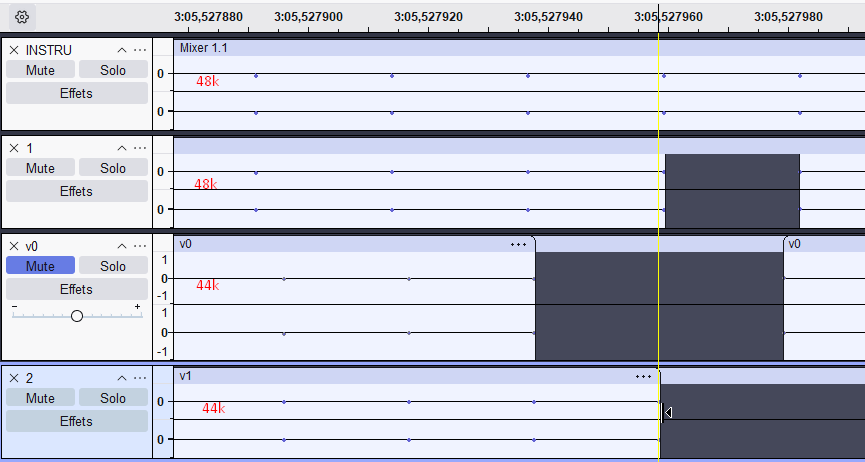
Hi, I noticed that this issue happened when I had different mixed sample rates (project sample rate, audio sample rates) unaligning the samples.

For instance here, tracks 1&2 are 48k, tracks 3&4 are 44k, and I cannot get a sync cut between tracks and that’s obvious at the sample zoom:

Especially the Mixer builds tracks at the “Project sample rate” that can be different from the audio files’.

By ajusting the (Default) Project sample rate in “Audio Setup / Audio Parameters”, and using only audio files with the same sample rate as the Project, I could avoid the issue and was able to copy paste any sandwiched clip.

SO ONE SOLUTION IS: if it is possible for you, make sure all the imported audio files match the Project sample rate, and you will be able to work with the “sandwiched” clips serenely.

Many thanks for that feedback and for that tip @aymz - much appreciated :smiling_face_with_sunglasses:

Peter