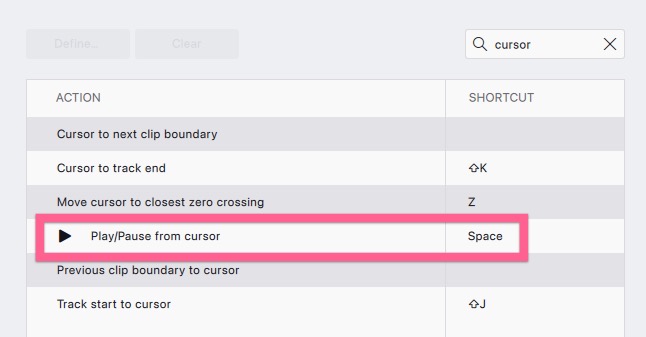
Still not working in 4.0.1. 
EDIT: See workaround below. Thanks, @billw58 !
Still not working in 4.0.1.
EDIT: See workaround below. Thanks, @billw58 !
Check your Shortcuts Preferences for “Play the selected time range”. It works for me on macOS 27.
Thanks, @billw58. Just played around with it and it looks like I can assign Space to "Play the selected time range” and it works like Audacity 3 did, playing only a selected part, but still playing from the playhead when nothing has been highlighted.
At least that’s how I think I have it set up now.

Yeah, it doesn’t work the same as Audacity 3. It will take me some time to get used to: regular play (space), play selection (I’ve left it at W), and play/stop and set cursor (I’ve set that to X).
The interaction between SPACE and X is weird. Like, click to set the cursor, X to start playback, X to stop playback, SPACE to start playback. SPACE to stop playback. Try it (with your shortcuts instead of mine!)
Still hoping they’ll change this up in future releases, but for now, I think W is the way to go. Assigning it to Space, when you “play” it, it finishes out, even if I hit space again.
Somewhat related … When I select a clip to remove it, playback still starts from the playhead, which hasn’t moved. I feel like this is probably related to the multitool, or whatever the upgrade was to make the cursor more efficient, but for doing dialogue editing, it’s adding 2-3 clicks to each step.
I’d love to see a “podcast mode” or something for people working with dialogue.
Hey gang,
I’m Alex, one of the designers on the Audacity team. Thanks for keeping this thread going, it’s been genuinely useful.
Now that 4.0.1 is out with W to play the selection, I’d love to hear how it’s working for you in practice:
Your answers will feed directly into how we decide what to do next. Thanks!
@Mudskipper - Thanks for taking a look at this.
https://youtu.be/rGoLSLdlpRE has a video of what happens in 4.0.1 with my thoughts on what I’d like to happen. This is from an “editing dialogue” perspective. Hope it makes sense. 
The W shortcut is something that I think works, but since it’s different than previous versions where we could use the space bar, it will take getting used to, especially for people editing in this way that might to this action hundreds of times on a single piece of audio.
I suppose I could get used to needing a separate key to play a selection, but why?
Thinking from a design standpoint…
Now, in AU4, one can make a selection that is separate from the playhead. What is the purpose of this functionality? I suppose one could cut or delete the selection, or apply an effect, but wouldn’t one want to hear it first and adjust it if needed? But as soon as one plays it (with the W key) the playhead moves to the start of the selection. So, when the user drags a selection, why not move the playhead to the start of the selection? We could then have the old behaviour: SPACE plays continuously when there is no region selection, and plays the selected region (and stops) if there is one. Oh, and the playhead should reset to the start of the selection so hitting SPACE again plays the selection again.
Putting it another way, when I drag a region selection in the waveform I do so because I want to act on it. That includes playing it. That’s what the SPACE key does.
In response to your question 2, I haven’t been using AU4 long enough to know if it really bugs me.
I don’t want to come off all pedantic about this. I could probably learn to live with what AU4 does now.
@Mudskipper - Something else to add to the dialogue editing workflow. When I’m playing a track, listening for things to edit, and I hit space to STOP the play, it woulkd be nice if the playhead would stay where I press stop. Right now, it resets to where it was when it started, which shifts the screen, so I have to find the spot to edit a second time.
Maybe add options to toggle all these things, similar to how you made ripple edits an option?
I used to use the functionality in Audacity 3 where I could select the region that I wanted to delete. Use the space bar to play the selected section to confirm it is correct, and then delete it. Now I am talking fractions of a second, for a sniff, cough, etc. I must say it was simple and worked.
It has taken me a little bit to get used to having to run a shortcut to do what I could easily do in Au3. But I do prefer the delete options in Au4.
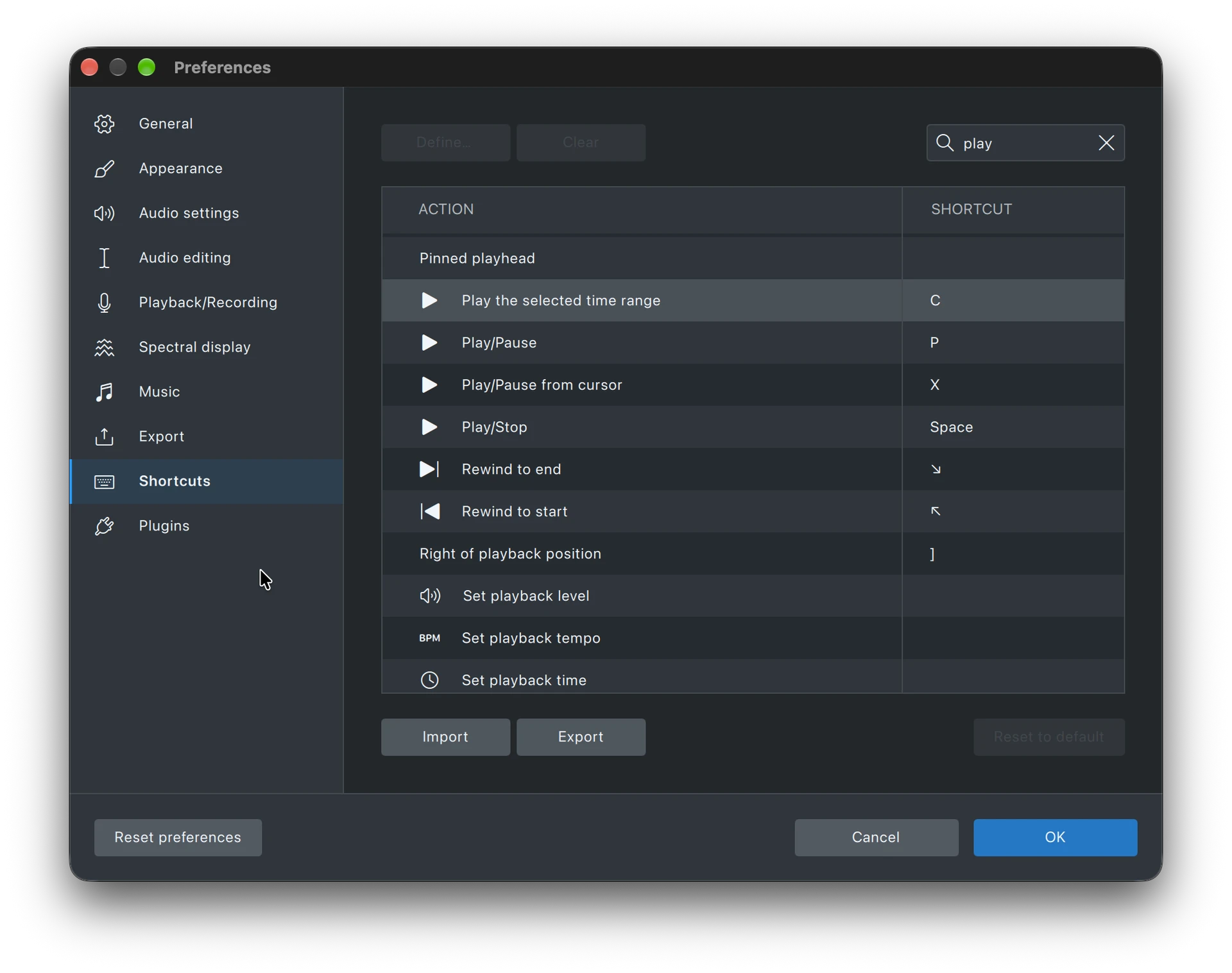
That has its own shortcut in AU3 - X (Play/Stop and set cursor). If you want this behaviour all the time in AU3, go to Preferences > Shortcuts and search for “Play/stop”. Clear the SPACE shortcut for “Play/Stop” then set the shortcut for “Play/Stop and set cursor” to SPACE.
I’m experimenting with these settings.
The current “Play/Pause from cursor” seems to do the same thing as “Play/Stop and set cursor” from AU3. Also, “Play/Pause” seems to do the same thing.
The issue that I see with this in Au4, is that if you assign the space to Play/Pause from cursor, it states that it is connected to stop recording. But it has no issue with it being connected to Play/Stop.
I wonder if is possible for the developers to utilise the same script in the play/stop to the Play/Pause from cursor. Then you can unassign Play/Stop and assign the space to Play/Pause from cursor and it does not register a conflict?
Thanks for the speedy responses! I’ve spent all morning going through 4.0.1 and our latest development builds, and wanted to share where things stand.
What’s going on
Audacity 4 added a playhead that’s always visible and separate from your selection. In Audacity 3 the cursor and the selection were the same thing, so selecting something and pressing Space played it. In 4.0.0 the interaction between the playhead cursor and selection is a new concept with new rules, and that’s what most of you are running into - and what we’re trying to solve post-haste!
What you can do today (4.0.1)
What’s coming in the next version
A heads up
In 4.0.1, Shift+Space plays and keeps your place, but that will change to “Play selection” in the next version so if you’re setting up habits now, P is the safest bet.
Bugs
When I was swapping shortcuts around this morning I noticed that when I manually swapped them back the “Stop record” action was getting dropped… I’ve passed this onto QA.
If you try any of this, I’d love to hear whether it works for the way you edit, especially if you’re cutting dialogue or podcasts.
Thanks!
Yeah, so I have to go back and change this shortcut, as I changed it before you fixed it. Now I am going to have to learn to stop using N and start using W.
Yes, check my post just before yours! I highlighted this as an issue.
Paste and overlap is still a failure, I see. As mentioned earlier, I will try to cover up a cough, sniff or fart  by copying a small part of a track to match the length of the track section I want to cover up. It still wants to dump it where the playhead is and not in the section I have highlighted.
This will be fixed by #11969
Or, to completely future-proof yourself, map these actions to the following shortcuts in Preferences → Shortcuts:
Play/Pause from cursor → X (do this first, to free up Shift+Space)
Play the selected time range → Shift+Space
Play/Stop → Space (default, leave as is)
Play/Pause → P (default, leave as is)
If you encounter the space not stopping record bug, try mapping Record stop → Space I did this and even though Play/Stop was unmapped, it still worked.
You could try Transport > Play Region or use the shortcut for playing the selected audio. Make sure the selection is active before pressing Play. If it still starts from the beginning, it may be an Audacity 4 playback setting/bug.