How Do I turn off Meta Data Editor

HELP!! I have a Mac running Sonoma, and I am using Audacity 3.7.7.

I am trying to batch export multiple files, but the system keeps changing my metadata so that everything has the same metadata as the first item in the batch.

How do I export multiple files WHILE RETAINING ALL MY ORIGINAL METADATA FOR EACH FILE???

I can’t find the box to uncheck in import/export. It does not seem to exist.

I think I need to turn off the metadata editor completely and default to my own prepared metadata already included with the files.

Step by step…like i’m a 2 year old, How would i go about doing this??

THANKS,

Any help anyone can give would be greatly appreciated. I am in the middle of an 800+ song project and I dread having to go song by song to enter in the proper meta details!

You are editing existing files with metadata? When loaded into Audacity, the sound is converted into something Audacity can understand - that means, not the original file (.mp3, .wav, …) is edited. If you export again, the metadata is probably lost, as I understand it.

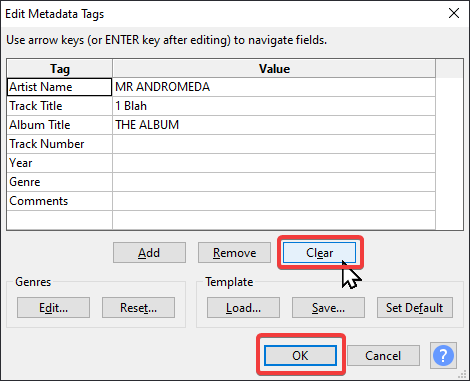
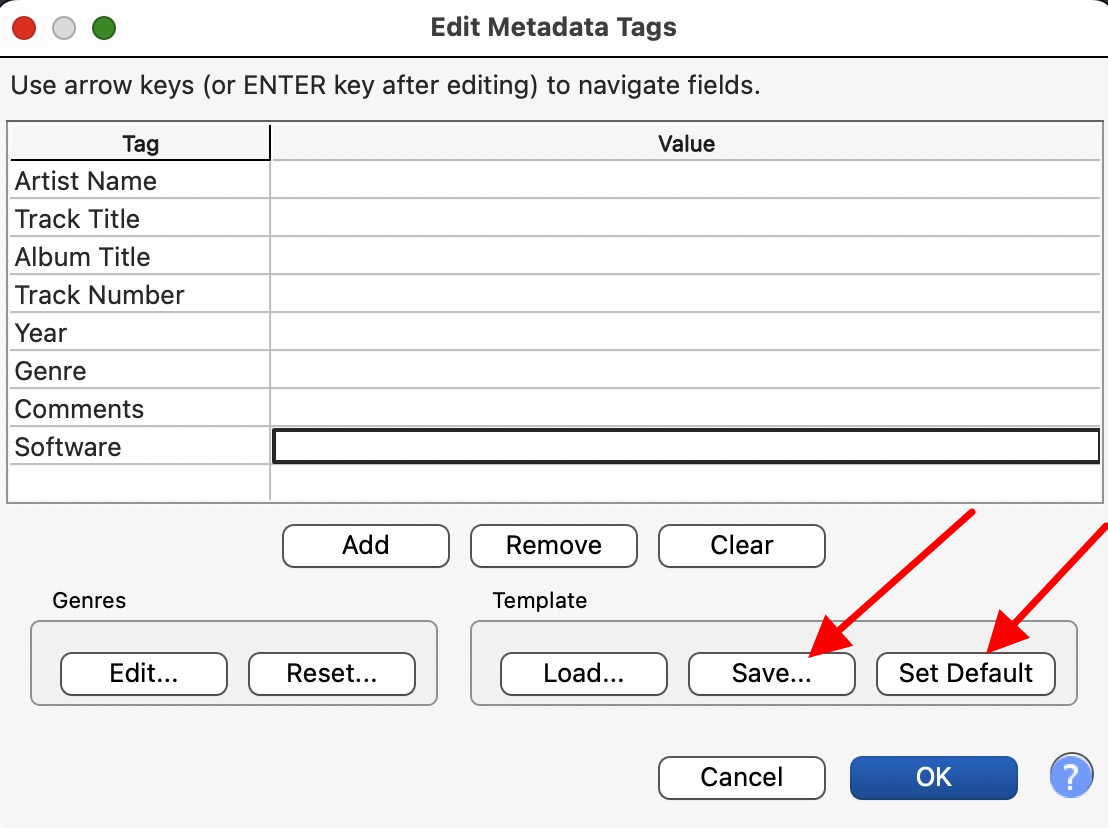
Maybe you should clear all fields in the Metadata editor of Audacity and set the empty form as default and save it.

BTW: your caps key is stuck. It is considered rude (or “shouting”) in a forum to write in all caps.

batch export multiple files

Batch export could likely mean one of two things: Either you have all the audio in one Audacity project and then use Export Audio’s “Multiple Files” feature to export by Tracks or Labels. This is probably not it.

The other option is using Macros, which is most likely the case here. I might have been able to reproduce the issue.

For testing, I created 3 wav files with the following metadata:

1 Blah.wav
TAG:title=1 Blah
TAG:album=THE ALBUM
TAG:artist=MR ANDROMEDA

2 Bleh.wav
TAG:artist=ONLY ARTIST NAME IN NO 2

3 Bloo.wav
TAG:title=3 Bloo
TAG:album=the ultraviolet alboom
TAG:artist=mrs blagalaxy

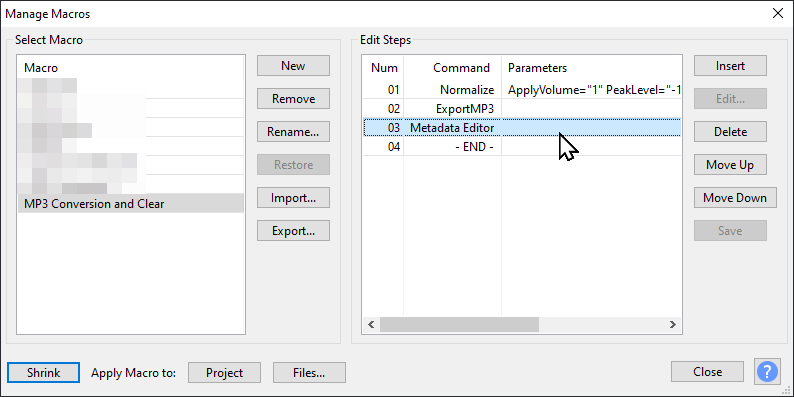
I tested the “MP3 Conversion” macro and used “Apply Macro to: Files …” using the Manage Macros window. The output is different:

1 Blah.mp3
TAG:title=1 Blah
TAG:album=THE ALBUM
TAG:artist=MR ANDROMEDA

2 Bleh.mp3
TAG:title=1 Blah
TAG:album=THE ALBUM
TAG:artist=ONLY ARTIST NAME IN NO 2

3 Bloo.mp3
TAG:title=3 Bloo
TAG:album=the ultraviolet alboom
TAG:artist=mrs blagalaxy

While it does overwrite any field that the ‘new’ file contains, it does preserve the previous file’s fields which are empty in the new file. This behavior also occurs if you manually open file 1, export, then open file 2, export, etc. This might be intended Audacity behavior.

MP3 Conversion.txt:

Normalize:ApplyVolume="1" PeakLevel="-1" RemoveDcOffset="1" StereoIndependent="0"
ExportMP3:

Unfortunately it appears there is no way to automate editing or clearing metadata as of June 2026 or 3.7.7.

All you can do now is open the metadata window after each export and then manually click Clear and OK.

Normalize:ApplyVolume="1" PeakLevel="-1" RemoveDcOffset="1" StereoIndependent="0"
ExportMP3:
EditMetaData:

Of course this defeats the purpose of a macro, especially for 800+ files.

Alternative solutions while we wait for the Clear Metadata macro function to be added:

  • Convert your macro to another tool like a ffmpeg or sox script and hope they handle all audio processing and metadata the way you want. Inputting the macro you use into GenAI might help you get a quick result. If this ends up working, it would be awesome if you shared the macro and what you ended up with.
  • Use ffmpeg, sox, exiftool, or something else (like perhaps id3-image as mentioned in the GitHub issue) to copy metadata from the input to the output files (and clear any incorrectly added fields), probably by matching them by file name. Probably in the command line. Again, GenAI might be of help.
  • Wait for the Audacity 4 beta (Audacity 4 Updates? - #10 by kryksyh) and hope it includes a solution
This is an known and as yet un-fixed bug that I logged back in2023

Audacity’s handling of metadata is pretty poor in general with many un-fixed issues:

Peter

Unfortunately, this won’t happen in the near future. We have big plans for a new macro/extensions system for Audacity 4, but it is not ready yet. The Audacity 4.0 release will not have macros at all.

Speaking of this particular issue, will “Clear metadata” macro command solve it?

@qubodup could you check if this PR fixes this issue please: Fix metadata not clearing on project reset by kryksyh · Pull Request #11095 · audacity/audacity · GitHub ?

1 Like

Assuming that macros are the issue, it should, if applied at the end, before the next file is loaded.

So cool, yes, it seems to have fixed this issue. It seems like the clearing effect of File/Close Project happens between each file now. Also it uses the last used folder for File selection, very nice.

I use for i in *wav *mp3; do echo $i; ffprobe -v error -show_entries format_tags -of default=noprint_wrappers=1 "$i"; echo; done to check before/after.

Here are the test files: 1 Blah.wav / 2 Bleh.wav / 3 Bloo.wav (0.7KB total)

They contain a few more fields so problems can be noticed no matter the order in which the files are processed.

Input WAV:

1 Blah.wav
TAG:title=1 Blah
TAG:album=THE ALBUM
TAG:artist=MR ANDROMEDA
TAG:track=1337

2 Bleh.wav
TAG:artist=ONLY ARTIST NAME IN NO 2
TAG:date=0451

3 Bloo.wav
TAG:title=3 Bloo
TAG:album=the ultraviolet alboom
TAG:artist=mrs blagalaxy
TAG:comment=Only comment in the bunch

Unwanted metadata copying in 3.7.7 test:

1 Blah.mp3
TAG:title=1 Blah
TAG:album=THE ALBUM
TAG:artist=MR ANDROMEDA
TAG:track=1337

2 Bleh.mp3
TAG:title=1 Blah
TAG:track=1337
TAG:artist=ONLY ARTIST NAME IN NO 2
TAG:album=THE ALBUM
TAG:date=0451

3 Bloo.mp3
TAG:comment=Only comment in the bunch
TAG:title=3 Bloo
TAG:album=the ultraviolet alboom
TAG:track=1337
TAG:artist=mrs blagalaxy
TAG:date=0451

Fixed version test:

1 Blah.mp3
TAG:title=1 Blah
TAG:album=THE ALBUM
TAG:artist=MR ANDROMEDA
TAG:track=1337

2 Bleh.mp3
TAG:artist=ONLY ARTIST NAME IN NO 2
TAG:date=0451

3 Bloo.mp3
TAG:comment=Only comment in the bunch
TAG:title=3 Bloo
TAG:album=the ultraviolet alboom
TAG:artist=mrs blagalaxy

Very nice, thank you!
I’ll merge it into the next 3.7.8 release, which should be out sometime next week.

1 Like

Nice!

At the risk of using an in-dev version that in theory might be broken or even break things, what you can do right now is:

  1. Close Audacity
  2. Scroll down to the “Artifacts” section of Fix metadata not clearing on project reset · audacity/audacity@3de432b
  3. Download and unzip the right build for your OS (I used audacity-win-3.7.7-alpha-20260604+6d77f1e-x64-msvc2022 for Windows 10 (64 bit))
  4. Run the Audacity.exe file from its subsubfolder and use your macro.

Or wait until 3.7.8 gets released.

Hi, Thanks for including the only understandable answer, as I’m not a techie. But if I set the default to blank…will my metadata (all the song info, dates, comments art etc) carry over to the new file when I do a batch of songs, or will I lose all that original data?

M

@mikesolof1 the existing metadata should be retained, and the metadata from one file should not leak into another.

There are exceptions, though: as Peter wrote, some metadata types, such as album art, will be removed.

I found a beautiful, easy, and super quick workaround. UNFORTUNATELY, this post says I can’t post the 6 step-by-step pictures I wanted to use to illustrate it… so I hope my instructions are clear enough.

Notes for Tagging and Normalizing in Audacity

I currently use Tag Editor 2. (But I’m guessing the screen will look “roughly” the same in any program)

  1. I put my files in there and tag away until I’m happy

  2. I take the tagged versions and copy their info by highlighting them as one single entity, and then hit copy

 3.  Then I save my original files (as a backup)
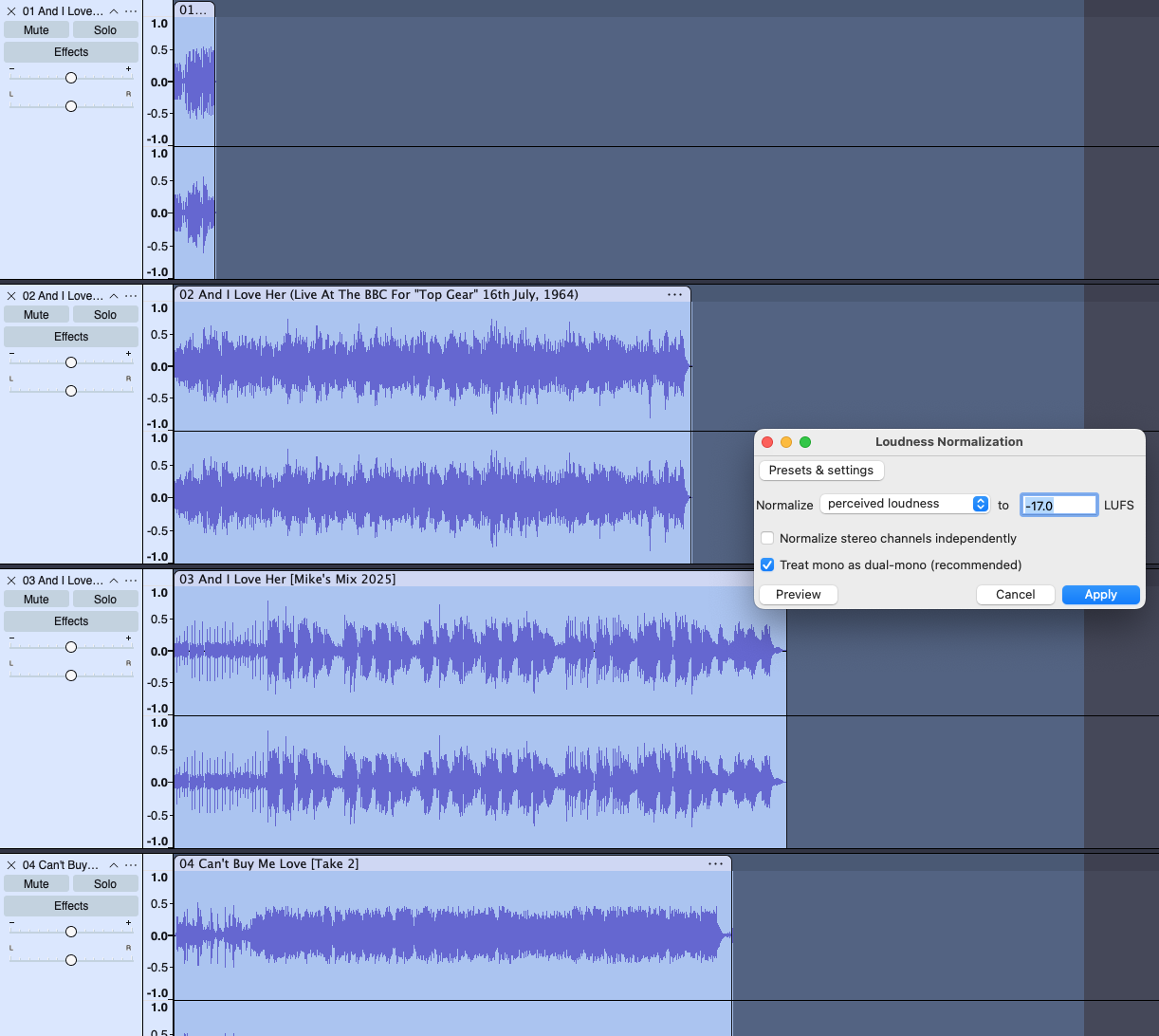
  1. I take my batch of files and normalize them in Audacity using the EFFECT (in the menu bar) and drop down to VOLUME AND COMPRESSION, then LOUDNESS NORMALIZATION. I use setting -17.0 LUFS

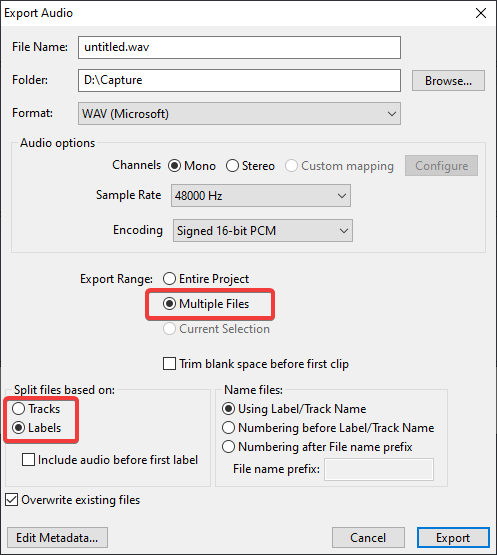
  1. This leaves me with perfectly normalized tracks, and I hit EXPORT AUDIO, and save them using the MULTIPLE FILES setting. Don’t worry about your metadata. Audacity will totally screw them up, but it doesn’t matter. You just want the music output, which has now been NORMALIZED. You’ll easily repair and restore the tags in the next step!

So now I have all my files NORMALIZED.

  1. I then load those files (with the wrong tags but normalized) back into my TAG EDITOR 2 and copy and paste the info from Step 2, thus replacing all the bad tags with the good tags
  2. I finally hit my save button in the Tag Editor 2, and it saves the corrected info over the wrong info on the original copies… thus creating a normalized and properly tagged project, WITHOUT HAVING TO CORRECT THE TAGS TRACK BY TRACK INDIVIDUALLY!

Super easy, and it only took about 3 minutes. The part that took the longest was creating the proper tags back in STEP 1. But once they were added and corrected … the rest was super easy!!!

I hope this helped.

1 Like