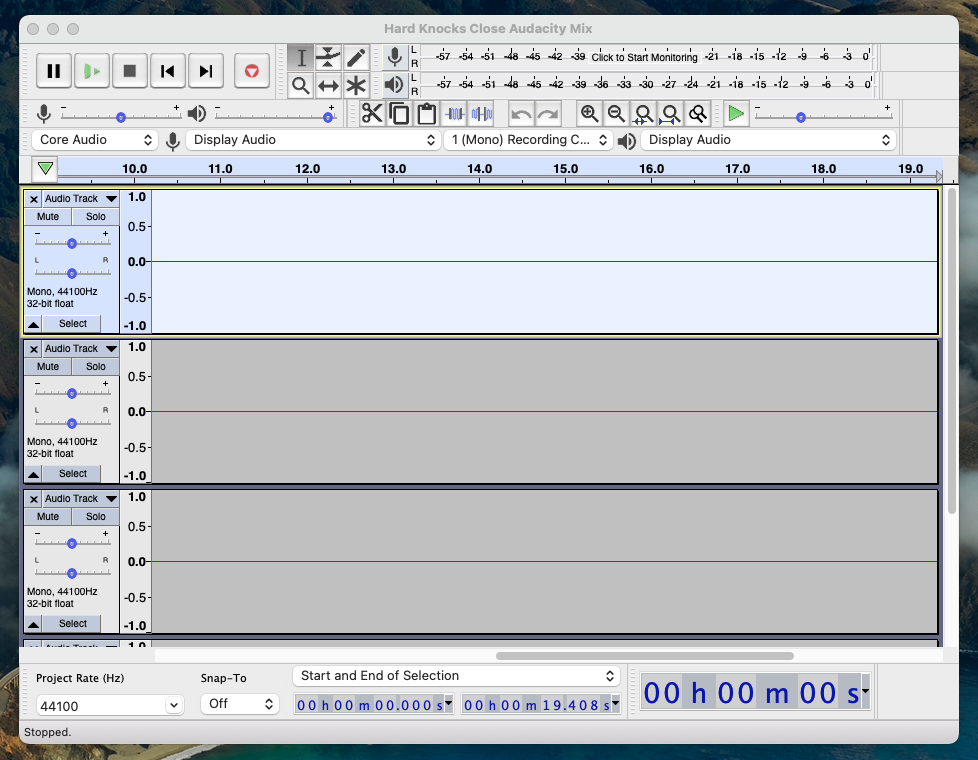
When I am zoomed in a long way the visuals do get jerky - but then I see exactly the same on my Windows 10 Pc too - that;s just the way it is at extreme zoom levels
Ballistically no - but there is no reason for that as we ensure that Audacity runs on all three platforms anyway.
Right-click on the Audacity icon then select “Get Info” from the dropdown menu. In the Get Info window, check “Open in Low Resolution”. Does that help?
Audacity ne fonctionne pas avec Big Sur quand je veux enregistrer la carte son, par exemple au moyen d’un logiciel comme sound syphon, ou Sound flower, Black hole…
Avez-vous une solution?
Audacity does not work with Big Sur when I want to record the sound card, for example by means of software like sound siphon, or Sound flower, Black hole …
Do you have a solution?
The volume slider for for the microphone is not working in the latest Audacity update 2.4.2 for Big Sur. Btw, when I just registered to use this forum the drop down list does have Big Sur listed for the OS a forum member is using.
I assume that you mean “does not have Big Sur listed”.
I’m aware of this problem. It is not possible to insert it into the list above Catalina because it’s an ordered list. New items can only be added to the end of the list, otherwise it will cause many registered user’s profiles to display the wrong OS. The best I can do for now is to change “Catalina” to “Catalina or later”. I’m open to ideas about how to solve this problem.
For a while now, I have been using Audacity successfully with a Focusrite USB interface with separate mic and instrument input lines. Yesterday the instrument line in stoped registering. But the microphone line continued to work and I could hear the instrument line in my headphone monitor. I thought it was an interface problem, but the problem does not occur when I record in Garage Band and set the input there to line 2. I have discovered that if I now set the Audacity track settings to stereo instead of my usual mono, I do get input from the instrument line, but the sound quality is crappy and there is an echo. The only thing that I can think of that changed before I started experiencing this problem was the most recent update to Macs Big Sur. I am not sure if that could be the problem or not. I would like continue using Audacity with my instrument recording tracks set to mono. What can I do?
I just updated to Big Sur and now all my audacity files that I had saved will not play. I’m running Audacity 2.4.2 and Mac Big Sur Version 11.2.1 on a 2.6 GHz Intel Processor.
Audacity will open the selected file, but there is no audio wave length; just a flat line.
Any idea how to correct this???
Many thanks,
Like others, couldn’t boot Audacity with my new MacBook Pro (M1) back in December, but recently came back to the forum and saw the new 2.4.2 is working,
I just downloaded it and it works great!
The only glitch I have seen so far, and if there is a place to report it please let me know, that my headphone through speaker jack do not work when using Audacity. As soon as a quit, or go to a different program, headphones work again.
If that’s the only problem I have, I’m a happy camper.
Hi, have a brand new Macbook M1 Big Sur 11.2 and using Audacity 2.4.2.
No matter what I try and do Audacity will not recognise my headphones when plugged in (any brand, have tried multiple) yet the headphones are recognised fine in Music, Garageband, youtube etc. Also headphones not recognised in other music software - Mixxx for example. Can anyone please advise why this is? Will a future Audacity update address this issue? Also the blutooth isn’t working with Audacity (but works fine with other software).
Any advice welcome, I largely bought this new macbook so as to use with Audacity! Very frustrating.
OS: MacOS Big Sur 11.2.1 (20D75)
Audacity: 2.4.2
Issue: When opened, Audacity displays the splash screen but hangs and becomes unresponsive.
Hey gang!
I’m new to the board. I just started using Audacity more seriously this past week. A few days ago Audacity was running great, everything was good. I did not use Audacity for maybe a week or more until I tried today. The program won’t open and just hangs. I went and deleted then re-downloaded the recommended version: 2.4.2. I installed according to the instructions, ie drag don’t click to install, etc, but the program still hangs.
I don’t know if it’s something on my end or the program. The one big change I made when using Audacity last week was that I created a new audio device with iShowU Audio Capture. I attempted opening Audacity with that device enabled, and with just the standard headphones output device, but no deal.
I saved the dump file that Apple generates for a report if that will help. Thanks for your time!
Came here looking for advice on this. The headphones are plugged in but are not listed in the playback device drop-down menu. (They are visible in the Sound mac preferences). Running Big Sur on an M1 MacBook Pro. Any advice?
I’m having kind of an issue with Audacity on Big Sur.
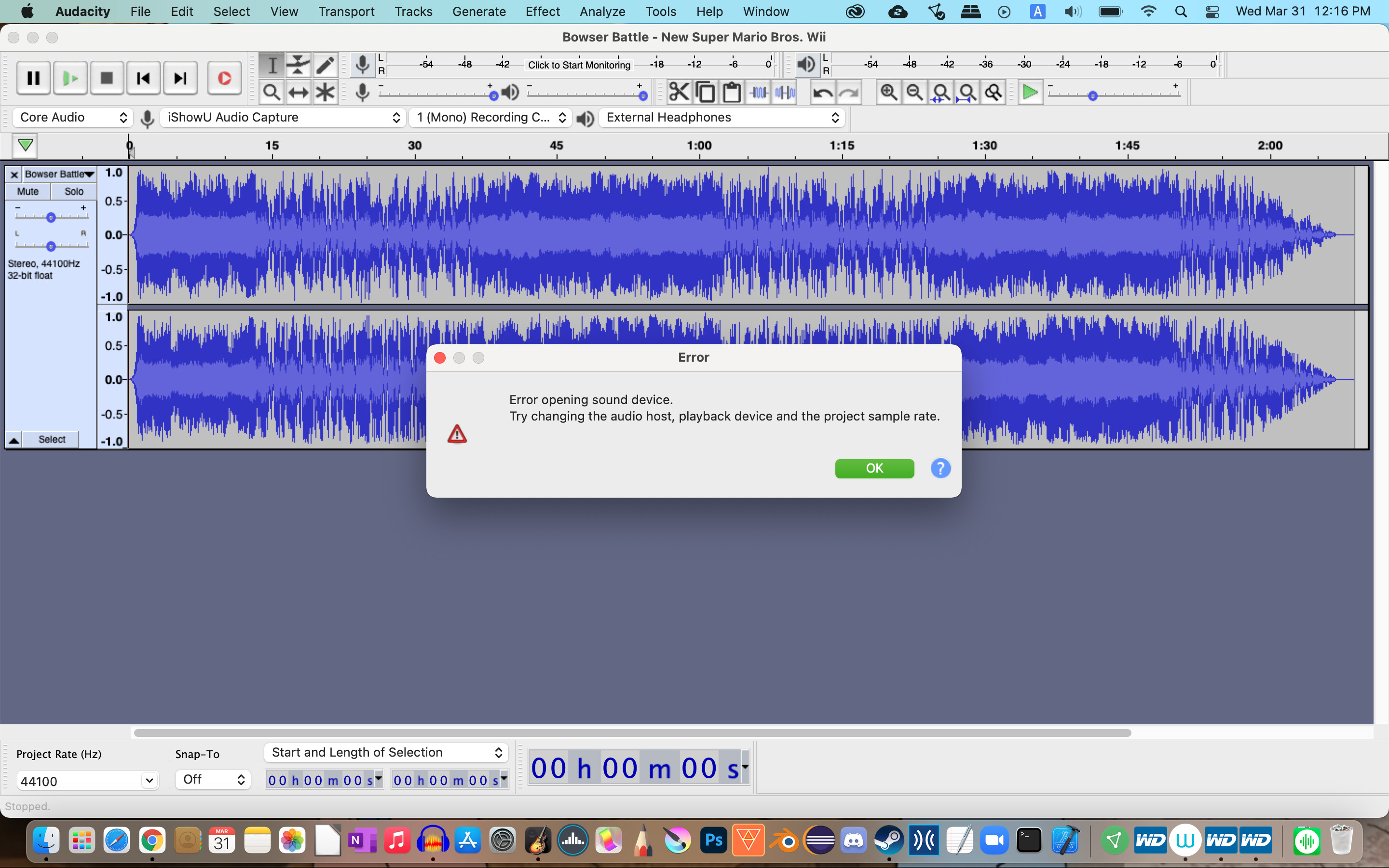
I updated my MacBook to Big Sur, downloaded the latest version of Audacity, and no matter what output device I choose, this warning message shows up.
I had the same problem when I upgraded to Catalina, but I already forgot what I did beforehand to get any output device to work in Audacity again.
Does anybody know how to fix this issue of Audacity not playing back in the newest MacOS?