steve
November 30, 2021, 10:07am
21
It should be pretty simple for them to do - I implemented that feature in the original Timeline Quick Play, but unfortunately the new developers either took it out or broke it
Several other playback issues got broken when new looping was introduced …
For example this one that you logged Steve (and also remains to be fixed):#2181
opened 08:09PM - 23 Nov 21 UTC
bug
P3
regression
**Describe the bug**
Clicking on the Timeline should start playback at the clic… ked time position and continue to the end of the project unless interrupted by the user. This does not happen when there is a selection - playback stops at the end of the selection.
However, if the cursor position is after the clicked position but without a selected region, then playback continues past the cursor position.
**To Reproduce**
Steps to reproduce the behavior:
1. Open a project with some audio
2. Make a short audio selection somewhere near the middle
3. Click on the Timeline a short distance before the start of the selection
4. Observe that playback stops unexpectedly at the end of the audio selection.
**Expected behavior**
Clicking on the Timeline should start playback at the clicked time position and continue to the end of the project unless interrupted by the user.
**Additional information (please complete the following information):**
- OS: Xubuntu 20.04
- Version Audacity 3.1.3 alpha AppImage
**Additional context**
This is something like the 20th bug created while "improving" Timeline Quick Play. I find it quite disheartening to see my work repeatedly butchered.
And this one too that remains un-fixed:#2149
opened 12:32PM - 16 Nov 21 UTC
closed 01:14PM - 20 Dec 21 UTC
bug
P2
regression
**Describe the bug**
The Play-at-Speed has reverted to being non-dynamic.
… @JamesCrook upgraded this several releases back (2.3.0) so that it was dynamic - i.e. while PAS was playing moving the slider would cause the play sped to change while PAS was playing.
This is now broken in 3.1.0 and 3.1.1 - and is a regression on 3.0.5.
**To Reproduce**
Steps to reproduce the behavior:
1. Get some audio
2. click the Play-at-Speed button
3. move the slider during PAS playback
4. Observe the speed of play does not change.
**Expected behavior**
Play speed for PAS to change dynamically.
On this page it the Manual it says it does:
https://manual.audacityteam.org/man/play_at_speed_toolbar.html
where it clearly states:
>Play-at-Speed playback can be adjusted dynamically with the slider with playback is in progress.
**Screenshots**
None
**Additional information (please complete the following information):**
- OS: Windows 10 - but assume all OS (@SteveDaulton tested on Linux and it fails there too)
- Version: Audacity 3.1.0/3.1.1
**Additional context**
Assigned P1 due to the regression.
Originally reported by a user in this Forum post:
https://forum.audacityteam.org/viewtopic.php?f=46&t=121594&p=439466
And this one:#2122
opened 09:49PM - 11 Nov 21 UTC
closed 01:13PM - 20 Dec 21 UTC
bug
P2
regression
**Describe the bug**
When the pointer hovers over the Timeline, there should be… a white vertical guide line across all tracks to clearly indicate the Quick Play position. The line does not appear
**To Reproduce**
Steps to reproduce the behavior:
1. Create a project with two or more tracks
2. Position the mouse pointer over the Timeline
3. Observe that there is no vertical white line over the tracks
**Expected behavior**
See screenshot
**Screenshots**
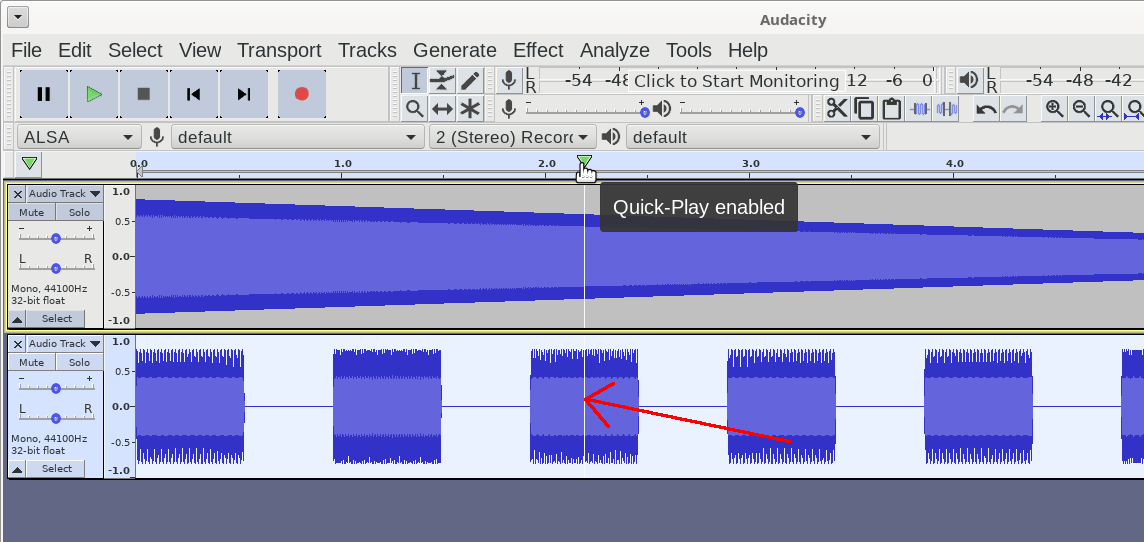
**Additional information (please complete the following information):**
- OS: Xubuntu 20.04
- Version: Audacity 3.1.1
Peter
Through reading the comments on here, I finally figured out how to workaround this super annoying feature by just clicking again multiple times so that it moves the point in your timeline. It’s almost indecipherable what click will create a tiny loop and what click will move you. Ugh. Please make a way to disable this! One person suggested you can click inside the timeline and then press space twice to move and not worry about the irritating looping feature, and that seems to work the best.
1 Like
krejko
December 22, 2021, 5:11pm
24
I’m also a first poster who created an account just to say how badly toggling the looping feature on/off is needed. Audacity would otherwise be a perfect tool for recording and editing my audio if I wasn’t constantly interrupted by unintentionally entering a loop.
3.1.3 will be out shortly - and one of the loopy things that have been fixed is there is now a built-in tolerance of a few pixels in either direction when clicking on the Timeline so that a loop is not inadvertently created.
Peter.
steve
December 22, 2021, 5:36pm
26
There’s due to be a new Audacity release in the next few days. One of the changes is that it is less easy to accidentally create a loop.
steve
December 23, 2021, 2:13pm
27
Audacity 3.1.3 has now been released and is available via the Audacity website: Audacity ® | Downloads Missing features - Audacity Support
vpd
January 7, 2022, 6:37pm
28
Just bring back the “Loop Play”. It’s one of the most useful features. Why doin’ things so complicated?
Yes, this worked. Simply ignoring it for a while. Then it would play through, the loop having no effect.

