The way a project is saved

I am trying to find the way to save a project in such a way that a trackname appears with what I baptised sub-titles.

Take for instance a piece of music recorded as one track. It consists nevertheless of several parts.
I am trying to find a way which allows me to make it appear as:

  • Tracktitle
    Part1
    Part2
    Part3

etcetera.

I am a newbie regarding the workings of Audacity, so it may very well be that my question is generated by ignorance.

Regards,
Wim Kreuger

I assume you mean when you play the file in some other hardware/software, not an audacity feature?

That will depend on the hardware/software/format (and there are limitations) so tell us something about that.

Audacity can have label tracks but they only work in Audacity, which is not intended as an audio player (and it doesn’t make a very good audio player).

What I meant to ask is implied in this picture:
You can see in the first track the name of the track: “Tarkus”.
That first track consists of 7 clips as I assume Audacity calls them.
I have recorded that first track and divided it up in those seven clips.
What I would like to be able to is save this project in such a way that not only a click on the track name starts the track, but to see the names of the clips also and to be able to start a clip directly bij clicking on the name of the clip.
My standard playback app is VLC.
I hope I clarified the question sufficiently?

Regards,

Wim

You want to edit a VLC playlist. That is outside the scope of this forum.

There are most likely forums for VLC that you could ask the question on. Can anyone suggest one for Wim?

This is difficult or impossible. :frowning:

CDs are different from computer files. They can have up-to 99 tracks, with or without gaps. The track number is just a “marker”. On the CD it’s just one long string of data, which is not even a “computer file”. That’s why you have to “rip” a CD rather than simply copying it to your computer.

If you play that CD, you only have the track numbers and no sub-track information. On that particular CD, they could have chosen to spit that 1st track into multiple tracks with no gaps.

Some CDs have CD-Text but most CDs don’t have that information on the CD itself. If your player software can access the Internet, it gets a “fingerprint” of the CD and finds the information in a database. The same thing happens when you rip a CD. It gets the information from the Internet. If you have a homemade (burned) disc it won’t be in the database and you’ll only see “Track 01” etc.

If you buy an MP3 album from Amazon or an M4A from iTunes each song/track comes as a separate file. Each track has embedded metadata/tags for the artist, title, album, track number, artwork, etc. There is only one set of metadata (i.e. one title) per track.

There are ways to embed lyrics, or to use a separate lyric file. That can contain all kinds of other additional information but support for lyrics isn’t built-onto most player software. I use a plug-in called MiniLyrics with .LRC files. MiniLyrics DOES work in VLC.

I’m pretty sure MKA and MKV files can contain additional information and VLC can play them but I don’t know much about it… I don’t know if it would be the right information would be displayed or if VLC would display it…

DVDs are like CDs where there is (usually) one-big file with chapter/scene “markers”. Of course, the chapter names are shown in the menu, you can have subtitles, and the video can contain text in video or you can have still images (a “slideshow”). You need DVD authoring software to make a “proper” DVD.

DVDs do have “regular computer files” but it’s a very specific format and commercial DVDs are encrypted so it takes special “illegal” software to crack the encryption and copy them.
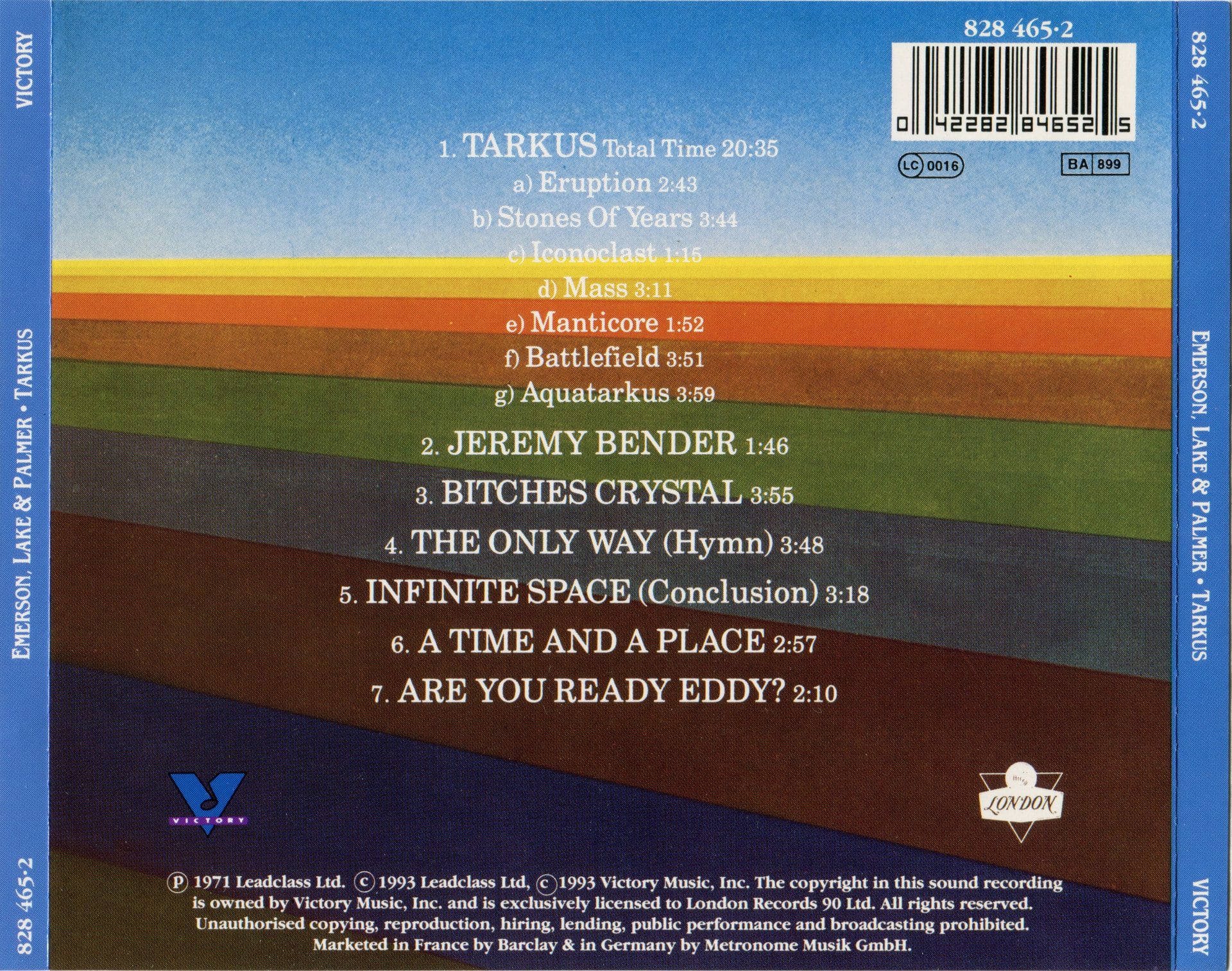
I would be inclined to follow this approach to naming: Wikipedia - Tarkus - ELP OR make the Audacity labels say: Tarkus: Eruption, Tarkus: Stones of Years etc for the first seven sections and then carry on as normal after that.

(Fun fact - I live a few miles away from Keith Emerson’s birthplace).

Gentlemen, thanks for your answers.
Although what I had in mind is not possible obviously in Audacity, there is still very much possible, even things I have not even started to think of.
Thank you for your efforts.

Regards,

Wim

One more thought -

I’d probably make separate tracks and re-number everything. And maybe avoid MP3 because sometimes gapless playback is “difficult”. FLAC (lossless compression) might be better.

The same idea crossed my mind also, inspired by the reaction of evilmrb. So I’ll try my hand at that.
This problem of mine teaches me all sorts of things on Audacity and you guys pointing the way.
Thanks a lot!

Regards,

Wim