Hi,
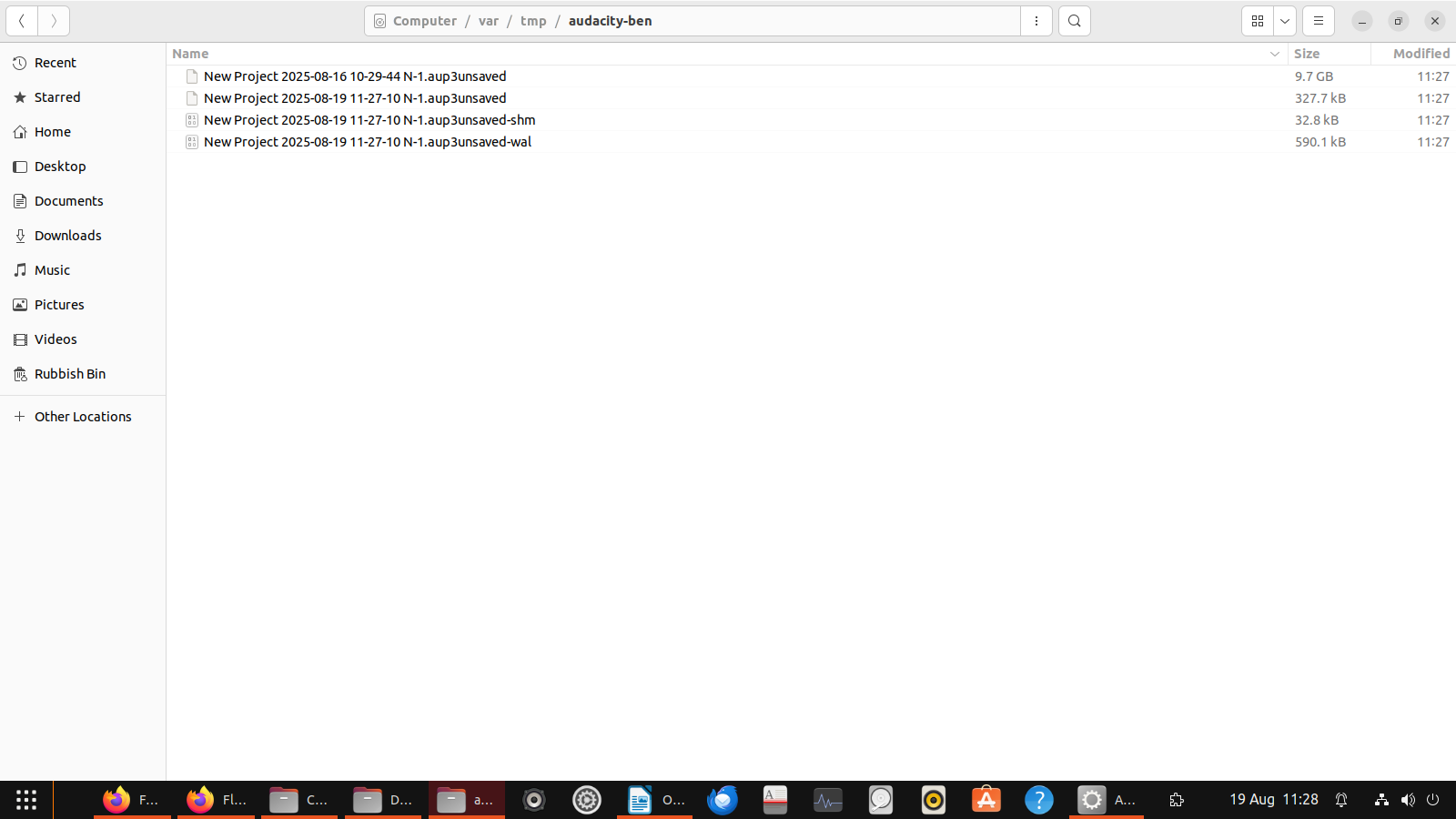
This may not be recommended practice but I often find it convenient to shut down my desktop pc without saving a project and on restart recover from temporary files. Files can be up to 10G/10+ hours recorded material. Recently I am getting “failed to read” more often on restart and relaunching Audacity, and losing the project, so I am trying to save a large project using instructions on this page
But I’m getting confused.
Instruction 4
“Copy your defective .aup3 project file into AudRepair”
I have 4 items in temp files, 2 folders and 2 files.
I folder is 10GB, the other and the files are in kilobytes.
The files are named .aup3unsaved-shm and -sal
Should I be copying only the large folder?
Instruction 5
“Rename the .aup3 file”
Why is it called a file? It looks like it has a folder icon.
The large folder is actually named .aup3unsaved
Should I delete the “unsaved” bit?
Instruction 7
I can navigate to the Audrepair folder (I used lower case r consistently) and type ls, but I can’t see the sqlite file.
I see this, with audacity tools in blue, Broken.aup3 in white.:
Not only not recommended but a terrible idea. My guess is it’s not feeling convenient at the moment. I don’t say that to be flippant but to stress the point. You don’t say what these recordings are or if they can be repeated.
The Audacity project tools normally need an aup3 file (an SQL database, in fact) to work with. I think the SHM and WAL files are temporary files that vanish when a project is saved/closed. I have used the tools successfully on several occasions but I wouldn’t know how to deal with your situation. I hope one of the forums moderators has a better answer for you.
I’m not recording works of art by any means, just regular internet radio shows, so if anything is lost I can just re run and re record.It’s just my regular weekly routine.
Well, I guess that is some consolation, eh? I would try making a copy of the 9.7GB file and renaming it to broken.aup3. Put that copy in the folder with the audacity project tools and the sqlite3 program (this is in the archive file you downloaded as per the instructions for Linux). Once you have all three in the same place try again. If it works you end up with a another file called unbroken.aup3. If all goes well, you should be able to open that as a working project.
Best of luck.
Some progress. the sqlite file and project tools files were in nested folders. Once I got them out and removed the empty folders I had just the 3 required itens and they displayed in ls as they should.I ran the commands as instructed and have now got up to step 13 “If a broken.recovered.aup3 file appears, open it in Audacity.”
As I have the audacity app image installation I have to run it and go file>open and navigate to the broken.repaired sub folder which I now have (success!) I did this and didn’t get the “failed” message, just the usual “wasn’t saved properly” message. But nothing else is happening. THe open Audacity window is titled “broken.recovered” and Audacity is stopped. Should I try moving the recovered file to the default temp file folder? And the new shm and wal files too? although they were created later, when I tried to open the recovered files
Oh, tell me about it. I think AppImage files are the least bad option, where snaps and Flatpaks are the others but the lack of file associations is a royal PITA, right?
Can I assume this means you have a working project now? If so, then you could either move the broken.recovered.aup3 file to a more meaningful (to you) place or simply do Save Project As giving it the name you want. After that, all those interim versions can be deleted if, and only if, you are happy with the one you saved elsewhere. I hope that makes sense.
I hope it works for you and I hope it’s been enough to convince you to save your projects after recording them. Try to avoid huge files and consider saving as WAV or FLAC as temporary backups in case of file corruption in Audacity.
The names of the files in your screenshot suggest you used the Timer record option. If you did, you can opt to save projects automatically when you set that up, I think. Once you have finished editing a project, you can export to WAV/FLAC/MP3 or whatever you like and delete the project file to save space on disk.
No not working at all yet. As I said in the last four lines, nothing is happening in Audacity. It’s empty and says “stopped” at bottom left. All I’ve done is managed to create a folder titled “broken.recovered” but it doesn’t open in Audacity. Every time I try, more of those shm and wal files are created in temp files, which confuses me more as I don’t know if they are needed. Will try jostling things around a bit to see if I missed anything out. Then there is a further procedure on the recovery website for problem projects. What I would like to know though is, should I leave Audacity open for a long time, to see if it’s recovering slowly, even though it says “stopped”?
Sorry in this case I meant a file. Step 2 confused me because my setup extracts folders from a zipped file and I didn’t notice that the instruction says unzip “files”. Once i got the files out of the folders it made sense.
Yes. However I went to the second alternative procedure, from step 14, but that failed because I ran out of space. Before carrying on I am trying to resolve space problems. I have 40G for my home folder but playing around with a 9GB file is risky as it is being duplicated.
I see your dilemma. OK, let’s attack this in parallel. I will send you a PM with details on how to send me that 9.7GB file or folder shown in the screenshot at the top. I will try to recover it and write down what I did. Seem reasonable to you? If you figure it out before I get chance to look at it, please let me know.
That’s good of you, OK. I will keep trying from here after clearing some space. Every procedure generates another copy and I have to limit these or store elsewhere.
Ran phase two from step 14 again, but this time after deleting the failed broken.recovered file. THis time the program ran to the end and seemed to complete. I opened audacity and somehow it picked up the repaired file straight away even though it wasn’t in the default temp file folder. I still don’t know what went wrong but I have learnt to use the repair program. Very satisfied, thanks for help. Solved.
With the 3.7 version I discovered a project would not open (read error). In my case plugging in/out the headphone while Audacity was running to cause this issue.
Also, back up your file as you work. I work on my current file in the desktop (C-drive) and I have a TEMP folder also on the Desktop where I keep a copy on that file.
I do manual SAVEs as I go and copy to the TEMP folder.
I store most of my files on external drives when completed, but if I need to edit them I copy them back to the C-drive/desktop. Using a file on an external drive sometimes can cause a READ error that is sometime recoverable. Best Advice - back-up - back-up - back-up.
Hi Guys - any idea on how this was resolved? I’m running in to the same issue where I get the recovered file and then when I open it in Audacity it shows nothing similar to Benaround above.
I am on Audacity v 3.7.5 and the tool says it needs to be on 3.7.0 and the version is unsupported so that could be an issue
I am on Windows 11 Home
The file I’m looking to recover is 432 MB so I’m thinking that it should be there.
This is only a warning - you can continue. I think it’s just because the tools were written before the current version of Audacity.
Try the tools again knowing what you now know about the warning message. If you have no luck post again and I will try to fix the project for you by getting you to send it to me - I’ll tell you how later.
Try not to re-open a solved thread because people might be less likely to look at it and it nags when you try to reply too. I know forums can be a bit of a minefield though.