Hi everyone:
I use Windows 10 and Audacity 2.1.0.
I have an audio made in Audacity.It was finished,but I would like to add some pieces of audio.
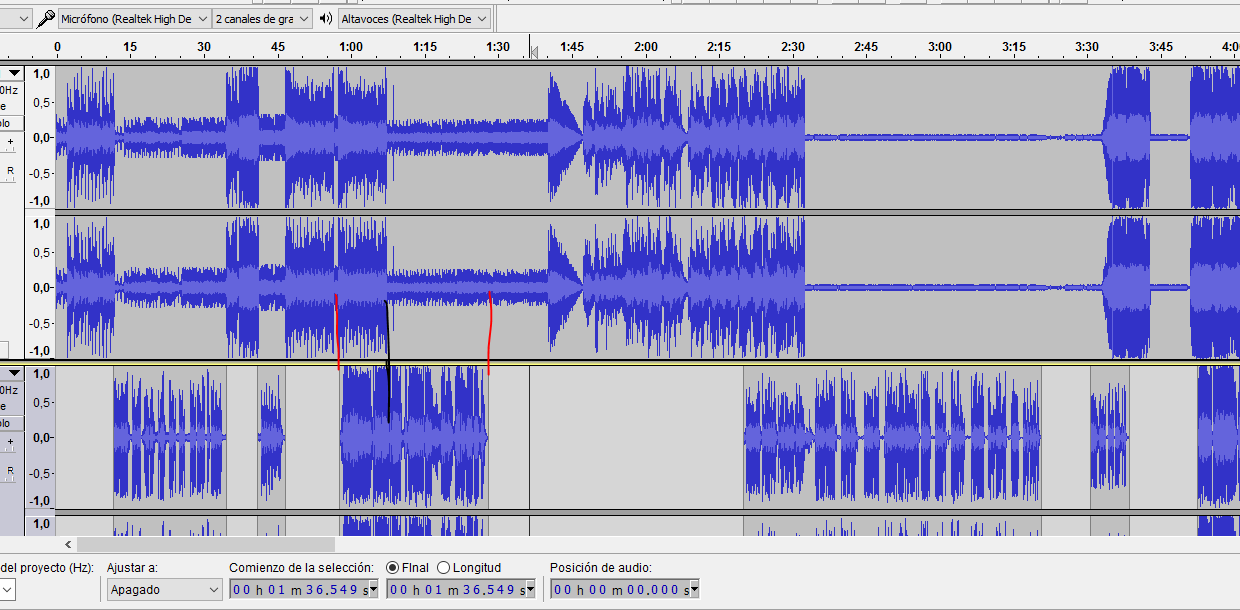
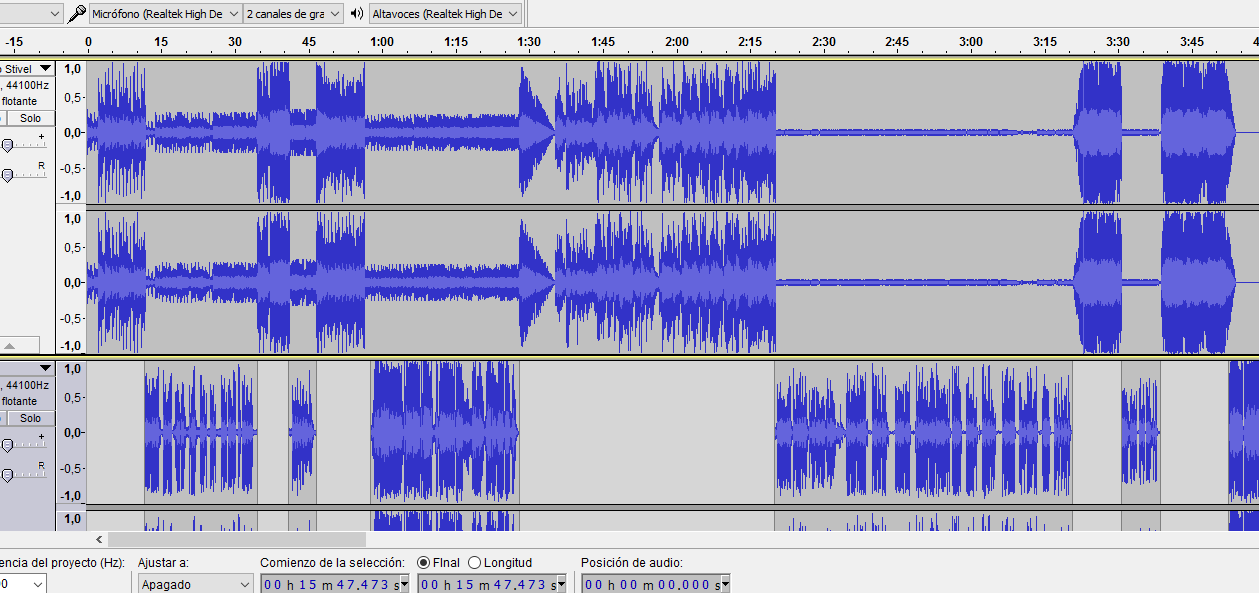
The audio has silenced parts where I talk and parts with music(image 1). When I add the new pieces the other ones move ahead,as you can see in the image 2.
How can I add the new pieces without moving again all the talking pieces just under the silenced parts?
Thank you very much
Don’t add them? Push the additional music sooner and later on the second track so everything lines up when you play them together. A simple File > Export will smooch everything together into one show file. You can also Tracks > Mix and Render to a new Track and Audacity will give you a composite track with everything blended together.
You are warned never to have blank space between 0 and the first note on the top or main track. Silence, is OK, not blank space.
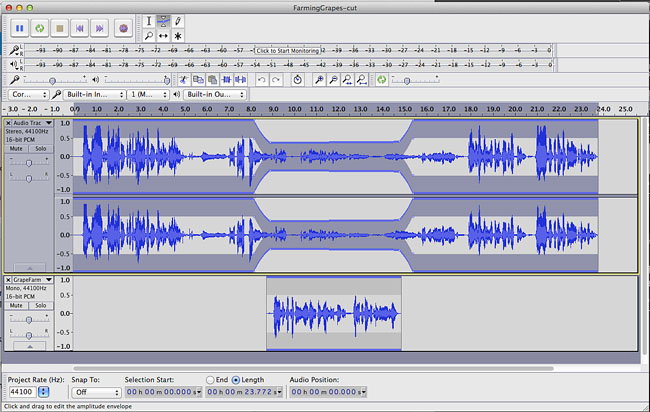
You can use the Envelope Tool to make each track lower volume as needed to balance everything. This is how I did a voice-over segment in an existing dialog (attached).
This might be a good time to turn on View > Show Clipping. You may not hear clipping distortion inside Audacity, but the instant you export into a WAV or MP3, all those red lines are going to crunch and crackle.
Koz
Have you unchecked (disabled) “Editing a clip can move other clips” in Tracks Preferences ?
Gale
Add them to a new track.
Thank you very much!
I added silences to move to the original place the other audios.
For the next time,I will follow your piece of advice.
Kind regards
I added silences
You don’t have to do that. You can use the Time Shift Tool (two sideways black arrows) to push audio around to where it needs to be.
Koz
See here: Audacity Manual