Hello! How can I make the figures disappear from spectral selection panel on the waveform and spectral diagrams? They persistently show up each time I open the project.
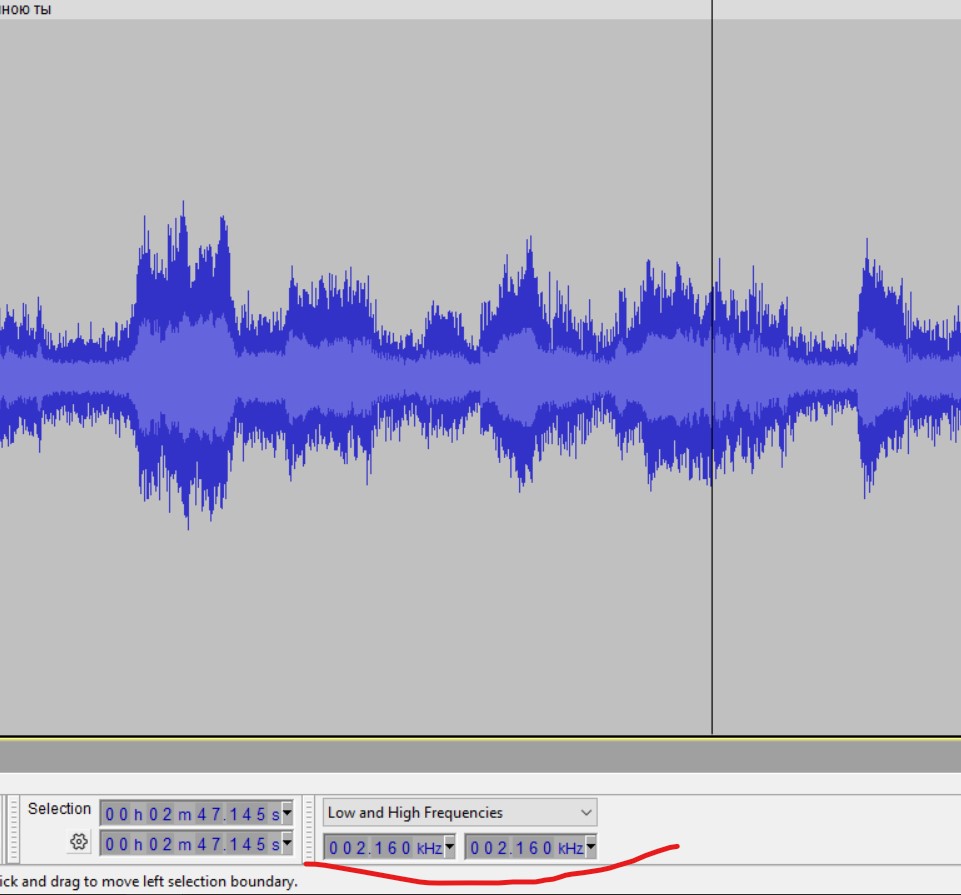
Disable: “View menu > Toolbars > Spectral Selection Toolbar”
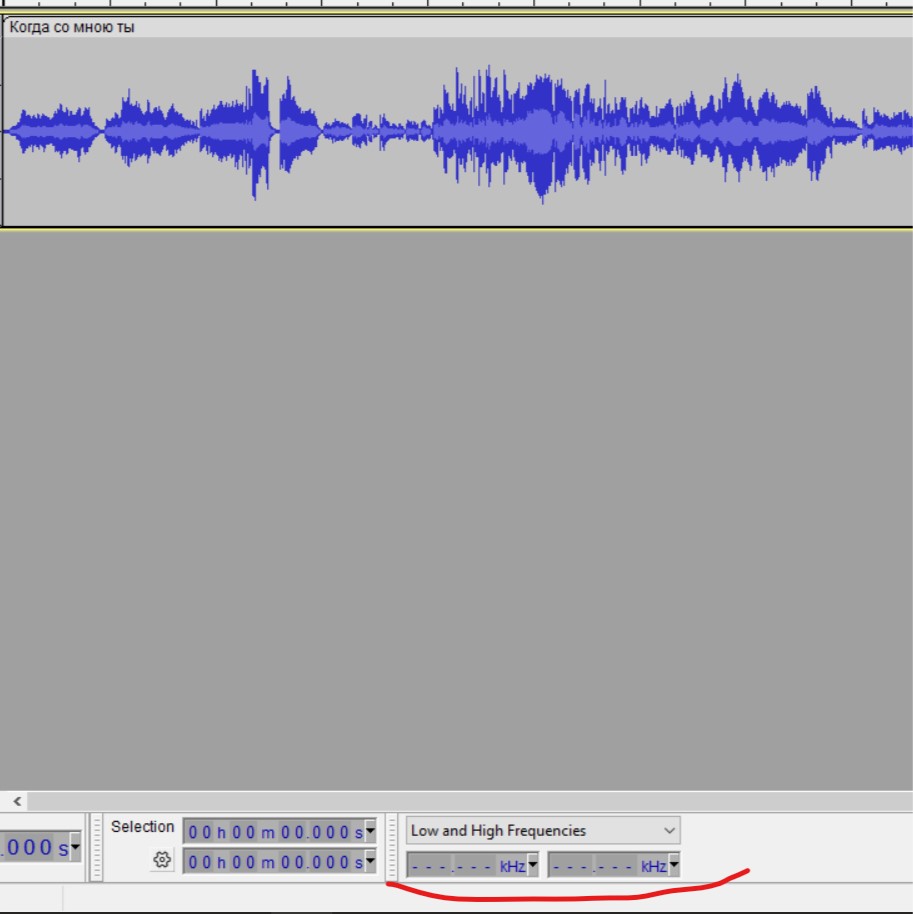
Click in each of the two boxes and press your keyboard’s DEL key.
I got zeros. And how to do so that there’re three dashes, like on the screen?
I guess that must be due to the version you are using, or we’re not quite understanding each other. The manual says:
To clear the spectral selection entirely and return the digits to dashes, you can select any of the digits while in “Center frequency and Width” view, then press Delete (note this is not the Delete key on the numeric keypad). When in “Low and High Frequencies” view you can clear either input box individually with the Delete key.