I reordered some tracks in V 3.7.4 that were streamed Lossless. I later learned that the stream turned Lossy for a short period.
I have both the LL & L aup file. I tried to readup on Plot Spectrum but it was over my head & covered more detail than I need. I don’t need accurate #s. Just something to tell me (perhaps after exporting to 24 bit Flac) that 1 file has more data than the other, so I know which to keep.
There’s no reliable way to do it. Usually your ears/brain is the best. If it sounds OK, don’t worry about it. If it doesn’t sound good re-record it. If that’s not possible there’s nothing you can do anyway.
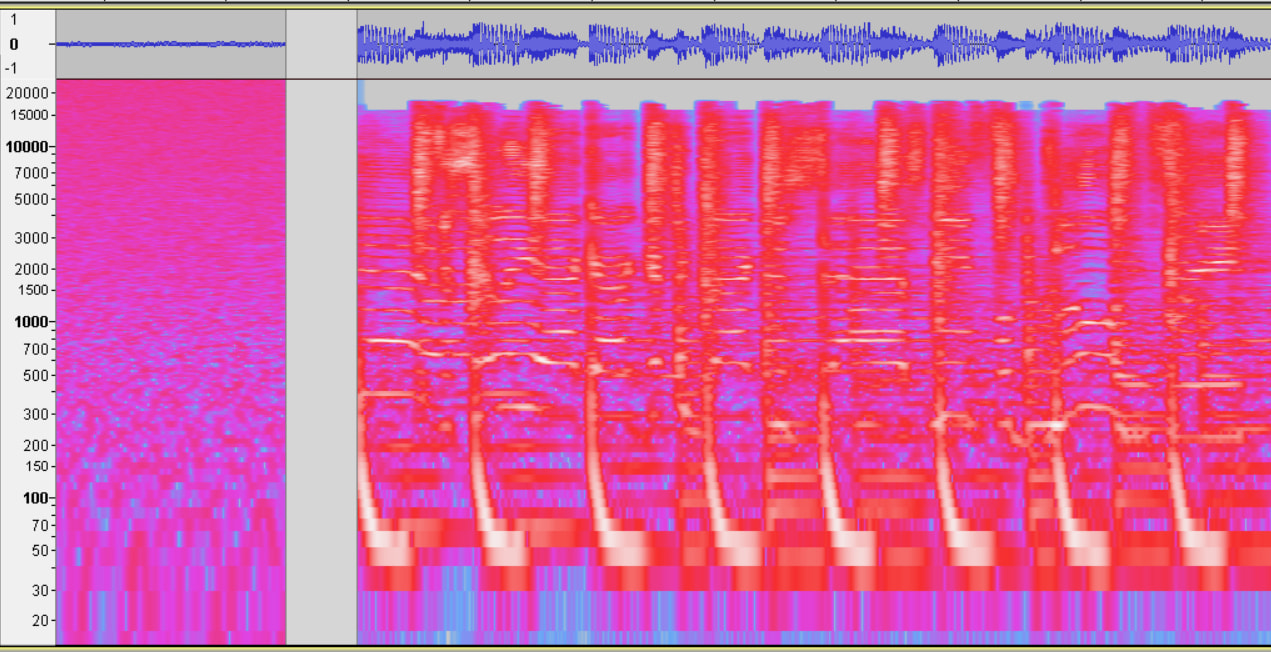
There is/was a tool called Lossless Audio Checker but apparently it’s been flagged as potential malware. (1) I found this page for some alternatives.
(perhaps after exporting to 24 bit Flac) that 1 file has more data than the other, so I know which to keep.
That may work and it may not… If you import an MP3 and a CD quality WAV and convert them both to FLAC, the file converted from MP3 will probably be larger because the decoded/decompressed lossy file has more “bits” with “rounded” data.
(1) I have a copy and VirusTotal doesn’t flag anything. I don’t “use it”… I just downloaded it out of curiosity. Or, maybe I was confirming that I could intentionally fool it.
Thanks for the info guys. Since I don’t know the date when it changed to Lossy, I just choose a couple, re-recorded (making sure it was set to LL) & compared aup file sizes. One clearly showed it was Lossy, as the file size was 40% smaller. Others had different sizes but within 5-10% range + or -.
I’ll try Trebor’s suggestion on a couple & see if it jumps out to me.
The size of AUP and AUP3 files don’t depend on “quality” other than the sample rate and it’s not smaller if the original file was lossy. They are all 32-bit floating point. A 48kHz file is about 10% larger than a 44.1kHz file and a 96kHz file is twice the size of a 48kHz file.
Project files do depend on the amount of “undo” information so the more editing you do the bigger they get. As along as you stay at 44.1kHz of better you won’t hear any difference.
Your fountain of knowledge is deep, DvDdoug. I came across the bit issue a while ago.
I had exported some tracks to flac. I later saw that some were much larger then others. Using MediaInfo*, I saw they were 24bit (44.1), not the 16bit I use.
*Correct me if I’m wrong, but Audacity doesn’t have a way to display properties (bits, file extension,etc) when you pop a file in, does it?
Correct. By default, Audacity converts everything to 32-bit floating point and it doesn’t “remember” the original format.
If you open one file “from scratch” it will keep the sample rate but if you import a 2nd file or import a file into am existing project it will be re-sampled to match everything else.
There might be a way to make Audacity show you the current sample rate inside Audacity but I’m not sure…

 (1) I found