There’s two main issues here:
-
Maintaining a fairly constant level within one track / file.
-
Matching the volume of multiple tracks / files to approximately the same level.
That’s one way to manually deal with the first issue.
A possibly better way is to use the Envelope Tool: Envelope Tool - Audacity Manual
(It’s worth playing with the envelope tool to familiarise yourself with it, even if you don’t use it much).
There’s also a semi-automatic way to do this, which is to use the Compressor effect: Compressor - Audacity Manual
This effect is a bit tricky to use, but I’d suggest this workflow as a starting point:
- First, select the entire track and “Amplify” effect with default settings.
- Then apply the Compressor effect with these settings:
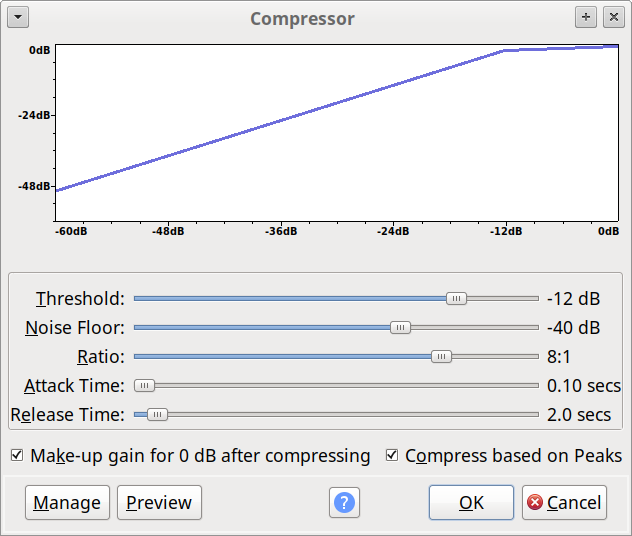
The result will probably sound very loud, but we’ll deal with that in “issue 2”.
The thing that makes this tricky is that even if we give all files the same peak amplitude (the same height peaks), then some files will still probably sound louder or quieter than others. Peak level is not a good measure for “loudness”.
Later versions of Audacity have a “loudness” normalizing effect, but that’s not available for Audacity 2.2.2. However, there is a plug-in for normalizing files to approximately the same loudness. Try the “New Version” of the plug-in from here: ReplayGain plug-in
I’d recommend using it with default settings.