First, I solved the one-channel problem. I’m now hearing audio on both into the Behringer.
Under “midi setup” I see USB Codec 1 and USB Codec 2. I selected each and neither produced audio into Audacity.
So the audio is making it into the Behringer but is not making it into the Mac.
What was it?
Can you try a different USB socket?
Do you have another computer that you could try?
Just backtracking a couple of steps -
Are you getting a reasonable listening volume in your headphones?
I’ll answer a couple of the questions now while I can. I solved the one-channel problem with a plug that has a mini pin OUT on one end and two RCA jacks IN on the other. Mini plug goes into the cassette “earphone” jack; a dual RCA cord goes into the plug’s two in jacks. The other end of the dual RCA connects to the Behringer. I remembered having to do this when I used an ancient PC to digitize old cassette recordings. It effectively splits the outgoing mono signal into dual mono out.
On the “reasonable audio” question, yes–the audio coming out of the Behringer (into my earphones) is plenty sufficient.
I’ll try using another USB jack on the Macbook later. And I don’t have another Mac machine to use.
Thanks for walking me through this, btw.
Update: I tried the other USB jack on the laptop and it made no difference.
I noticed a couple of oddities. In the “audio midi setup”, when I hit Codec 1 the volume meter bars are darkened at Max input but nothing is making it to Audacity. Also within Audacity as soon as I begin recording the “USB Codec” indicator gets grayed out. (I would post photos but I keep getting a “image too big” notice.)
Try a “screenshot” rather than a photo (See: Take a screenshot – Apple Support (UK))
Preferably a screenshot of just the relevant portion of the screen.
Will do tomorrow. I’m at work now.
Here are the audio midi screenshots.


Here’s the screenshot of the USB Codec indicator “greyed out” on Audacity.

Although the greyed out controls in “audio midi setup > USB Audio CODEC 2 (Input)" looks peculiar, I’ve just checked on my Mac and that is the same here.
Click on the speaker icon in the menu bar and select “Sound Preferences”.
Then click on the “Input” button.
You should see “USB Audio CODEC” listed as an input device. Select it.
Now play some music into the UCA-202 and you should see a signal level in the meter below the device list.
Does that work?
“ Click on the speaker icon in the menu bar and select "Sound Preferences”
Do you mean the Audacity menu bar?
You may not have the “speaker” icon at the right of your menu bar.
Go to Apple menu > System Preferences > Sound > Input. Then do what Steve said.
I notice that you’ve set the Behringer to a sample rate of 48000, but your project rate is 44100. Change one or the other to match.
– Bill
No, the Mac icons right at the top of the desktop. The Mac volume control icon.
Or as I see Bill has just posted, “Go to Apple menu > System Preferences > Sound > Input.”
I did as suggested. Sound is recognized within the system preferences>sound box(see photo) but not in Audacity. The “USB Codec” is still greyed out.

Go to System Preferences > Security and Privacy > Privacy.
Click on “Microphone” in the left column.
Is Audacity listed in the right panel? Is there a checkmark beside it? If not, click the lock to make changes, then click the checkmark for Audacity.
The Device toolbar is greyed out because you are in Record mode. Stop recording (or playing) and the Device toolbar will be available.
If the USB Audio CODEC is not available as an input or output option, click on Transport (menu) > Rescan Audio Devices.
Did you set the sample rate to be the same in Audacity and in Audio MIDI Setup for the Behringer device?
– Bill
Steve, Audacity was already checked in the Microphone section. I unchecked and rechecked it. Made no difference.
Bill, I changed the sample rate(within the audio midi area) to 44.1 and it didn’t help.I hit “rescan devices” and it didn’t make a difference. Also, the audio track is not being seen in Audacity even before I hit record.
The audio is making it from the cassette through the Behringer into the Macbook; something is stopping it from entering Audacity.
What does this mean?
I have never seen a case where an input was available in Sound Preferences and did not work with Audacity.
Do you have more than one version of Audacity installed?
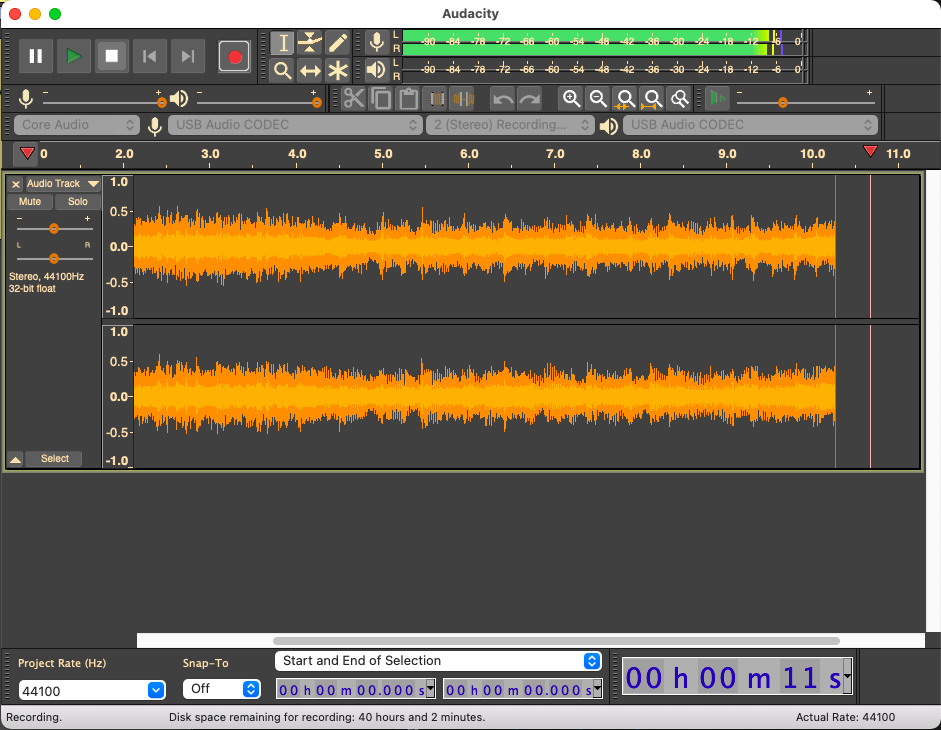
Here is Audacity 2.4.2 running on my Macbook Air with Big Sur, recording from a Behringer UFO-202. So now I am officially stumped.
– Bill
I have Audacity 2.3.2 and 2.4.2 installed. I use only 2.3.2.
Could that be the problem?
Do you see two Audacity’s in the Security and Privacy > Privacy > Microphone settings?
Rename one of them “Audacity 232” and the other “Audacity 242”. Then see which one is in the Privacy settings.
– Bill
Rename them by simply removing the periods between the letters?