batch export multiple files
Batch export could likely mean one of two things: Either you have all the audio in one Audacity project and then use Export Audio’s “Multiple Files” feature to export by Tracks or Labels. This is probably not it.
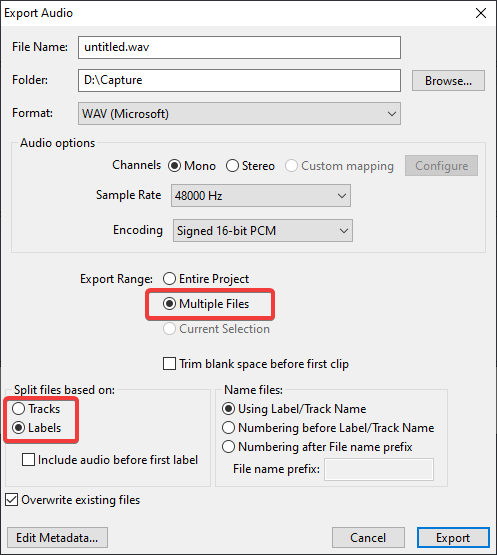
The other option is using Macros, which is most likely the case here. I might have been able to reproduce the issue.
For testing, I created 3 wav files with the following metadata:
1 Blah.wav
TAG:title=1 Blah
TAG:album=THE ALBUM
TAG:artist=MR ANDROMEDA

2 Bleh.wav
TAG:artist=ONLY ARTIST NAME IN NO 2

3 Bloo.wav
TAG:title=3 Bloo
TAG:album=the ultraviolet alboom
TAG:artist=mrs blagalaxy
I tested the “MP3 Conversion” macro and used “Apply Macro to: Files …” using the Manage Macros window. The output is different:
1 Blah.mp3
TAG:title=1 Blah
TAG:album=THE ALBUM
TAG:artist=MR ANDROMEDA

2 Bleh.mp3
TAG:title=1 Blah
TAG:album=THE ALBUM
TAG:artist=ONLY ARTIST NAME IN NO 2

3 Bloo.mp3
TAG:title=3 Bloo
TAG:album=the ultraviolet alboom
TAG:artist=mrs blagalaxy
While it does overwrite any field that the ‘new’ file contains, it does preserve the previous file’s fields which are empty in the new file. This behavior also occurs if you manually open file 1, export, then open file 2, export, etc. This might be intended Audacity behavior.
MP3 Conversion.txt:
Normalize:ApplyVolume="1" PeakLevel="-1" RemoveDcOffset="1" StereoIndependent="0"
ExportMP3:
Unfortunately it appears there is no way to automate editing or clearing metadata as of June 2026 or 3.7.7.
- Forum thread asking for this feature Clear metadata in one click - Audacity 3 Help Forum / Windows - Audacity Forum
- Feature request on GitHub - Clear Metadata on all files processed via Macro · Issue #4182 · audacity/audacity
- Scripting Reference - Audacity Manual.
All you can do now is open the metadata window after each export and then manually click Clear and OK.
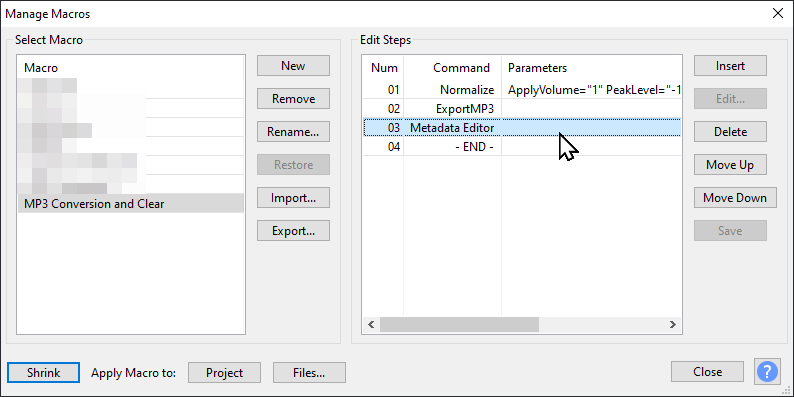
Normalize:ApplyVolume="1" PeakLevel="-1" RemoveDcOffset="1" StereoIndependent="0"
ExportMP3:
EditMetaData:
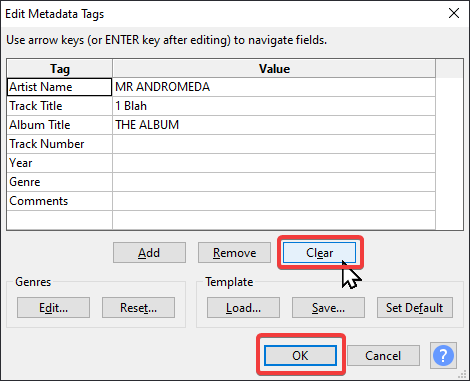
Of course this defeats the purpose of a macro, especially for 800+ files.
Alternative solutions while we wait for the Clear Metadata macro function to be added:
- Convert your macro to another tool like a
ffmpegorsoxscript and hope they handle all audio processing and metadata the way you want. Inputting the macro you use into GenAI might help you get a quick result. If this ends up working, it would be awesome if you shared the macro and what you ended up with. - Use
ffmpeg,sox,exiftool, or something else (like perhapsid3-imageas mentioned in the GitHub issue) to copy metadata from the input to the output files (and clear any incorrectly added fields), probably by matching them by file name. Probably in the command line. Again, GenAI might be of help. - Wait for the Audacity 4 beta (Audacity 4 Updates? - #10 by kryksyh) and hope it includes a solution