Tags: #Configuration #Guide #Windows #OneDrive
Overview
If you use Microsoft OneDrive on Windows, Audacity’s default settings can lead to significant lag, “Internal PortAudio” errors, and file corruption. Audacity requires high-speed, local disk access; because OneDrive syncs folders like “Documents” in real-time, it often locks files while Audacity is still writing to them.
This guide will help you move your active work to a Local Directory to ensure stability and performance.
Quick-Start Summary
- Step 1: Create local folders for Projects, Macros, and Exports.
- Step 2: Point Audacity’s Preferences to these non-synced local paths.
- Step 3: Manually backup finished work to OneDrive for safekeeping.
Redirecting Audacity to Local Storage
Phase 1: Create Your Local Folders
- Open Audacity and navigate to Edit → Preferences → Directories.
- Click Browse next to the Temporary Files Directory location.
- In the Windows File Browser address bar at the top, click on the folder named audacity (this is one level up from the SessionData folder).
- Use the New Folder button to create three new folders here:
ProjectsMacrosExports
- You should now see four folders:
SessionData,Projects,Macros, andExports.
Phase 2: Update Audacity Preferences
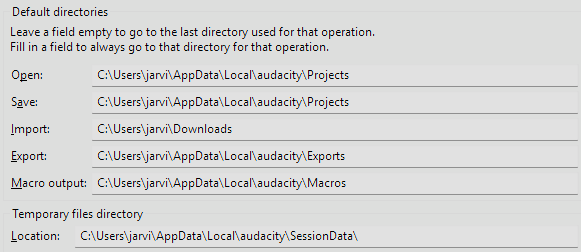
Stay in the Directories menu and update the following paths to point to your new folders:
- Temporary Files: Keep set to the
SessionDatafolder. - Open / Save: Click Browse → navigate to the
audacityfolder → select the Projects folder. - Macros: Click Browse → navigate to the
audacityfolder → select the Macros folder. - Export: Click Browse → navigate to the
audacityfolder → select the Exports folder. - Import: Select your local Downloads folder from the left-hand sidebar (this is usually outside the OneDrive sync path).
When you are done it should look similar to the following…
Phase 3: Backing Up to OneDrive (Manual Sync)
Since your active work is now in a local directory, you must manually sync to the cloud once your session is finished.
- Locate your files: Navigate to the local
audacityfolder used in Phase 1. - Copy your work: Right-click your Projects or Exports folder and select Copy.
- Paste to OneDrive: Navigate to your OneDrive folder in the left sidebar, right-click an empty space, and select Paste.
- Wait for Sync: Ensure the blue sync icon turns into a green checkmark before closing your laptop or logging off.
IMPORTANT: Always close the Audacity application before copying your
Projectsfolder to OneDrive. This ensures the project database is fully closed and prevents backup errors.