The Preset option for Generate > Built-In > Silence does not appear to be working. I have a preset I setup of 1.5 seconds, but when I go to Manage > Use Presets and choose my preset, the values I saved in the preset are not brought into the Duration field. Instead, it just keeps what was in there from the prior use. I checked this in a clean install of 2.4.2 - I’m using Win10.
It’s not a big deal. I was going to use the preset to insert 1.5 seconds of silence between distinct sections of the audio that I’m editing as a consistent transition. I had planned on linking a Macro with the Silence command to the Alt+A keyboard sequence as a time-saver.
All built-in “Generators” (Chirp, DTMF Tones, Noise, Silence, and Tone) operate the same way. The “default” Duration is automatically set to the length of the current Selection. This is an intentional feature to allow the generator to generate the exact number of audio samples to fit the current track selection. When used manually, this default duration may be overridden by changing the setting in the “Duration” time control.
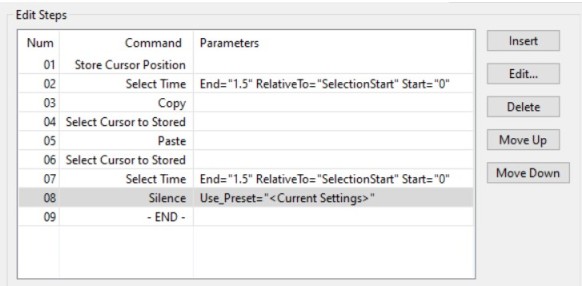
When using a built-in Generator in a Macro, the way to set the duration is to make a time selection before calling the Generator. For example, call the “Select Time” command before calling the “Silence” command.
I’ve tried a bunch of combinations within a Macro of “Select Time” and “Silence” to try and insert 1.5 seconds of silence into a track. It seems that no matter what I do, it’s not an insert, but rather it replaces the audio that is there.
Like I said, it’s not a big deal, but I might do the insert 8-10 times during the editing of a 1 hour talk/seminar to get a consistent break time between the moderator, the speaker, and any participant Q/A. So if I could do it with a keyboard shortcut, that would be nice.
Can you give any advice on whether it’s doable or not?
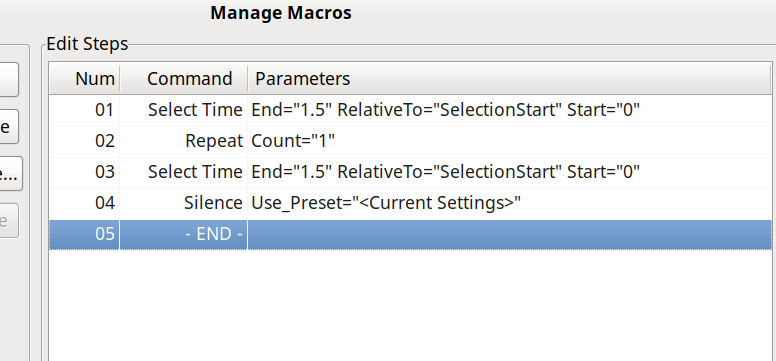
If I include the steps one-by-one in a test Macro I can see what happens at each step:
the first step - Select Time selects 1.5 seconds starting with where I place the cursor - I get that
the second step - Repeat command appears to insert (non-destructively) a duplicate of the original selection either at the end of the original selection or at the original cursor location - I don’t get that as Repeat doesn’t seem to imply anything about duplicating/inserting/copying, just selecting??? OKAY - I GET IT, REPEAT DOESN’T REPEAT THE COMMAND, IT REPEATS THE AUDIO SORRY - MY BAD
the third step - Select Time is selecting the initial 1.5 seconds (of now duplicated audio)
the last step - Silence is silencing the selected duplicated audio
So I see what is happening, but I don’t understand why it is happening when I run the Repeat. Why would it insert a duplicate section of audio? Can you explain?