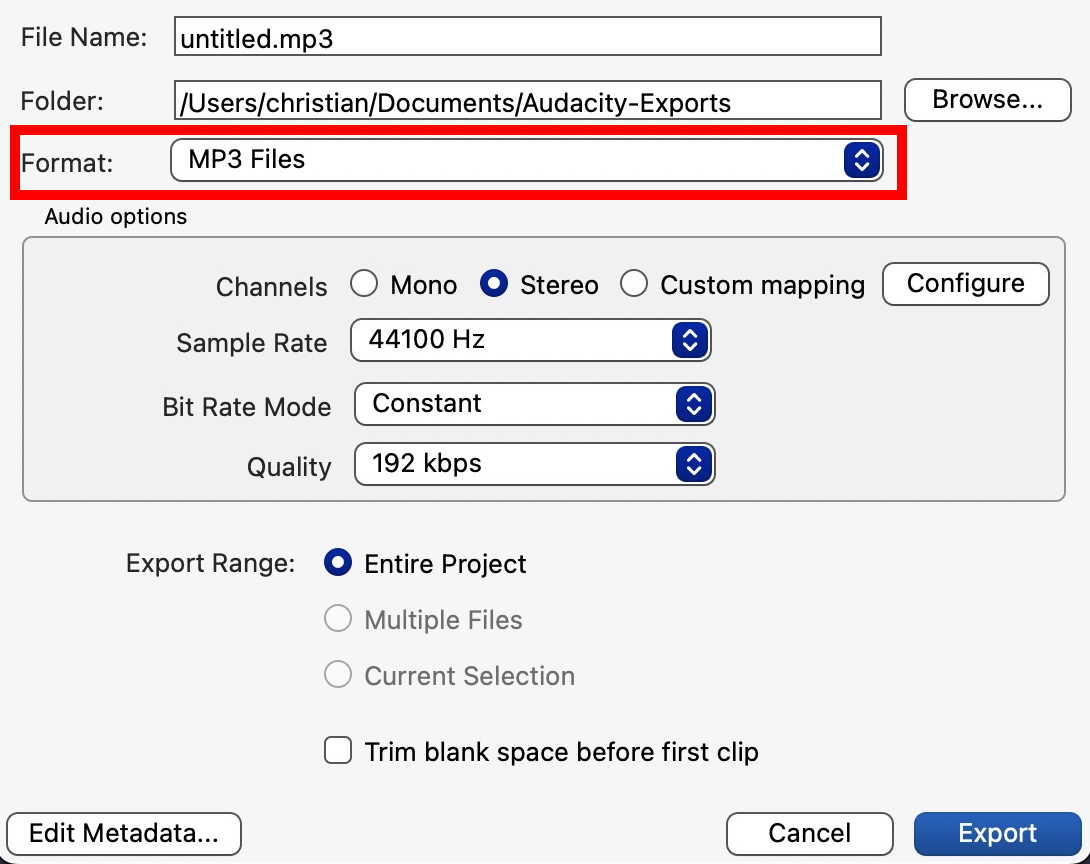
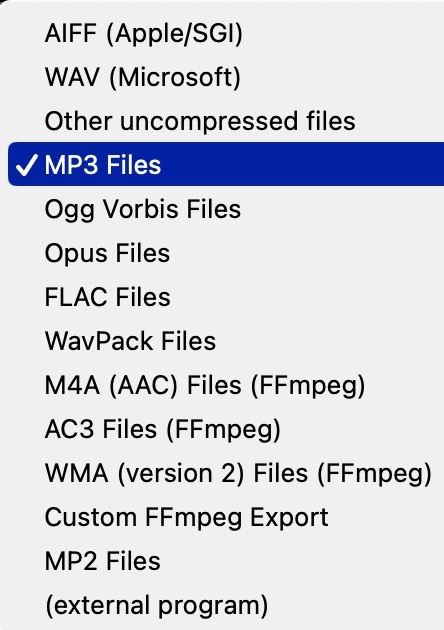
The export dialog lets you chose the file format, so probably you had set it wrong…
If you still have the Audacity Project file (.aup3), just open it and export again. Of course, you could also use a converter (online or on your computer) to convert the exportet .wav files to .mp3.
No, it would work with any media your player device can use.
Please note that mp3-files are always played alphabetically, so you need to number them at the beginning:
01 First Track
02 Second Track
03 Third Track
04 Fourth Track
05 Fifth Track
Otherwise they would be played in this order:
Fifth Track
First Track
Fourth Track
Second Track
Third Track
WAV (and AIFF) is an uncompressed format, while MP3 files are compressed - from slightly to heavily, depending on your settings (which you can influence in the export dialog of Audacity). A “good quality” mp3 file is 192 kbit/s, the lower the number the worse the quality (and the smaller the file).
I do not see anything like that. My export dialog box is way simpler. My version of Audacity is a probably 10 years years old. Maybe I need an update? I am using version 2.1.0
Yes, that IS old. It’s not even the best version of Audacity 2. The latest version is 3.7.7. You could always try it. You can still download an old version if you don’t like it.
When you reply to a post the 8th icon from the left (a thick bar with an upward arrow) lets you upload. Send a screenshot that way.
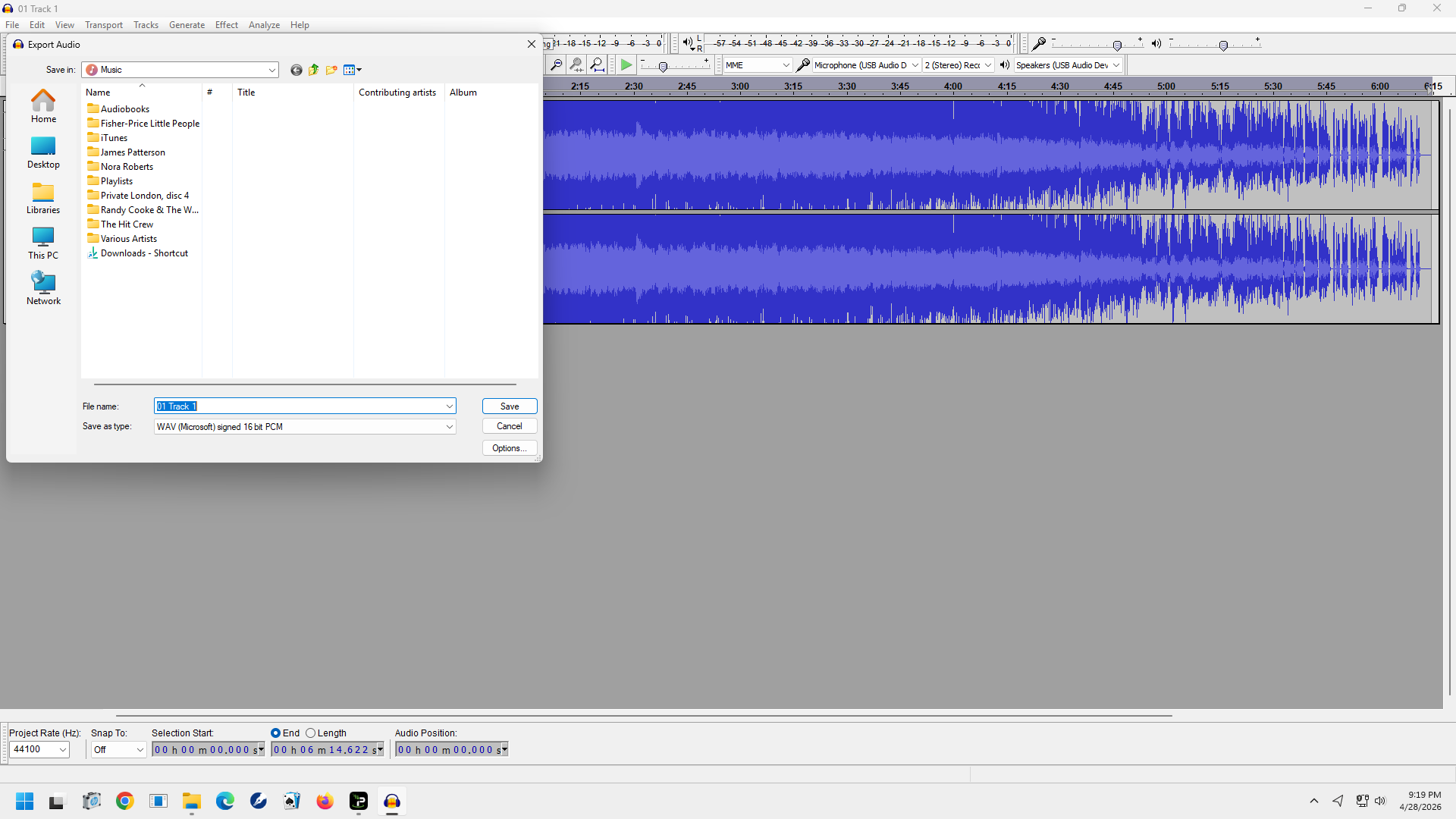
I do not know what version of Audacity your screen shot is - but I would guess the format selection can be found under the “Save as type” when you click on the small down-arrow at the right of the box.
But since it works now, there’s no need to think about it…
I imported MP3 files from a folder (17 tracks, about 1 hr,) SELECT: All; TRACKS: Align End-to End; MIX: Mix and Render, then Export Audio to the folder of choice on my computer. What I end up with is about 6 minutes +/- of the disc…..that’s IT!
I do notice that, when Audacity is opening the files, the green progress bar does not go to the end…… it opens some of it, then jumps to the next track, then doesn’t get all of that one….
Other than getting out of bed this morning, where did I go wrong??
I never tried that - but you can do the following:
When you import the tracks as you described - do you see everything in one stereo recording, or do you see them all individually in 17 different windows? If it only opens some but not all pieces, it may be a memory (RAM) issue of your computer.
If 17 different windows: copy track 2, then switch to the window with track 1 and paste after the end - then continue with all remaining tracks.
Make sure you have switched on the option “Editing a clip can move other clips” in Preferences → Tracks → Track Behaviour.
Make sure you have “Snap” disabled in View → Toolbars → Snapping Toolbar. This helps you to join the pieces seamlessly.
According to my quick Google search, if you use Exact Audio Copy to rip a CD you can select an option to extract to a single file - MP3 in your case. I have never done it myself but I do use the program sometimes. In this scenario, Audacity is not needed.
When I rip a CD I use dbPoweramp and rep each CD as 1 track. No problem. The files I am working with here I had previously ripped with Windows Media Player.