Clips Are Great. I am using it as a major staple. But finding it more and more "The Glass is more Empty"

a) I want the ability to Enable/Disable a Clip (no, muting a track is not the answer; nor silencing a clip).

b) How do I nudge a Clip’s left right for precision alignments? using keyboard short cuts. I have recorded in my personal notes about “select a clip, use alt + left/right arrow to nudge the clip” which was working for me before. But cannot get it to work now.

I will keep searching for these - but thought I should post to pick on the expertise of someone in the know.

Thanks in advance.

br Sri.

1 Like

Sounds like a feature request for @teetow to explore

1 Like

Thanks Leo. I will repost it to the named person asap.

br Sri.

1 Like

Concerning nudging a clip left or right.

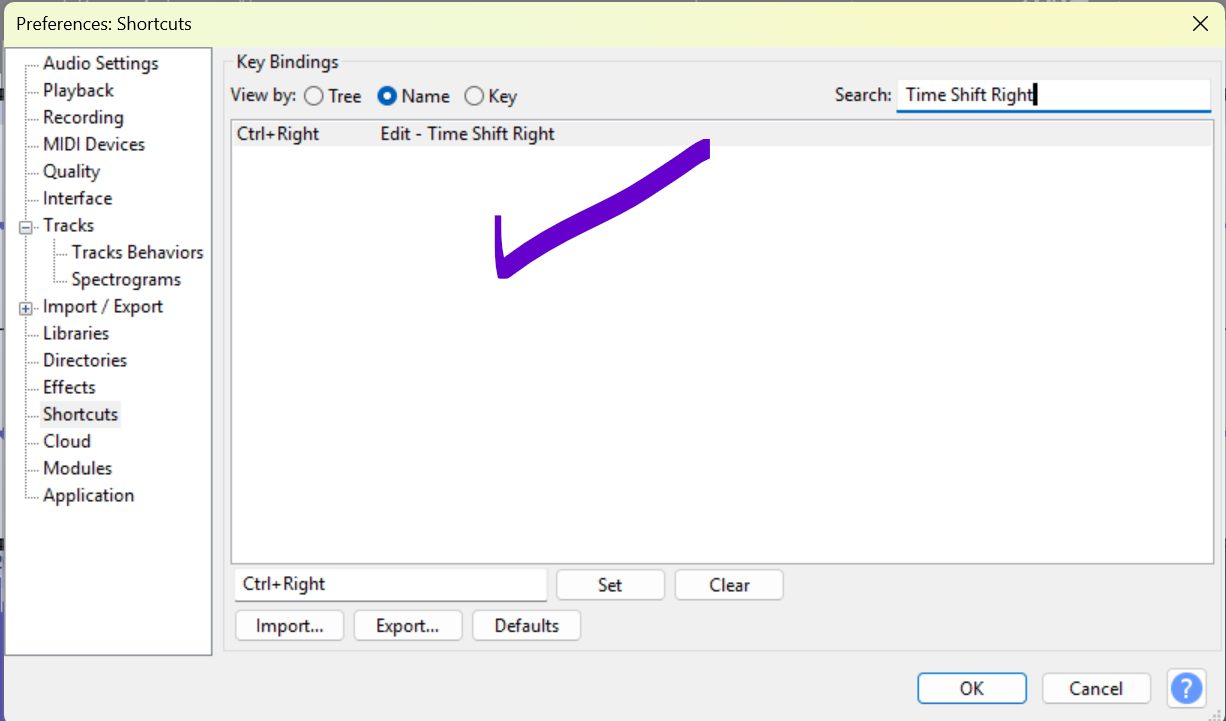
There are a couple of commands, Time shift left and Time shift right. By default no shortcuts are assigned to these commands, so you’ll first have to do this on the shortcuts page of the Preferences dialog.

Then, either click somewhere within a clip, or select it, then use the shortcuts you’ve assigned to nudge the clip.

1 Like

Thanks David for the lovely tip. It is very much what I wanted and simple to exercise.

Regards, Sri.

David that worked well.

Though I am not sure about the Granularity and how to control it.

Ideally I would like to have to “Shit by 1 Tick” as I would be using it for Fine Grained Moves for Alignments.

Since I was using setting keyboard shortcuts after a long time, the UI was not obvious. So I used Gemini to get the process which I am pasting it here for self and for others.

========

**1.Open the Keyboard Preferences:**Requires Audacity open.

Go to the top menu and select Edit > Preferences (on Windows/Linux) or Audacity > Preferences (on Mac).

In the left-hand sidebar of the window that pops up, click on ShortCuts.

**2.Find your command:**Use the search bar.

You will see a list of all available commands. The easiest way to find what you need is to type the name of the function (Time Shift Right, Time Shift Left) into the Search box at the top.

**3.Select and assign the new key:**Don’t type it out manually.

Click directly on the command you want to change to highlight it.

Then, click inside the empty text box next to the Set button near the bottom. Press the actual keys on your keyboard that you want to use as the shortcut (for example, press Ctrl + Right Arrow, Ctrl + Left Arrow).

**4.Save the changes:**Crucial final step.

Click the Set button right next to the text box. If the shortcut is already in use, Audacity will warn you and ask if you want to overwrite it.

Once the new shortcut shows up next to your command in the list, click OK at the bottom of the Preferences window to save your changes.

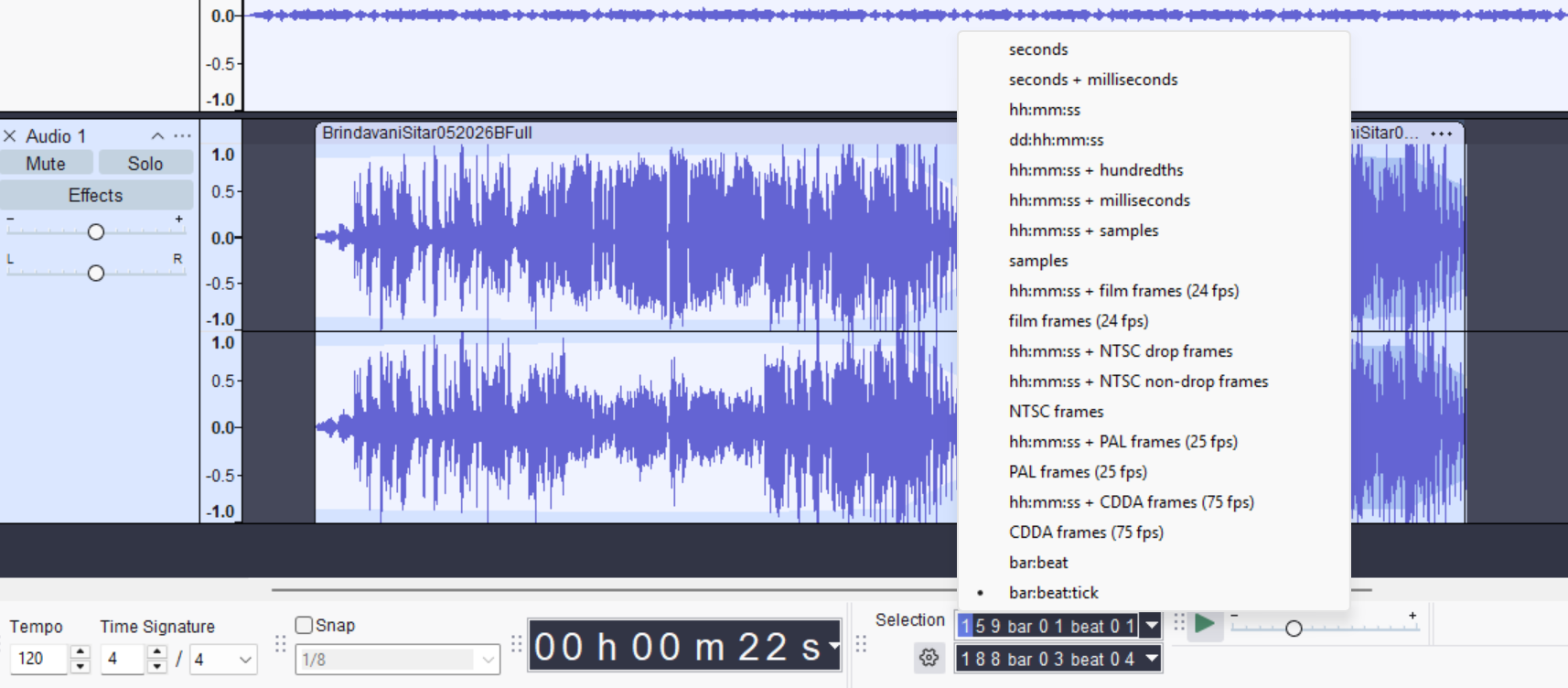
How much is the shift is determined by the settings of the selection area in the bottom of the window.

clicking on the down arrow on the right end of selection brings up the context menu to select the units for time shift.

This a convenient handy note for self and others who may need this.

David Et al.

An important update to what I had written above.

Sri.

========

The TIME Shift commands are

VISUAL ACTIONS – moves the clip visually by “One Pixel”.

So the actual move depends on the zoom level.

Getting the correct Zoom level right is completely “artificial” connection that has nothing to do with the Musical Domain.

What I need is MUSCIAL ACTIONS.

That is, the clip is moved by one Sample, one Milliseconds, One Tick or whatever unit is needed. This may not be visible in the visual level due to Pixel Resolution factor/

So we have to use Boundary Move Left/right commands and not Time Shift Left/right.

According to what I understand.

Boundary Move Left/Right is supposed to taking the Magnitude of Time Shifting the Clip from the Seek Setting.

Will check/confirm this soon.

All

I have concluded.

It is clear that Audacity is missing

a Critical Function for accomplishing Precise & Fine Grained Musical-Domain Nudging of Clips.

Audacity team can you please prioritize and fix this gap? Please focus max energies on User Productivity and Support Precision and Reliable Workflows - on par with if not more with Boast Features like cloud saving etc.

If I am wrong please let me know, and I always welcome the education.

Can I also add in this context some form of Stick-it-Note that can be added to Clips/Tracks etc.

Thanks Sri.