Using the Audacity program, I digitised two reel-to-reel audio tapes that were recorded in the early 1960s.
As my reel-to-reel player only has two speed settings (3 and 3/4ips, 7 and 1/2ips, inches per second), I digitised the tapes at 3 and 3/4ips.
However, the recording speed was originally set at 1.875ips, so my digitised version is double the speed it should be.
In theory, I’m thinking that if I double the current running time of my digitised version in Audacity, then that should make it the correct speed. But I’ve never tried this in Audacity before, and am wondering if anyone has any thoughts and advice about this task, please?
Thank you - that’s interesting and very helpful!
Might there be a way of editing the ‘capture’ file of the recording in Audacity, changing it to the right speed (i.e. by doubling the running length), and then exporting the file into WAV and MP3 output files?
Well, at 1 ⅞ ips (4,75 cm/s), I think there will anyway not be a lot of high frequencies available. The “audiophiles” in my surrounding recorded everything in 19 cm/s (= 7 ½ ips)…
If it is speech only, the slow recording may be adequate though.
Yes, it is speech only. I think that loweest speed setting was for speech only reel-to-reel tapes.
Do you know if there is a way of doubling the running time in Audacity? I was hoping to double the running time (i.e. halve the speed), and then export as WAV and MP3 files?
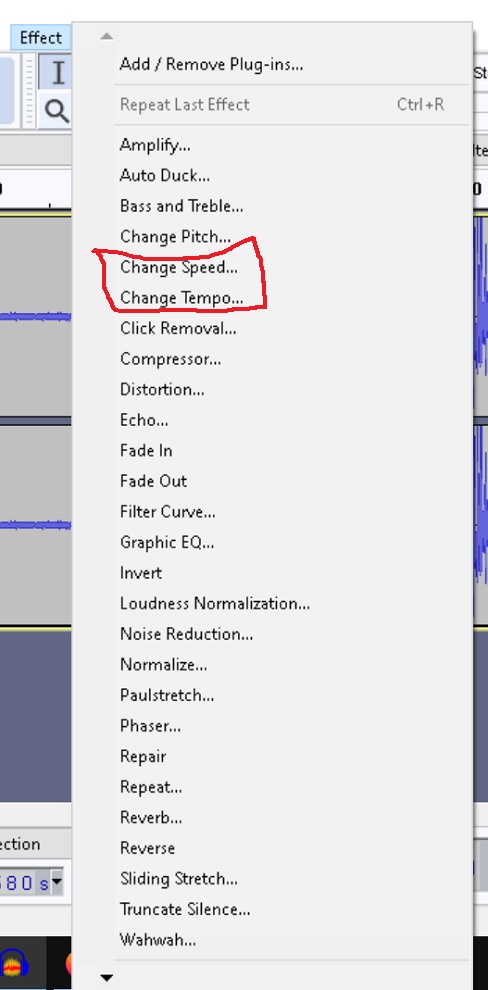
Am using Audacity version 2.4.2 (Windows 10).
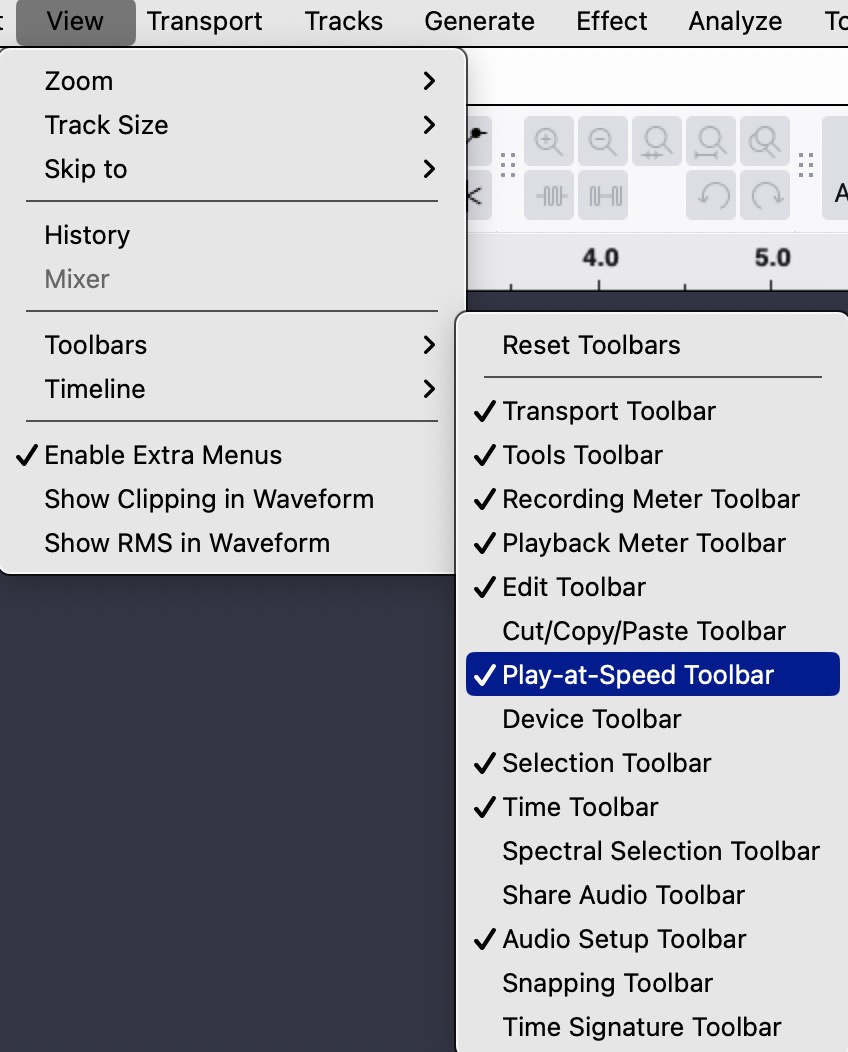
Don’t think I have the option of Change Pitch and Speed setting.
But there are options for Changing Speed and Changing Pitch, so maybe I need to do change both of these options?
I believe Change Speed will change speed and pitch together exactly like an analog speed change. Give it a try! (Nothing is permanent unless you export and over-write your original file.)
Yes, you can speed up the tape to 7.5 ips and then slow it back to 3¾ ips in Audacity, but there are trade-offs:
High frequencies: As you already noted, doubling the speed pushes the analog tape’s frequency response higher, but when you slow it back, you may lose some top-end clarity and subtle harmonics. You might notice it in cymbals, hi-hats, or very bright instruments.
Noise floor: Speeding up may also accentuate tape hiss slightly when slowed back.
Wow & flutter: Slight pitch fluctuations can become more noticeable when adjusting speed digitally, though Audacity’s “Change Speed” or “Sliding Stretch” effects handle it fairly well.
Practicality: If your tapes are worn or degraded, recording at double speed may exaggerate tape dropouts or distortion.
In short: you will save time, and for most music, the loss is minor. Classical or very high-fidelity recordings might suffer a bit more. For 150+ tapes, it’s a reasonable compromise if your goal is efficiency over perfect audiophile fidelity.