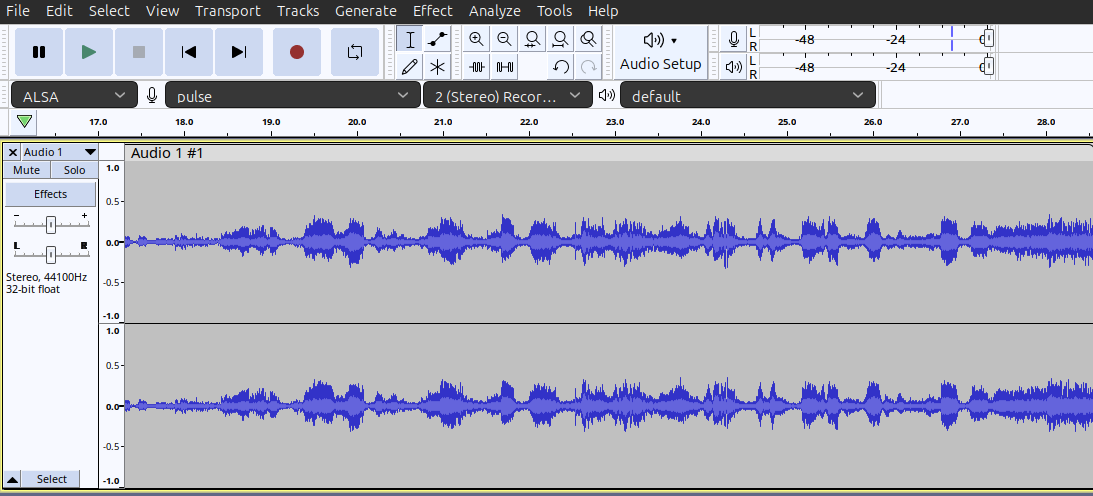
Trying to follow this guide here: Tutorial - Recording Computer Playback on Linux - Audacity Manual
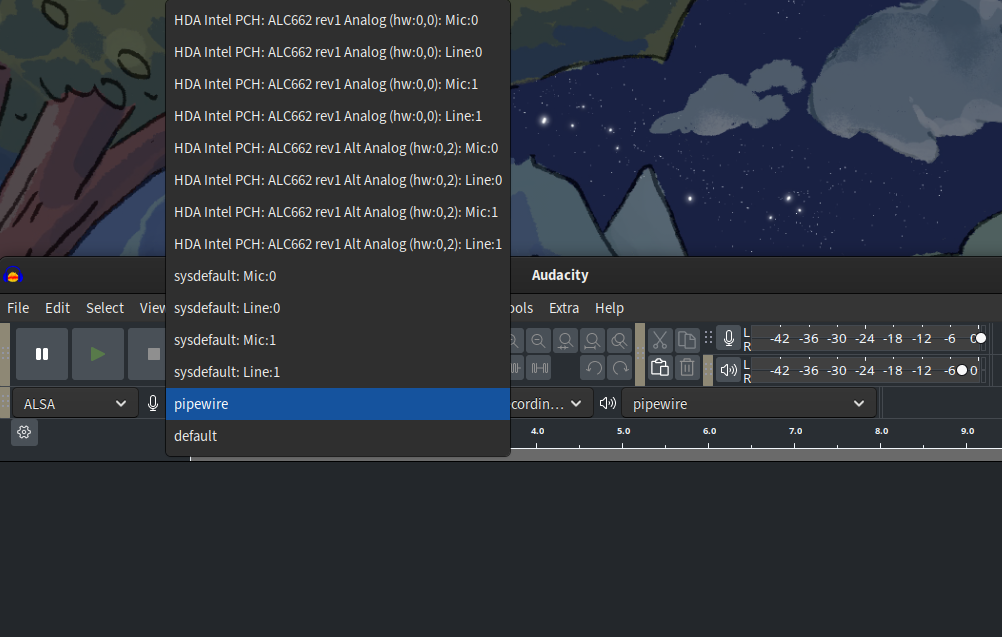
However, despite installing both pulseaudio and pavucontrol, no “pulse” device shows up when selecting a recording device, just my computer’s internal and external microphones.
How can I get Audacity to show a “pulse” device? Or failing that, how can I record desktop audio on Linux?
You didn’t say what distro or version you’re running, but if it’s one that’s moved to PipeWire as its default sound server you don’t want to install PulseAudio at all, as that’ll only break things. What you want is to install PipeWire’s emulation layer for PulseAudio, which on Fedora is a package called pipewire-pulseaudio.
With that installed, you still won’t have an ALSA device named “pulse” , but you should have one named “pipewire” that takes the place of the old “pulse” device from actual-PulseAudio.
If you installed it, and if pipewire (or libpipewire0 or anything like that) is also already installed and came with the distro, I would say yes.
Even though pulseaudio is still packaged, PipeWire is its replacement on most systems and they won’t play well together. You should uninstall pulseadio and instead install pipewire-pulse (that’s the package name on Ubuntu, as someone provided in another thread) as well as pipewire-alsa (forgot about that one). That should get you Audacity compatibility with the system’s PipeWire install.
Like I said, you can keep pavucontrol installed, it’s actually useful even with PipeWire since it gives more control (via the emulation) than the current set of PipeWire-specific tools does.
So I uninstalled pulseaudio, and it turns out I already have both pipewire-pulse and pipewire-alsa installed, but I’m still not seeing the “pulse” option show up in recording devices.
Hmm. What does pavucontrol show for your device’s configuration and/or Input Devices? (Does pavucontrol see the audio device at all? If not, you’ve got a bigger problem than just Audacity.)
My motherboard audio has a bunch of configurations, and if I were to set it to “Analog Stereo Output” then there wouldn’t be any input devices defined, because it would be configured for output-only.
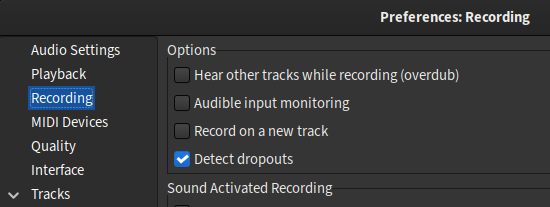
Selecting that should let you record the audio playback on your PC. Obviously, make sure Audacity is configured NOT to monitor while recording, or you’ll get a feedback loop.
(IOW, make sure the first two boxes are unchecked.)
I guess, maybe run systemctl --user list-unit-files and make sure both pipewire.service and pipewire-pulse.service are both STATE: enabled and PRESET: enabled.
(Or you can run systemctl --user status pipewire.service pipewire-pulse.service, which should look something like this:)
$ systemctl --user status pipewire.service pipewire-pulse.service
• pipewire.service - PipeWire Multimedia Service
     Loaded: loaded (/usr/lib/systemd/user/pipewire.service; enabled; preset: enabled)
     Active: active (running) since Wed 2025-10-01 19:15:32 EDT; 4h 6min ago
TriggeredBy: • pipewire.socket
   Main PID: 1779 (pipewire)
      Tasks: 3 (limit: 4592)
     Memory: 10.0M (peak: 10.3M)
        CPU: 4.921s
     CGroup: /user.slice/user-1000.slice/user@1000.service/session.slice/pipewire.service
             • 1779 /usr/bin/pipewire

Oct 01 19:15:32 ferd-Ubuntu-24.04 systemd[1768]: Started pipewire.service - PipeWire Multimedia Service.
Oct 01 19:15:32 ferd-Ubuntu-24.04 pipewire[1779]: mod.jackdbus-detect: Failed to receive jackdbus reply: org.fr>

• pipewire-pulse.service - PipeWire PulseAudio
     Loaded: loaded (/usr/lib/systemd/user/pipewire-pulse.service; enabled; preset: enabled)
     Active: active (running) since Wed 2025-10-01 19:15:32 EDT; 4h 6min ago
TriggeredBy: • pipewire-pulse.socket
   Main PID: 1794 (pipewire-pulse)
      Tasks: 3 (limit: 4592)
     Memory: 12.1M (peak: 12.6M)
        CPU: 3.728s
     CGroup: /user.slice/user-1000.slice/user@1000.service/session.slice/pipewire-pulse.service
             • 1794 /usr/bin/pipewire-pulse

Oct 01 23:18:17 ferd-Ubuntu-24.04 pipewire-pulse[1794]: mod.protocol-pulse: client 0x60b32d943220 [PulseAudio V>
Oct 01 23:18:18 ferd-Ubuntu-24.04 pipewire-pulse[1794]: mod.protocol-pulse: client 0x60b32d943220 [PulseAudio V>
Oct 01 23:18:18 ferd-Ubuntu-24.04 pipewire-pulse[1794]: mod.protocol-pulse: client 0x60b32d943220 [PulseAudio V>
Oct 01 23:18:18 ferd-Ubuntu-24.04 pipewire-pulse[1794]: mod.protocol-pulse: client 0x60b32d943220 [PulseAudio V>
Oct 01 23:18:18 ferd-Ubuntu-24.04 pipewire-pulse[1794]: mod.protocol-pulse: client 0x60b32d943220 [PulseAudio V>
Oct 01 23:18:18 ferd-Ubuntu-24.04 pipewire-pulse[1794]: mod.protocol-pulse: client 0x60b32d943220 [PulseAudio V>
Could be that installing pulseaudio broke something along the way.
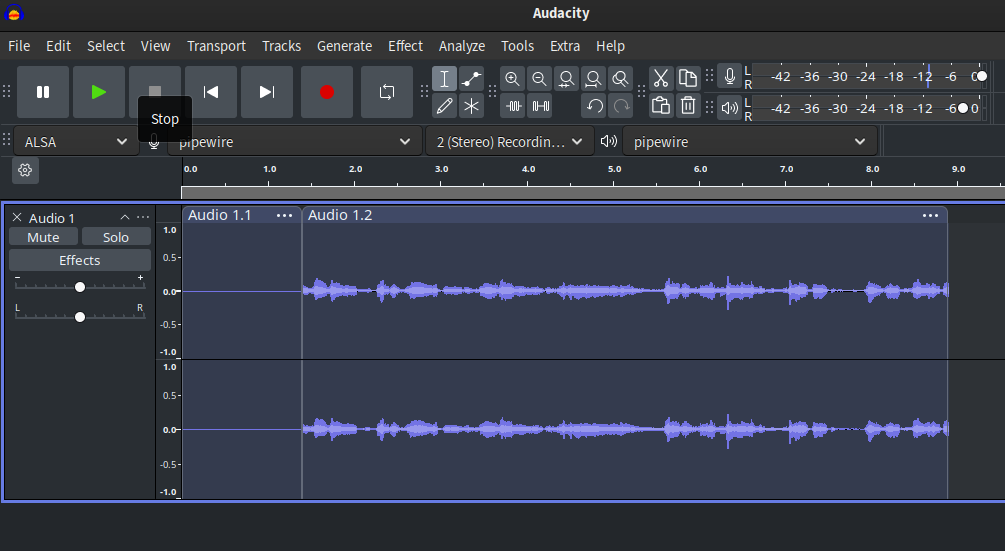
Once again, recording YouTube, this time on the VM via the pulse device:
(If either service is not running, start it with systemctl --user enable --now _____.service.)
In fact, since it looks like both are socket-triggered, what’s maybe even more important is to make sure both pipewire.socket and pipewire-pulse.socket are enabled:
$ systemctl --user status pipewire.socket pipewire-pulse.socket
• pipewire.socket - PipeWire Multimedia System Sockets
Loaded: loaded (/usr/lib/systemd/user/pipewire.socket; enabled; preset: enabled)
Active: active (running) since Wed 2025-10-01 19:15:32 EDT; 4h 33min ago
Triggers: • pipewire.service
Listen: /run/user/1000/pipewire-0 (Stream)
/run/user/1000/pipewire-0-manager (Stream)
CGroup: /user.slice/user-1000.slice/user@1000.service/app.slice/pipewire.socket
Oct 01 19:15:32 ferd-Ubuntu-24.04 systemd[1768]: Listening on pipewire.socket - PipeWire Multimedia System Sock>• pipewire-pulse.socket - PipeWire PulseAudio
Loaded: loaded (/usr/lib/systemd/user/pipewire-pulse.socket; enabled; preset: enabled)
Active: active (running) since Wed 2025-10-01 19:15:32 EDT; 4h 33min ago
Triggers: • pipewire-pulse.service
Listen: /run/user/1000/pulse/native (Stream)
CGroup: /user.slice/user-1000.slice/user@1000.service/app.slice/pipewire-pulse.socket
Oct 01 19:15:32 ferd-Ubuntu-24.04 systemd[1768]: Listening on pipewire-pulse.socket - PipeWire PulseAudio.
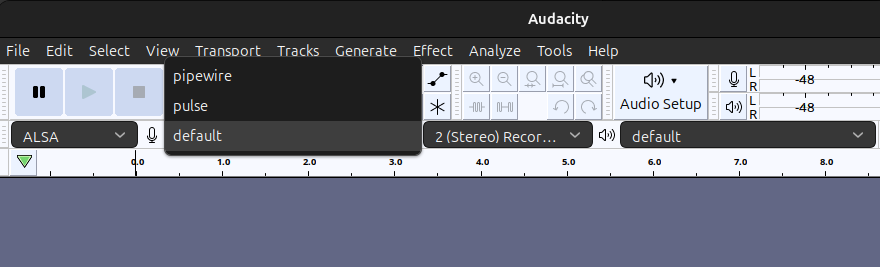
Okay, so it turns out I’d installed the wrong version of Audacity or something. The version I had installed came from the App Store, but when I installed Audacity through sudo apt install , I was able to find and select ‘pipewire’ and ‘pulse’, but neither seem able to record desktop audio. The services and sockets for pipewire and pipewire-pulse are all running.
I don’t use Ubuntu, I use Mint which is based on it. I’ve made a little video showing how I set mine up for recording from the desktop in the hope it might point you in the right direction.
I should have mentioned you right-click the speaker icon. If you left-click you just get a volume control.
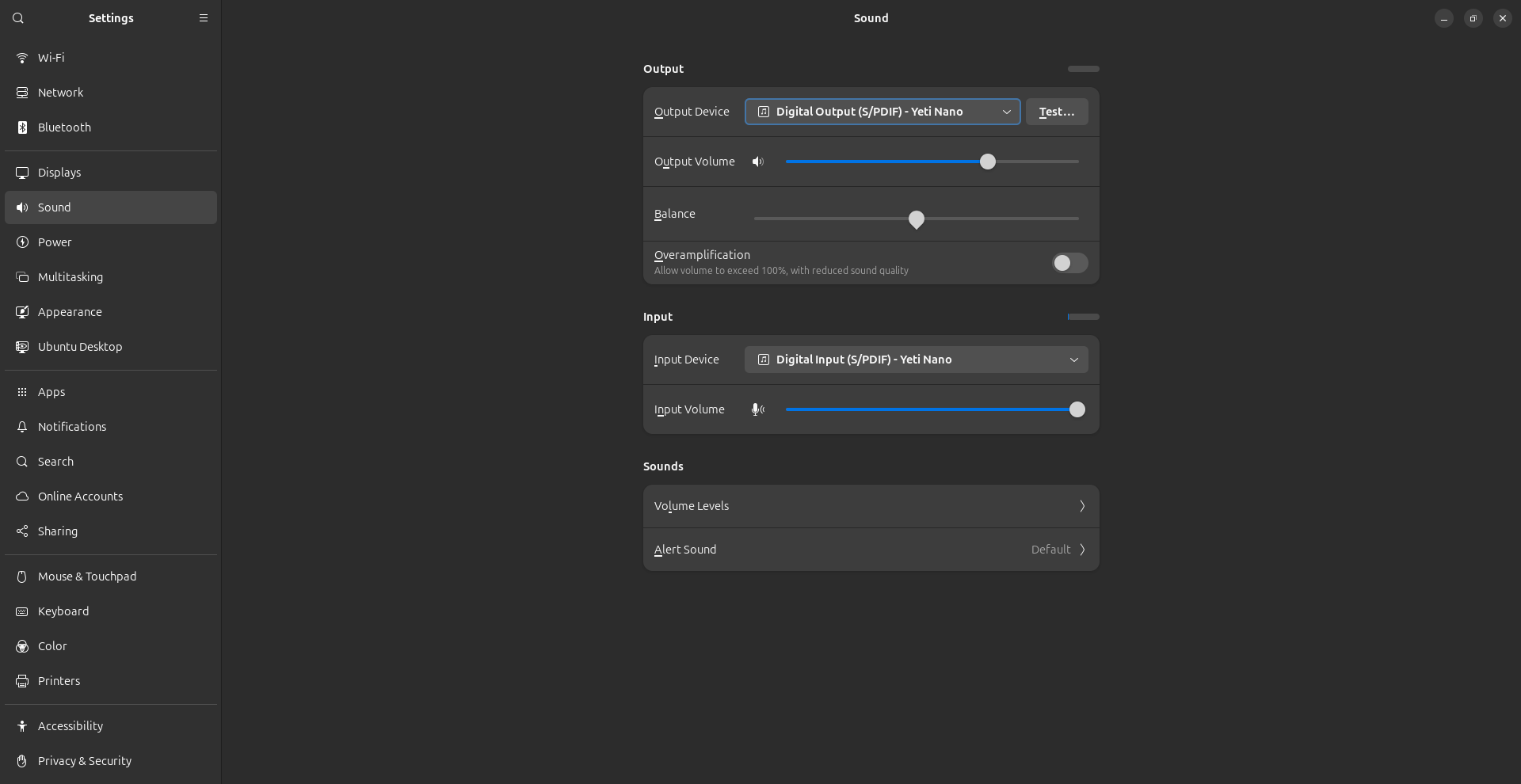
My audio setup and settings are a bit different from yours, so I’m still unclear how to set things up so Audacity can record desktop audio. I’m using a Yeti Nano microphone (that my headset is plugged into) and this is how I’ve got things set up right now.
Yeah, that probably would’ve been a good thing to mention.
Honestly having read a bit on the Nano, now, I find that setup confusing. Their product literature is constantly going on about why the headphone output is there: “Use Yeti Nano’s headphone output to monitor your microphone recording in real time, without latency delays.” …But if the headphone audio is going through the computer, and isn’t feeding directly from the mic, how can they claim there’s no latency?
Regardless, I think you should fire up pavucontrol and have a look at what the Input Devices setup looks like. When I’m able to record system audio, the input device is “Monitor of Built-in Audio Analog Stereo” (the output), because that’s the only input device available. (I have to change Show: at the bottom to “All Input Devices” to see the monitor source, because it doesn’t show up in “Hardware Input Devices”.)
If you’ve got your microphone connected, most likely the selected input device is the microphone in. I think you’d have to change it to the monitor source for the audio out, in order to record the system audio.
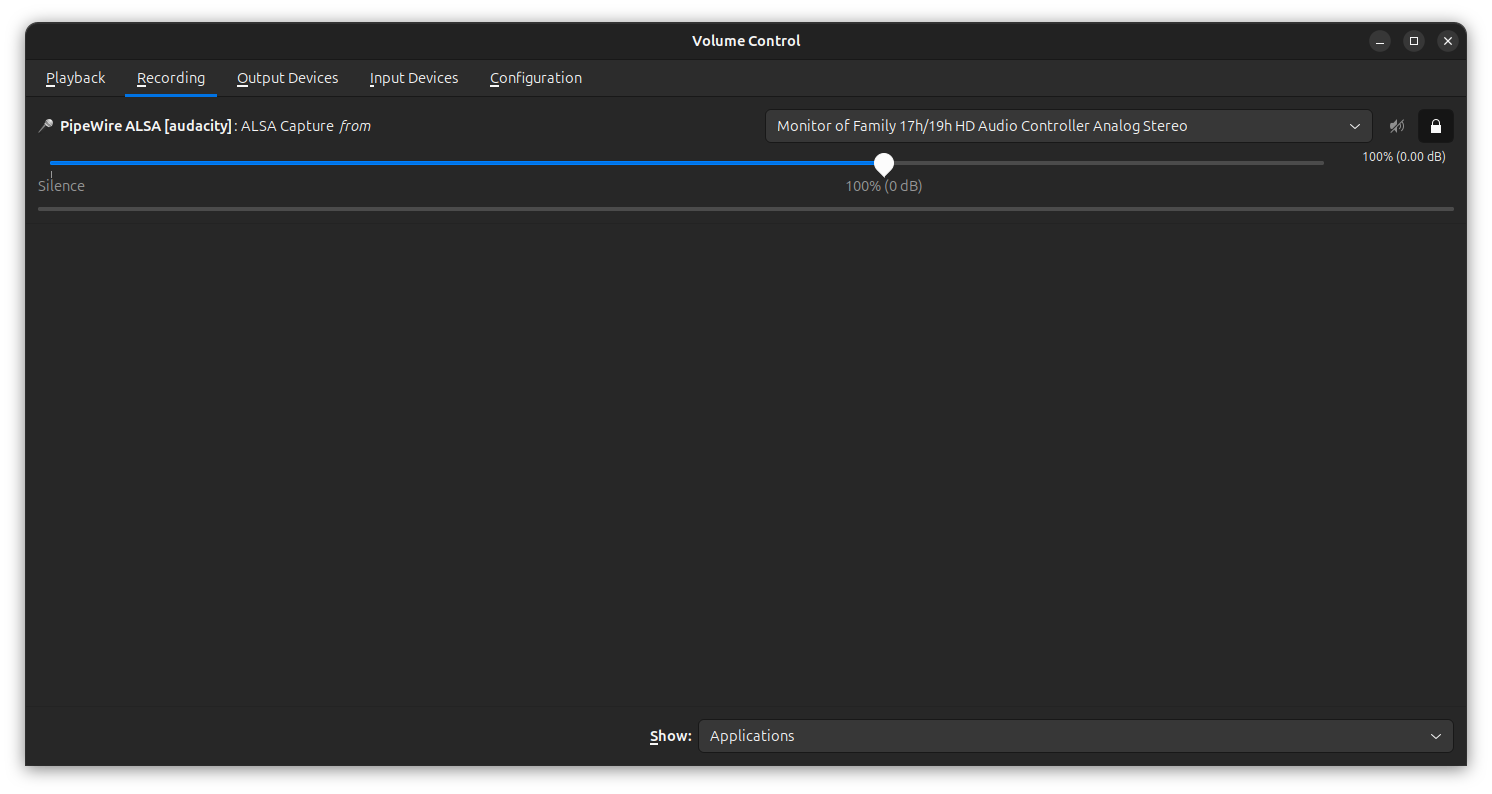
You can also pop over to pavucontrol’s “Recording” tab while Audacity is recording, there may be options to switch sources there if you have more than one.
But either way if Audacity is connected to the system audio, I’m not sure you’d be recording the microphone audio at the same time. It feels like an either/or.
Yeah, once I enabled the microphone input of my motherboard sound device (not that anything’s plugged into it), the “Recording” tab in pavucontrol instantly grew an input selector that allows me to switch between “Monitor of Built-in Audio Analog Stereo” (the output) and “Built-in Audio Analog Stereo” (actually the mic input).
When I switch it to the second one, Audacity stops receiving system audio.
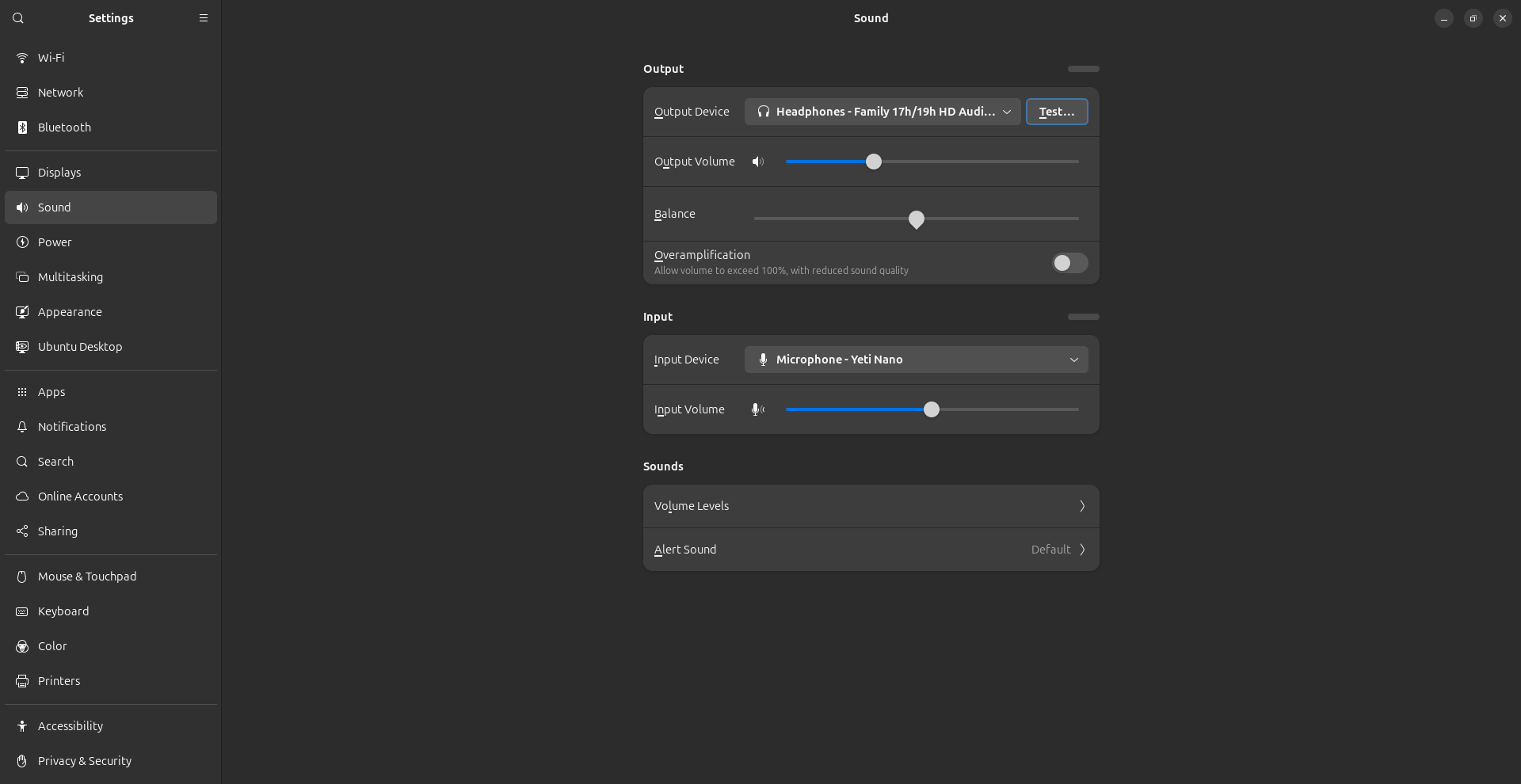
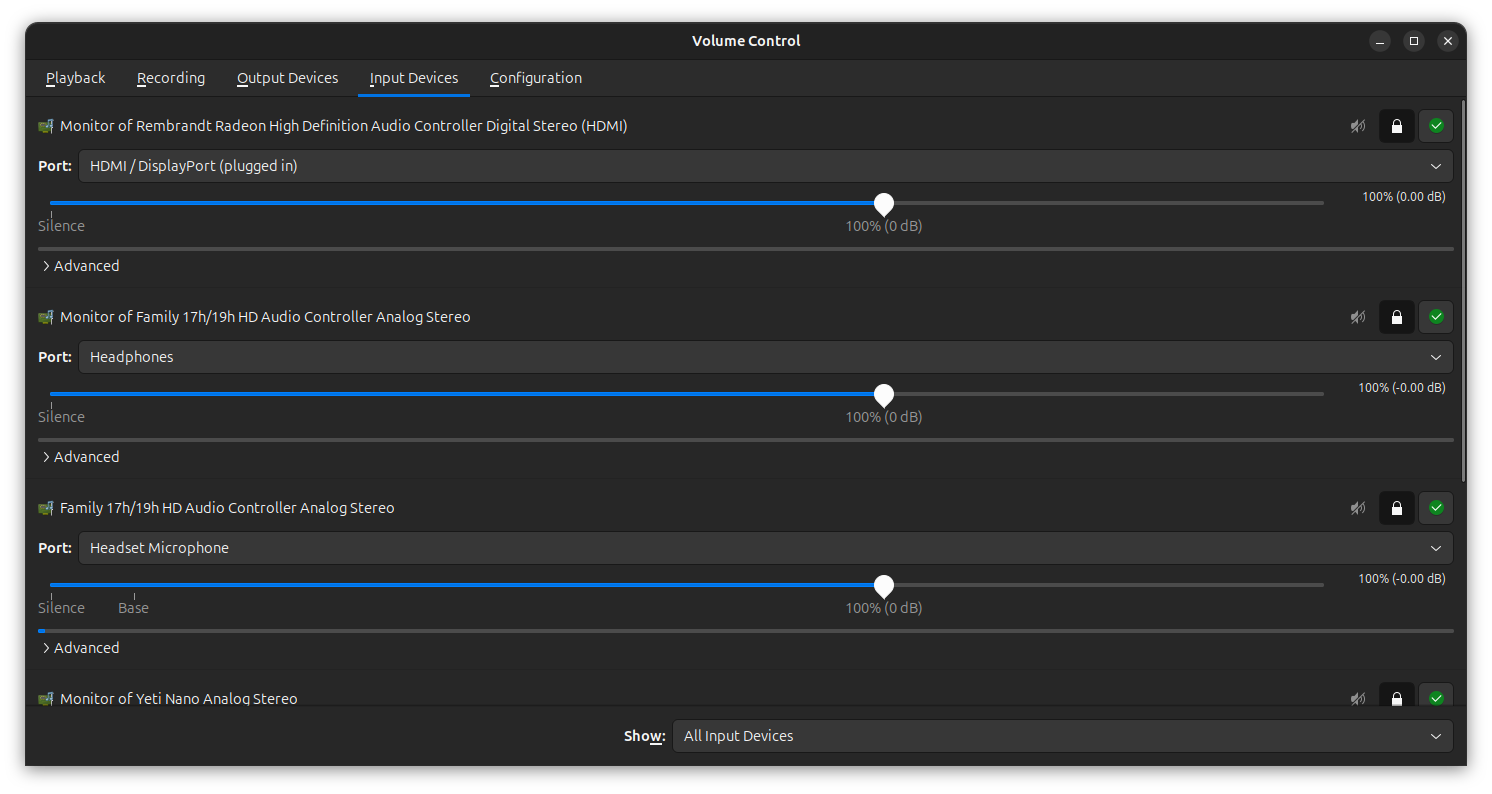
So when I restarted my computer in the morning, the headset I’d plugged into the Yeti Nano didn’t pick up any audio, so I just plugged it directly into my computer again. Here’s what the volume settings look like, and below is the Pavucontrol settings for ‘input devices’.
‘The Monitor of Rembrandt’ device only has one option, The ‘monitor of family’ device only has ‘Headphones’ and ‘Speakers (unavailable)’, The ‘familly 17h/19h’ device only has “Headset Microphone” and “Internal Microphone” as options, and the “Yeti Nano” and “Monitor of Yeti Nano” only have one option, “Microphone” for the Yeti Nano and “Analog Output” for the Monitor of Yeti Nano. I honestly have no idea which options I should or shouldn’t select.
When I tried your suggestion of viewing the Recording tab ofpavucontrol, I was able to record desktop audio by selecting “Monitor of Family 17h/19h” device from its selector.