Recently I got an updated (2026) audacity version and have major problems exporting aup3 files to MP3. Saving to computer but they just vanish. Why and where do they go?
1 Like
I don’t use Mac but my suggestion is to export to a file with a very distinctive name and then search for that name. That might give you an answer.
Thanks for your answer. I have created a folder for them, but the MP3s aren’t getting into it now, though a couple did earlier. I find some files (specially labled) in iCloud Documents, but in aup3 not MP3. Sending me round the bend!
You can set the default directories for different actions in Audacity’s “Preferences” dialog.
You can search for the “missing” files using the Mac’s built-in search funtion (which is not always finding everything) or using “Find any File” from Thomas Tempelmann. Just search for the name you gave to the files.
Audacity dislikes “remote storage” like iCloud. Usually, your computer saves files where you tell it to do so - and if you don’t look carefully enough, you may just not see where the file has gone… happens to me also sometimes.
Thanks a lot! Finally got that under control, I hope! Do you know how to get rid of parts of blank spaces to put clips closer together? Romont?
Good to hear!
What do you mean by “blank spaces”?
If you are recording from a vinyl or from a cassette, there are “gaps” between each song. But I think, you should export all songs separately anyway, and afterwards place them in the music application of your choice (Music.app for newer Macs, iTunes for older Macs and Windows devices), so you can play them without needing to listen to the whole LP.
If you want to eliminate too long pauses in a lecture, just click your mouse at the beginning of the pause, drag until the end and rhen release the mouse button. After having marked the space, just use the delete key.
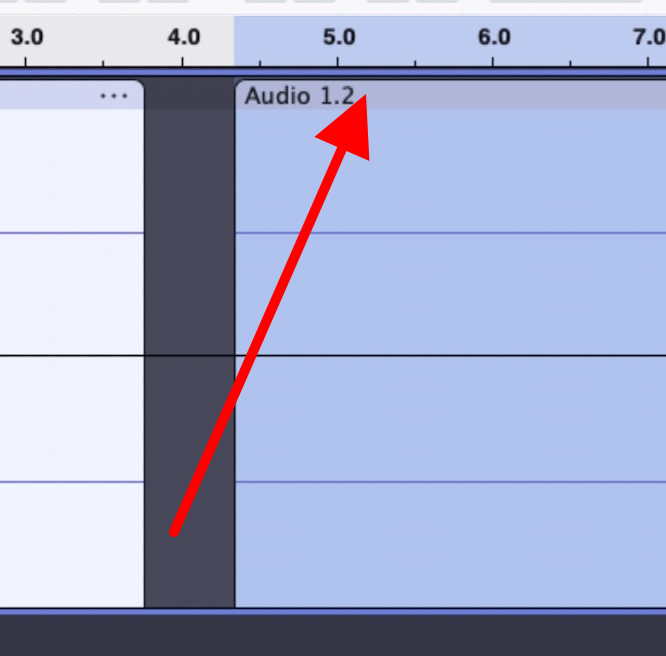
If you have real “blank space” between two clips in your recording, you can drag the second recording adjacent to the first: grab the title bar of the clip you want to move and drag it to the left. You may have to enable the behaviour in Audacity’s settings by activating “Editing a clip can move other clips” (Settings → Tracks → Tracks Behaviors)
1 Like
If there are a lot of tracks with “gaps” between them (say you deleted a lot of audio while the tracks were locked to the timeline), you can remove them all by clicking Tracks, then Align Tracks, then Align End To End.
Thanks for being so helpful. Mine were ‘black holes’ between clips, but I was shown how to get rid of them, so did so. Your suggestion may well come in useful in the future, as I have a lot to learn!
I had a similar issue before. It may be related to export settings, muted/disabled tracks, or the selected audio range during export. Try checking that all tracks are enabled, select the full project, and export again. Also make sure the MP3 encoder settings are correct. Hope you find the fix!
Many thanks. Problem solved 
This topic was automatically closed after 30 days. New replies are no longer allowed.