If your CDs with copy protection still play on a regular old CD player, then the copy protection is effective only on certain computer operating systems that “obey” the copy protection. Sony got in hot water a number of years ago for suing people who disclosed the “Shift key” method to bypass the copy protecting scheme on their CDs (i.e., hold down the Shift key when inserting the CD into a Windows computer to prevent it auto-running the malicious copy protection software on the CD).
Amazon sometimes can have really good deals.
If it’s sold by Amazon should be legit.
I don’t have any Scarlet device, but from what I’ve read and samples I’ve heard, it sounds really amazing and it’s on my wish list.
Nearly dead silent inputs and outputs apparently.
One problem with USB audio devices is that being “digital” doesn’t guarantee a noise-free output (contrary to what one may think).
This devices are usually powered from USB and even if powered externally some noise going through the USB data line may not be properly filtered… and computers put an horrendous amount of noise both into the USB power and data lines.
Last year I tested a Presonus Audiobox USB 96 from a friend and I was a bit disappointed with the noise level I was getting on both input and output (noise frequency changed when I plugged or unplugged other USB devices, so pretty sure that’s where the noise was coming from).
Another alternative for audio output is going the bluetooth route. My original plan last year was to buy a pair of Presonus Eris E3.5 studio monitors and buy an USB audio device to connect my computer to them, but after the somewhat failed experience with the AudioBox and following the advice of other users here I decided to get the bluetooth version of those speakers (Presonus Eris E3.5 BT). The extra cost for the BT version was about 20 euros (120 vs 100).
I’m still amazed by how good they are!
By having the signal going “through the air” in digital form there’s no chance of getting that nasty USB noise, (or any noise) passing over to the monitors (only possible source of noise would be the monitors built-in power supply).
So noise wise, this is a perfect solution. Major drawback is that BT adds some latency (about 200-250 ms in my case). For proper video-audio sync you’ll need to edit the audio output setting on your OS and add compensation for that latency (I use Linux and pulseaudio handles that easily).
I was also I bit skeptic about the internal DAC in these monitors, I thought “for 20 extra euros, this can’t have a very good DAC…”. I was wrong there… It’s pretty good!
So if the added latency isn’t an issue for you (and the PC has BT), I’d recommend the BT route (for audio output).
If you also need to buy a new pair of speakers/studio monitors then I highly recommend the Presonus Eris E3.5 BT.
Otherwise I’d guess there should be some affordable BT to line-out devices out there.
If you need to go the wired/USB route (and need inputs), then the Scarlet devices seem pretty amazing too, though I haven’t tried them yet… so can’t speak from my own experience.
At some point I’d like to have a Scarlett for the mic inputs, but not a priority now, so I’ve put that purchase on hold (though I keep it on my amazon cart just keep an eye on the price and if it suddenly drops I may grab one).
Interesting! Thanks! – Clark2
Anyone – How do you recognize a fake Behringer if you have one?
Steve mentioned a few days ago that, “a while back, there were a load of fake ‘Behringer UCG-102’ being sold on-line.” Admittedly what I just ordered from Amazon was a UCA222 (“new” at a bargain-basement price, even though the UCG202’s are apparently backordered everywhere), but is there any way to tell if I get a real one? Maybe somebody who saw one of the fakes could help me? – Clark2
The way that we recognised the fake UCG-102’s was:
- They were suspiciously cheap
- They were from sellers lacking in reputation
- Many of them were faulty from new (very rare for real Behringer)
Number 3 is arguably the only one to be really concerned about.
Thanks again, Steve. I’ll report on what I get… – Clark2
Steve – I tried to test the $10 UCA222 today and couldn’t get it to work. I don’t know how long Behringer takes to respond to tech support requests, but here’s what I wrote up for them:
“UCA222 installed as instructed on a Windows 10 (21H1) laptop. Monitor ON plays both input channels over headphone output. With Audacity’s input set to “Microphone (2 - USB Audio CODEC)” and output set to “Speakers (2 - USB Audio CODEC),” it only offers one choice, “1 (Mono) Recording Channel.” (This is different from the PC-native Synaptics microphone and speakers, which allow Audacity to choose between Mono and Stereo.) Both the Audacity recording and the Monitor OFF only give a mono signal (both headphone channels.
Am I doing something wrong, or is the device defective?”
As instructed, I did not install any special USB driver for this. Do you think this is an example of a “fake Behringer,” or am I doing something wrong? – Clark2
Open the Windows Sound Control Panel
- open the run dialog with Windows logo + R
- enter: mmsys.cpl
- press the OK button
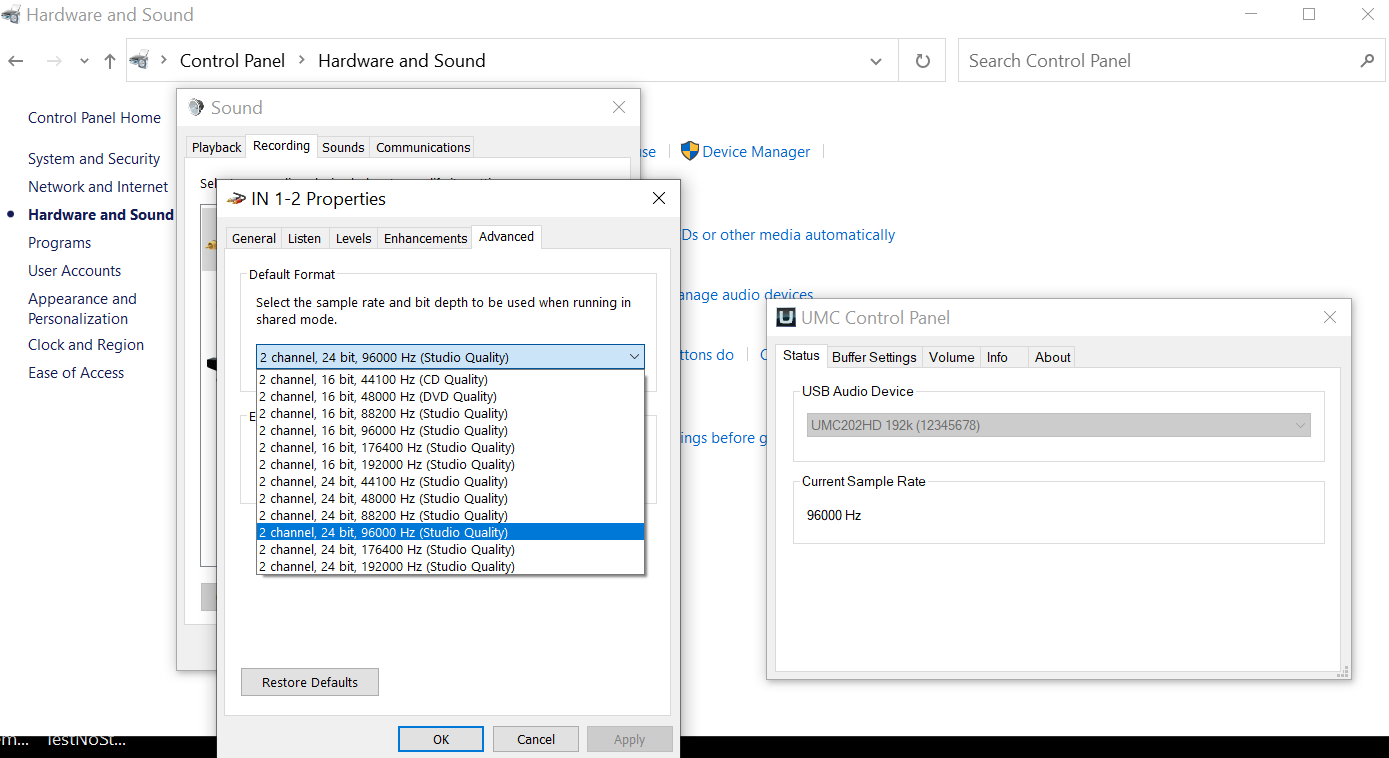
In the Recording tab, select the UCA222 and in “Properties > Advanced”, set the default format to “2 channels”
Steve (or anybody) – I’m trying out the UMC202HD that you recommended, but I’m having a problem (in Audacity at least). It appears that the device might actually be recording at 48kHz even though I tell it to record at 96k. Here are the details:
I had been trying to verify the the bit depth (the UMC202HD is supposed to be a 24-bit device) and had been recommended to use “Lossless Audio Checker” for that purpose. When I record at 96k and export to WAV accordingly, the app tells me “Upsampled,” implying that the recording was not actually made at 96k. When I tell Audacity instead to record at 48k, however, export as such, and run that through the app, it says, “Clean.” (The Windows file properties agree that it’s still 24bit – Bit rate 2304k).
Note further that, when I run Behringer’s “UMC Control Panel,” installed along with the recommended driver for my UMC202HD (BEHRINGER_UMC_v5.12.0_2021-06-16_setup.exe), it always reports the sample rate as “48000,” apparently no matter what I tell Audacity to record.
Am I missing something about how to set the device’s sample rate, what the driver is telling me, or how to communicate between Audacity and the device? – Clark2
I don’t know how accurate that checker is. I’d guess that it can easily be fooled, so I would treat the results as a “suggestion” rather than hard fact.
On Windows you may need to check the device settings in the Windows Sound control panel.
To open the Windows Sound Control Panel
- open the run dialog with Windows logo + R
- enter: mmsys.cpl
- press the OK button
By the way, the only thing that a higher sample rate does, is to allow higher frequencies (though frequencies above 20 kHz are inaudible in real world situations), and use more disk space. 48 kHz sample rate is more than adequate for normal audio (and greater than about 80kHz can be harmful to the audio quality).
Steve – Right again! The sound properties for this device were indeed set to 2ch 24-bit 48000Hz. This raises another question:
If I want to change sample rate or bit depth on this device, must I do it in both Audacity and the Windows sound properties, or is it sufficient to set those WIndows properties to, say, the highest available setting (2ch 24-bit 192000Hz), and let Audacity set it down from there as specified? In short, I don’t understand the interaction between the Audacity and Windows properties in controlling the actual device. – Clark2
Steve – Harmful in what way, if I may pursue this further?
If I eventually export from Audacity to 16-bit 44.1kHz for CD, shouldn’t higher sample rate – more information – give a better result than just recording at 16-bit 44.1 kHz to start with? Probably what really matters is what the eventual DAC does with those samples. Given a 44.1kHz digital stream, off a CD for example, I thought a good DAC “oversampled” anyhow to be able to filter the resulting audio with a less severe filter.
But maybe this is irrelevant to how Audacity does the downsampling? Or maybe I’m recalling obsolete technology? Is there a good tutorial on this somewhere? – Clark2
Here’s a couple of excellent videos on the subject, from the makers of FLAC, OGG and Theora:
https://xiph.org/video/vid1.shtml
https://xiph.org/video/vid2.shtml
Thanks, Steve – I’ll study those and leave you alone. – Clark2
All – I think I now know more or less how to run the Behringer UMC202HD from Windows 10 (21H1) and Audacity 3.1.3.
-
No matter what sampling rate you choose as the default in Audacity, the UMC202HD (controlled by the recommended Windows 10 driver, “BEHRINGER_UMC_v5.12.0_2021-06-16_setup.exe”) appears to ignore this completely and run at the sampling rate and bit depth selected in the driver.
-
The driver settings are achieved within Windows as outlined in Steve’s post quoted above, with one caveat and one unknown:
_____a) Behringer recommends to also make sure that no “Enhancements” are checked in the eponymous tab.
_____b) I don’t know what the Run mmsys.cpl command is supposed to achieve – doesn’t seem to matter. Behringer does not mention that.
Driver-setting options, and the UMC Control Panel (installed by the driver), look like this screen shot:
-
Whenever the UMC202HD is disconnected from the USB port (or shortly thereafter) the driver forgets this setting and reverts to the (perfectly reasonable) default of 24bits at 48kHz. Thus, if you want to use any other setting, you must repeat step (2) above. Don’t expect settings made in Audacity to do the job, although they probably must agree with the driver.
-
I have been unable to find any direct way to determine from within Audacity what the sample rate of the UMC202HD actually is. True, Audacity does tell you what it thinks it is in its “Track Control Panel,” but what actually happens probably depends on whether the two sample-rate settings agree…
_____a) Note that it seems possible to verify that Audacity is in agreement with the driver through the following complex mechanism. Assume for this example that we set everything up for 24bit 96kHz: Export two WAV versions at 24 bit depth (or the same as the presumed bit depth of a recording made as described above) and with dither set to “None.” The first copy should be with the "Project Rate the same as the recording, 96kHz. The second should be with the next higher Project Rate, 176.4kHz in this example. Then run “Lossless Audio Checker” – see for example the post at “Different Bit Rates Hardware vs. Recording? - Windows - Audacity Forum”. The results will be discussed after the next point. -
I have also been unable to find any direct way to determine what bit depth Audacity is actually recording. Since Audacity converts everything into 32-bit float (or whatever is specified in Edit/Preferences/Quality), apparently immediately, it might actually be unaware of the incoming bit depth. In any case, this seems to be knowable by exporting two more WAV files with the original sampling rate but with a an “Encoding” of first 24 bits and then 32 bits, again for this example. Again run “Lossless Audio Checker,” and the overall results should look something like the following screen shot:
Here “Upsampled” means that the data have been re-sampled to appear higher-resolution than they actually are. "Upscaled " means that they have been converted to a higher bit depth than they actually are. (If both are done to the same file, as in the next example, the software apparently defaults to “Upsampled.” The fact that the first file, exported with the original specs, is labeled “Clean” at least strongly suggests that those are the specs of the original recording. (The next lines demonstrate that down-sampling and/or down-scaling are reported as “Clean” because they aren’t trying to fake anything.)
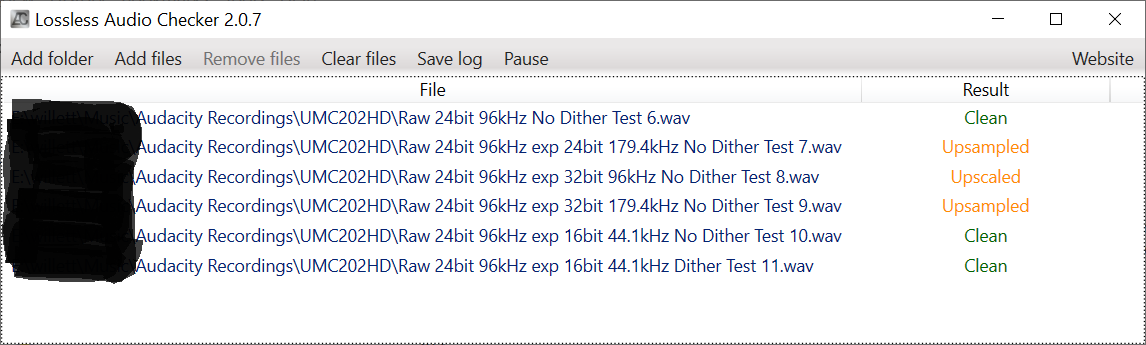
I would love to know if I’m missing anything here and will update accordingly if advised. Meanwhile perhaps this will help another inquisitive user trying to make sure a USB device is doing what you think. – Clark2
Steve and Others – This worked for me, to a point, with the UCA222. The options offered were as in the attached screen shot:
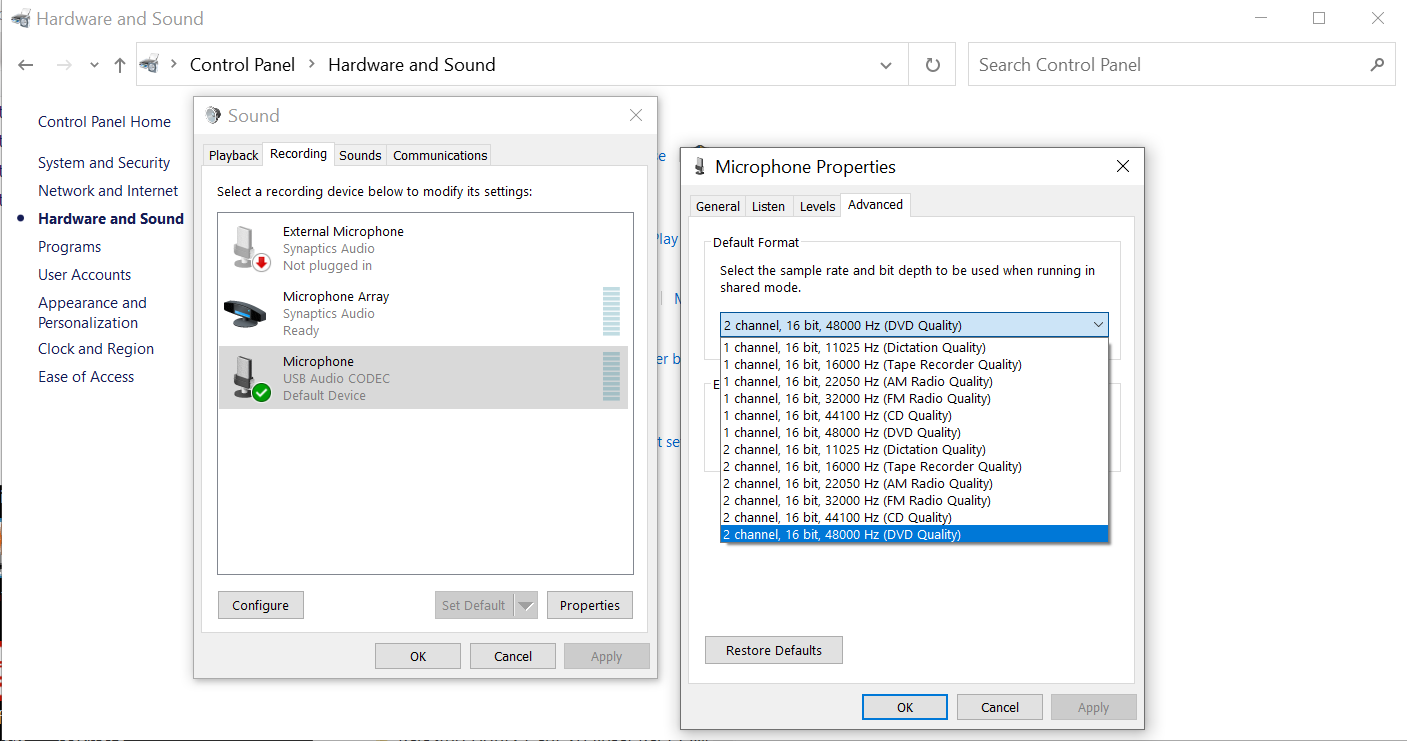
This is a Windows built-in driver, since that’s what was recommended by Behringer for the device. I chose the obvious selection, as highlighted, which agreed with the published specs. This might be the default value, since it persists after a period of disconnection.) I set the Audacity Project properties accordingly (dither to “None”), and everything seems to work as expected until I got to the report from “Lossless Audio Checker,” shown in the next screen shot:
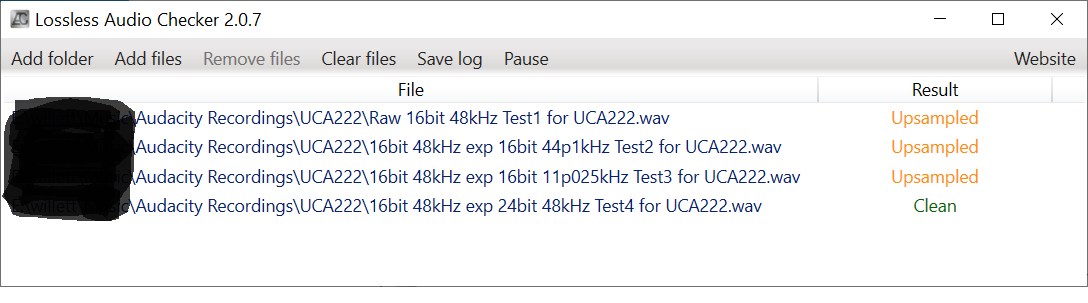
I was surprised to find that my first export (16-bit 48kHz, as programmed) yielded “Upsampled!”
I tried 44.1kHz, and finally the lowest sample rate offered by the (Windows) driver, with the same result. Floundering around, I tried upping the bit depth on the 48kHz case to 24 bits and was even more surprised to find “Clean!”
Faced with this data and the fact that I have no other way (that I know of) to determine the actual bit depth and sample rate being output by the UCA222, I’m at a loss to know what’s going on. Any thoughts? – Clark2
Next Step: I set the UCA222 again to 16-bit 48kHz, this time recorded a clip in Audacity with the Edit/Preferences/Default Sample Format set to 24-bit and the Dither set to NONE, and exported it to WAVE at 48kHz. There should be no resampling going on here and no danger of floating-point processing filling out the most significant byte of each sample. Correct?
Again Lossless Audio Checker reported “Upsampled,” which makes no sense to me.
I don’t know much about the binary format of WAV files in Windows, but I expected the data portions of this file to have either 00,
80 (signed binary or 1’s complement), or FF (2’s complement) in the MSB of every sample, in other words, every third byte of the PCM stream. Looking at the file with a HEX editor, however, I don’t see enough of either 00 or FF (leaving aside whether my computer is “Bigendian” or “Smallendian”) for this to be correct.
What am I missing here? – Clark2
What is the intended use of the two integer options for Sample Format in Audacity? Am I using this one correctly or violating some unstated assumption? – Clark2
I’m not sure that there is an intended use case.
I know that some people like to use 16-bit when making very long recordings (the project will only be about half the size of a 32-bit float project).
I can’t think of a good reason to use 24-bit when 32-bit float is available. The space saving is only about 25%, and other than that there are only down sides to using 24-bit rather than 32-bit float.
Steve – Thanks very much for your quick reply.
I don’t mean to badger you (or the forum); you have really been extremely helpful! But one use of 24-bit (integer) format might be exactly what I’m attempting to do: To see the actual data coming in from a USB audio interface, rather than something converted to float, potentially processed, and then re-converted to integer for export.
Does this make any sense? – Clark2