I have recently downloaded the free Audacity software because I want to record BBC Radio 3 concerts via its website onto my laptop. The instructions for setting up Audacity and successfully completing a music recording seem very complicated for me, an old chap of nearly 80 years. I have looked at your tutorial and some YouTube tutorials, but it still all seems complicated, sometimes the instructor goes too quickly for me and sometimes technical terms are used which I do not understand. The recording I have made so far, having done my best to set up Audacity and the recording, is feint when I play it back, and I think included noises I made during it such as my breathing.
Does someone have a simple list of instructions (1, 2, 3, 4 etc.) which would enable an Audacity novice to set up a good quality laptop concert stereo recording (say 88,200) from a broadcasting organisation website? I have tried the Audacity manual and YouTube videos, but none make the procedure clear to me.
Very often BBC radio programmes have direct download links.
Ocenaudio is also free but faster, more stable and easier to use than Audacity.
Use get_iPlayer - this is NOT easy to use (at first) but downloads rather than records. This means that a 60 minute concert would download in a couple of minutes rather than taking 60 minutes to record.
Could you give me a specific concert you are interested in?
And, are you based somewhere in the UK?
I will ponder on this more.
Mark B
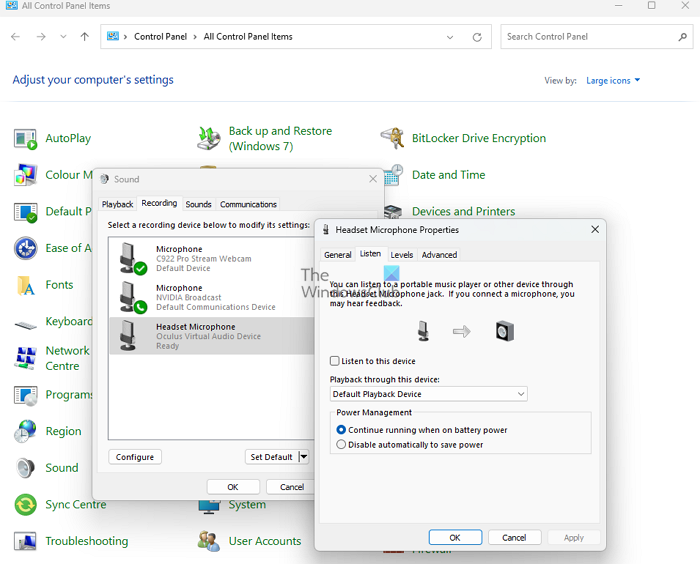
If you hear surrounding noise, you have probably recorded via the built-in microphone of your computer.
What instructions did you (try to) follow?
What operating system/version? Windows (7/8.1/10/11)? macOS (which version?)? Linux (what distribution / what version)?
With “say 88,200”, you probably refer to the sample rate. If you do not have any very special needs, leave it at 44100 Hz / 32-bit float. This is the standard setting when you install Audacity without changing it.
I do not know how BBC3 handles its concerts - but did you try just downloading them directly instead of recording them? You could for example install “JDownloader2” (available for Mac and Windows, don’t know about Linux) and let it do the work. After successful download, you could use Audacity to split the concert in its various parts (movements) etc.