My goal is to create custom albums of instrumental clips from songs that aren’t entirely instrumental.
In the case of my first project, Frank Zappa’s Halloween '78, there are plenty of full instrumental tracks, so I would then make an all instrumental playlist from the original album and the clips album.
1-05 Easy Meat (Live At The Palladium, NYC - 10_31_78).m4a is the original file name of the first track of the clips album, so I guess the new file name should be 1-01 Easy Meat Solo (Live At The Palladium, NYC - 10_31_78).m4a.
Halloween '78 (Live At The Palladium, NYC _ Super Deluxe) is the name of the folder/album, so I’ll nam the new folder Halloween '78 (Live At The Palladium, NYC _ Clips).
My first question is, if that’s all I do (export newly created m4a files, with new names along those lines, to a folder with that name), will Apple Music recognize it as an album when I try to import it?
Unless you’re editing the songs, why bother bringing them into Audacity?
Make copies of the files from Music, change the file names, then use an MP3 tag editor (such as kid3) to edit the metadata.
As far as I know, Apple Music uses the metadata (not the file names) to identify song titles, album titles, and artists.
I am editing songs, to end up with just instrumentals, no vocals.
I suppose that means that the new shorter versions will have the same meta data, so there will be two track 5’s in the Halloween '78 album, and I’ll edit the meta data in Music to create the clips album.
Well, it seems that my instrumental clips do not have any meta data that I can see. By that I mean that all the fields are blank when I click on the metadata editor. So I’ve created new meta data. But my workflow is moving at a glacial pace.
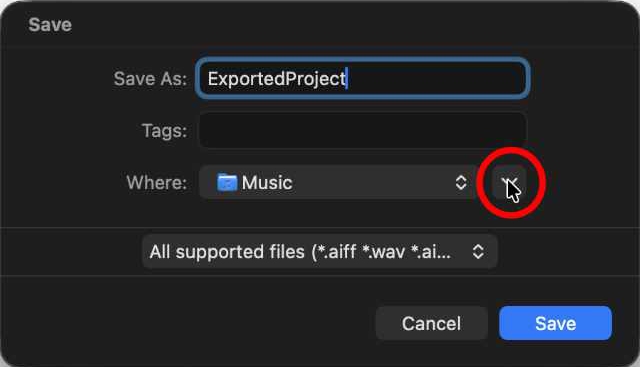
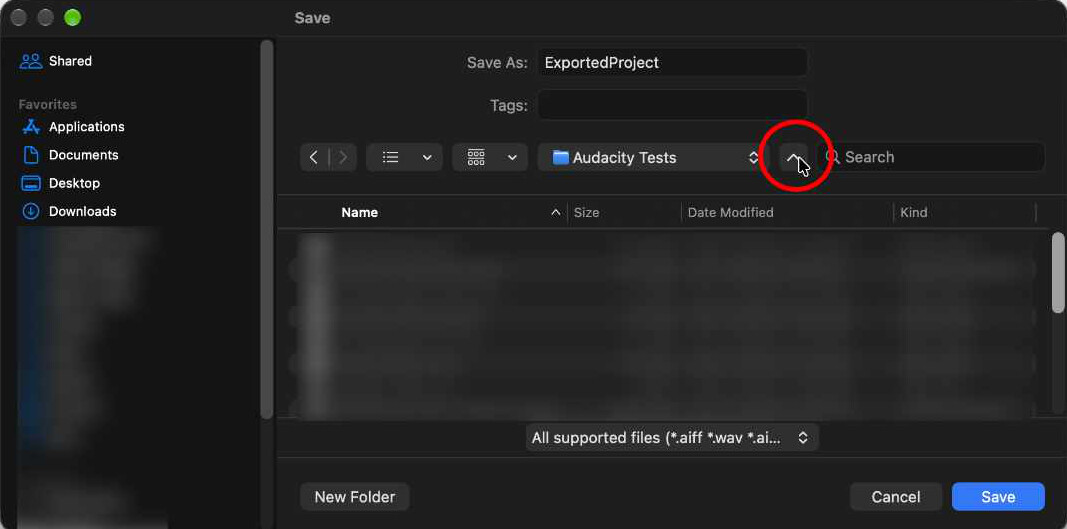
After exporting the finished product, I have to edit the name of the file, and I can’t seem to export to a folder for the new album, just to major destinations such as Desktop or Music. And I can’t figure out how to delete that finished product in Audacity, since once exported I don’t need it in Audacity anymore.
The solution I’ve come up with is to close Audacity after every project, and choose Don’t Save. Then I open Audacity and start with the next track. Laborious is the operative word here.
Yes, metadata handling in Audacity 4 needs a lot of work.
You might be happier with Audacity 3.7.9. At least that version reads the metadata contained in the imported track. So all you’d need to do is edit the metadata for the Song Title and Album Name before you export the edited version.
Are you on Mac? You don’t need to quit Audacity, just close the project. Or, you could delete the track and import the next song into the open project. Audacity 3.7.9 will update the metadata with the new song name.
Finally, you could ignore the metadata editor in Audacity, and bulk edit the metadata after exporting all the songs, in a metadata editor program such as kid3.